Before you try to claim a Google Business Profile, you need to check if someone else has already claimed it. If it's already claimed, you won't be able to manage it until you get access. Here are three ways to check.
How to Check If a Profile Is Claimed
These methods rely on what Google shows publicly. They're accurate most of the time, but occasionally Google may display a claimed profile as unclaimed.
Using Google Search
Search for the business name on Google. If you see a knowledge panel on the right with a link that says "Own this business?" or "Claim this business," the profile hasn't been claimed yet.
Using Google Maps
Search for the business on Google Maps and click on its listing. If you see a "Claim this business" link in the profile details, it hasn't been claimed.
Using GMB Everywhere
The GMB Everywhere Chrome extension shows the claim status right on the audit page, along with other useful details like the Business Profile ID, Knowledge Panel ID, and Place ID.
Step 1: Install the extension from gmbeverywhere.com. Click the Install Chrome Extension button.
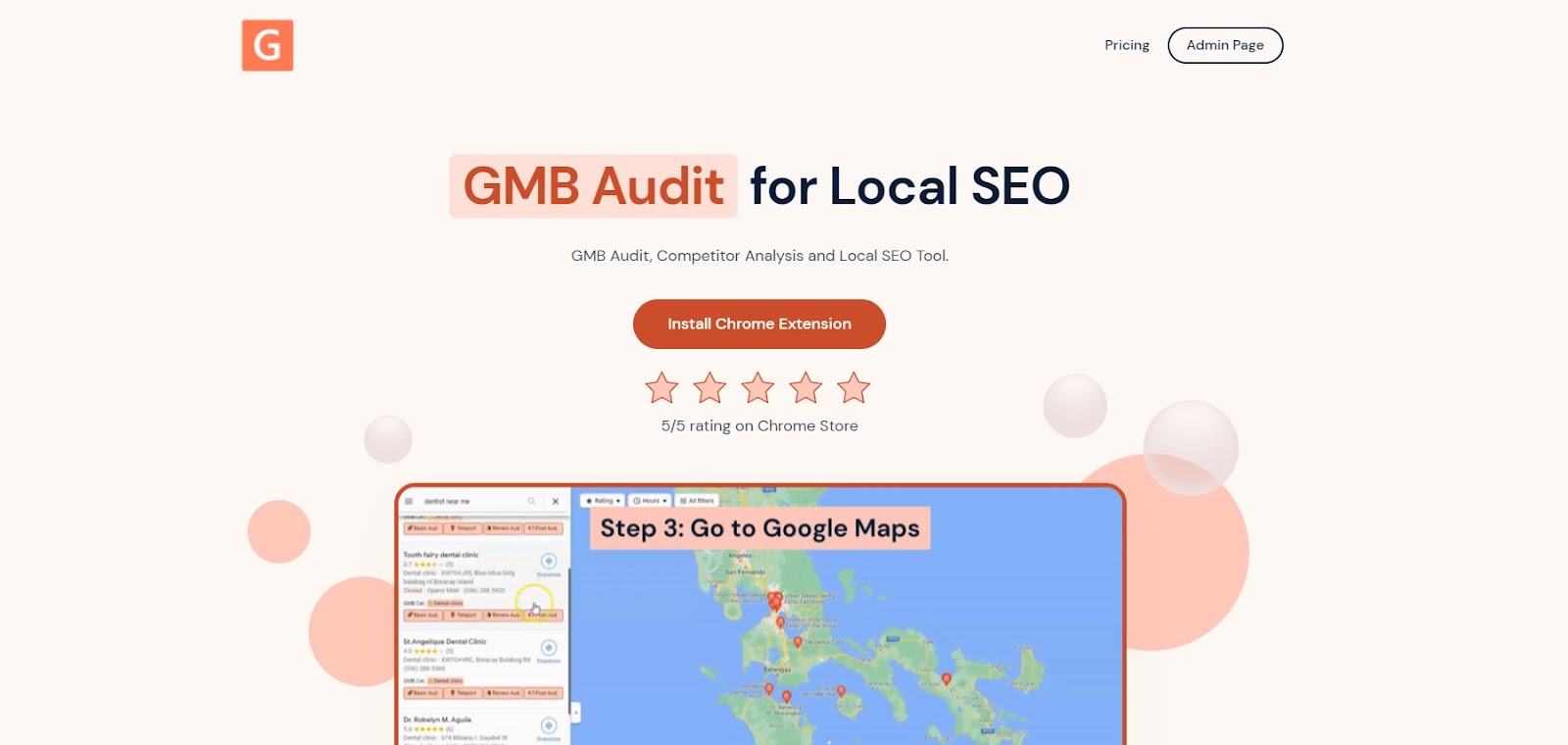
The GMB Everywhere homepage.
You'll land on the Chrome Web Store page. Click Add To Chrome to install.
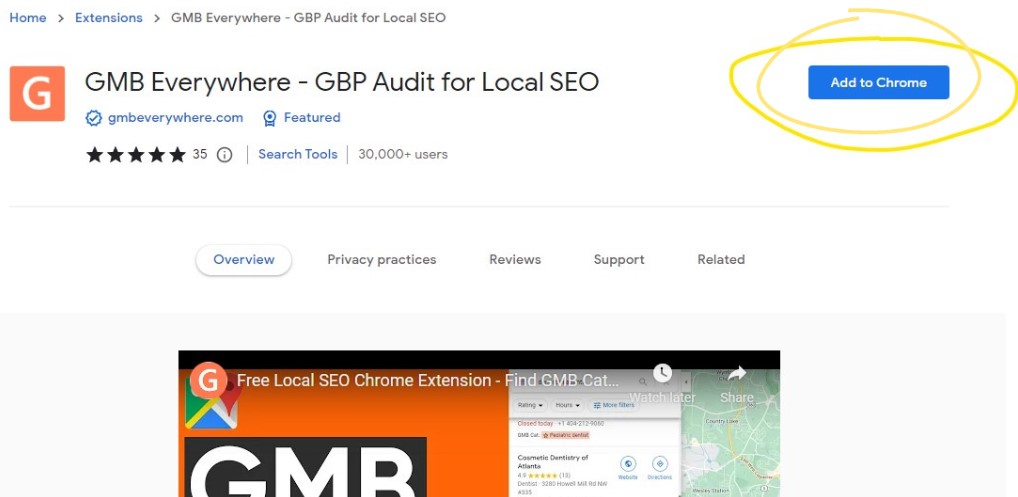
Click "Add to Chrome" to install the extension.
Step 2: Go to maps.google.com, search for the business, and click the Basic Audit button in the results panel.
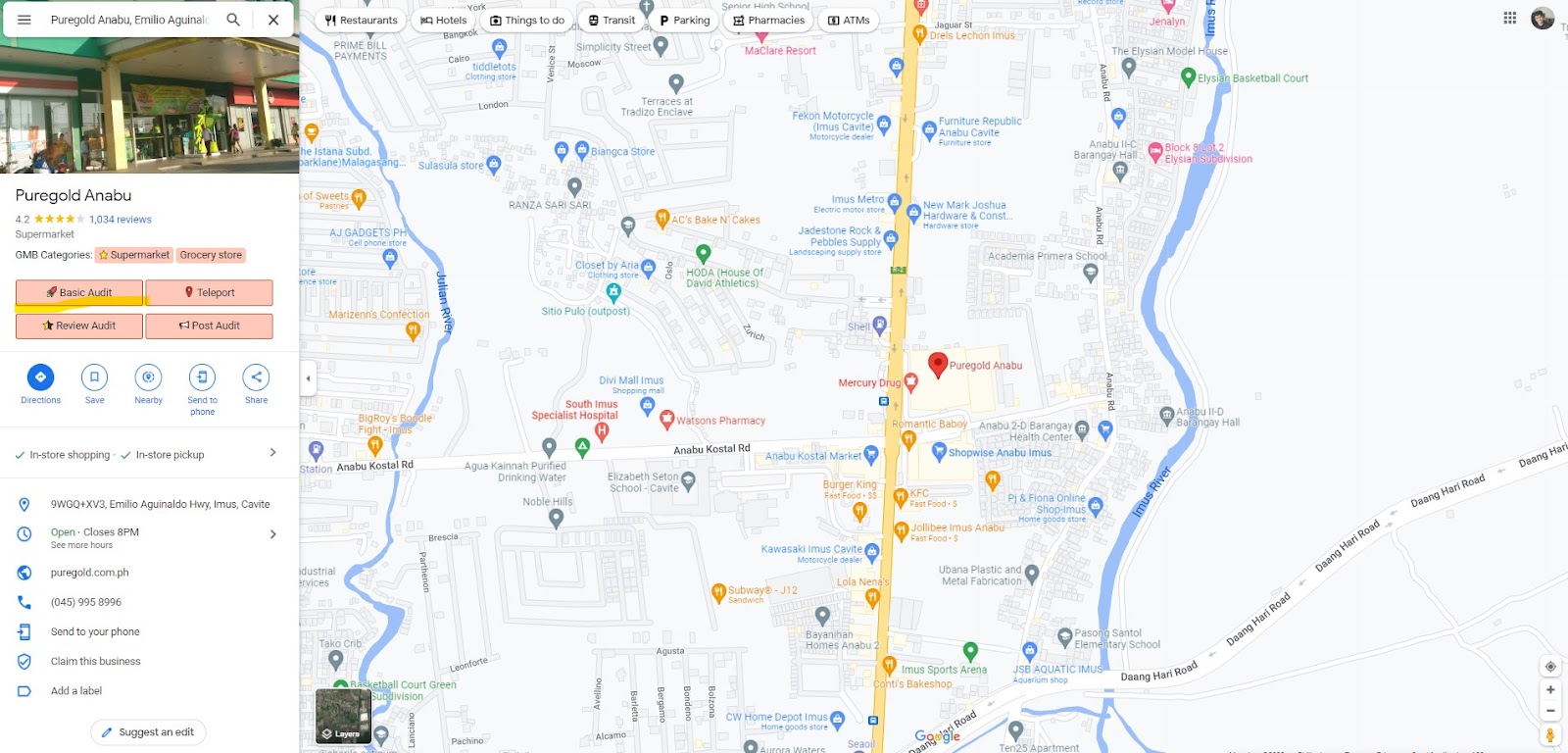
The Basic Audit button in the search results panel.
This opens the audit page. At the top, you'll see profile details including the claim status.
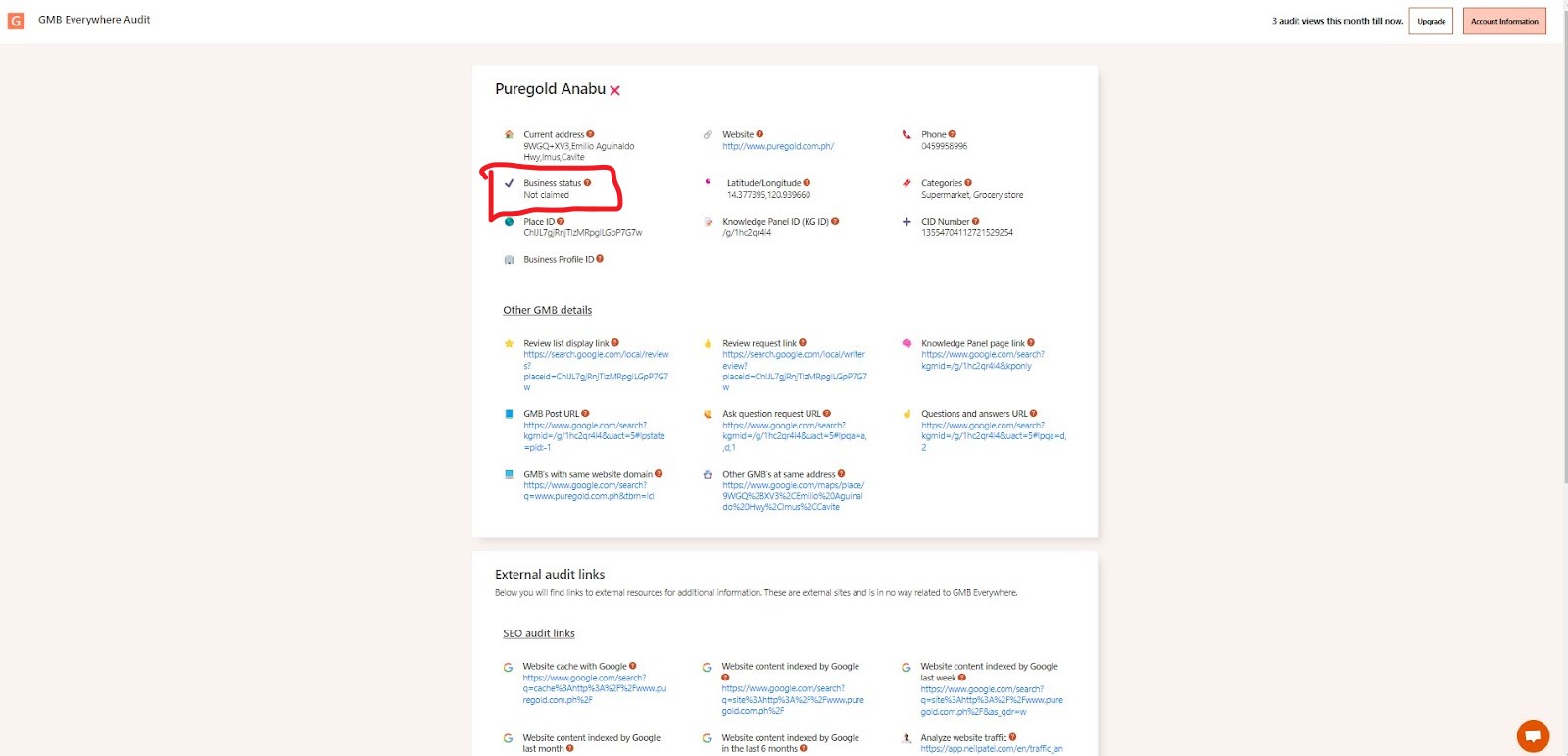
The claim status field on the audit page.
The claim status tells you whether the profile is currently managed by someone. If it shows as unclaimed, you can go ahead and claim it.
Why This Matters
Checking the claim status before you try to claim a profile saves you from a few common problems:
- Someone else controls your info. If another person has claimed your profile, they can change your business name, address, phone number, or website without your knowledge.
- Duplicate listings. Trying to claim a profile that's already managed can create a second listing, which confuses customers and splits your reviews.
- Inconsistent information. When your details don't match across Google Search and Maps, customers have a harder time finding you, and it can hurt your local ranking.
How to Claim Your Profile
If the profile is unclaimed, here's how to take ownership:
- Make sure you have a Google account. You'll need one to manage a Google Business Profile. If you don't have one, create one at the Google sign-up page.
- Find your business on Google Maps. Search for your business name. If it doesn't show up, click "Add a missing place" to create a new listing.
- Click "Claim this business" or "Own this business?" Google will walk you through a verification process. This might involve a postcard, phone call, or email to confirm you're the owner.
Once verified, you can update your hours, phone number, website, photos, and more. You'll also be able to respond to reviews and create posts.
Conclusion
Always check the claim status before trying to claim a profile. If it's already claimed by someone else, you can request access from the current owner or contact Google support. For more tips, check out our guides section.