When someone searches for your type of business on Google Maps, where does your listing show up? The answer depends on the searcher's location. This guide shows you how to check your ranking from any spot on the map using GMB Everywhere's Teleport feature.
Why Local Ranking Matters
When someone searches for "dentist" or "plumber" on Google Maps, the results change based on where the person is standing. If your business doesn't show up in the top results for your area, you're missing potential customers. According to Google, three factors decide your local ranking:
- Relevance – How well your profile matches what someone is searching for.
- Distance – How far your business is from the searcher's location.
- Prominence – How well-known your business is, based on reviews, links, and overall online presence.
How to Check Your Ranking with Teleport
GMB Everywhere's Teleport feature lets you simulate a Google Maps search from any location. You'll see exactly where your business ranks for a given search term — and who ranks above you. You can also check your profile IDs and review competitor strategies from the same tool. Here's how to get started.
Step 1: Install the extension. Head to gmbeverywhere.com and click Install Chrome Extension.
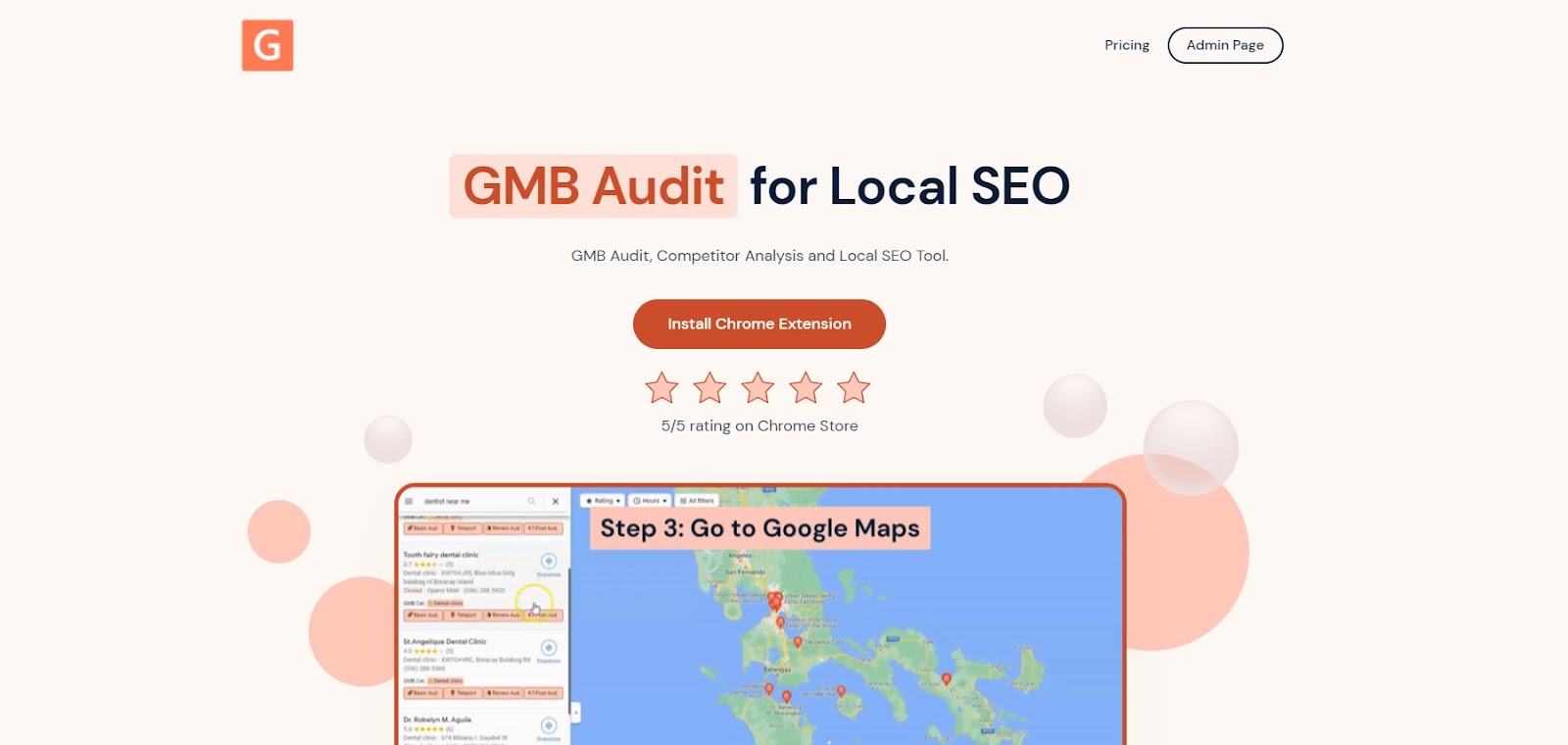
The GMB Everywhere homepage
On the Chrome Web Store page, click Add to Chrome.
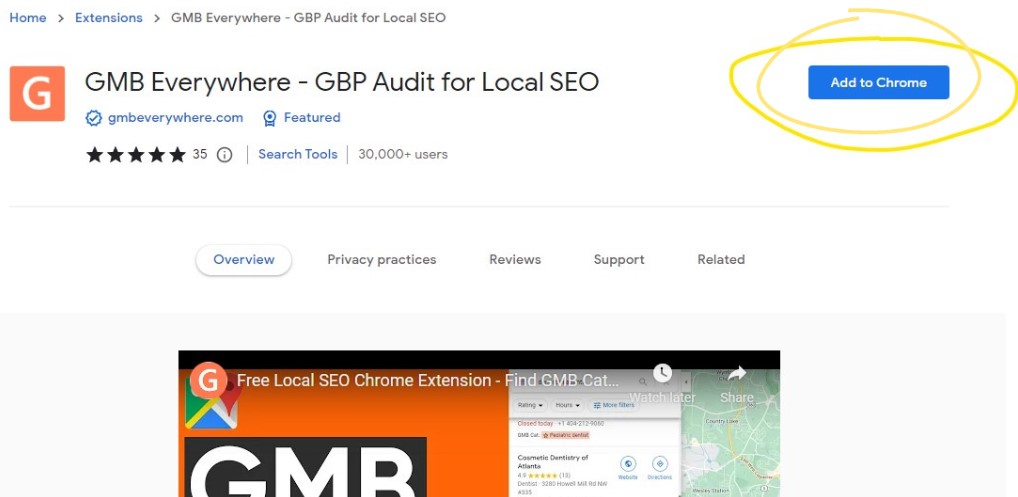
The Add to Chrome button on the Chrome Web Store
Step 2: Go to maps.google.com, search for your business, and click the Teleport button in the search results.
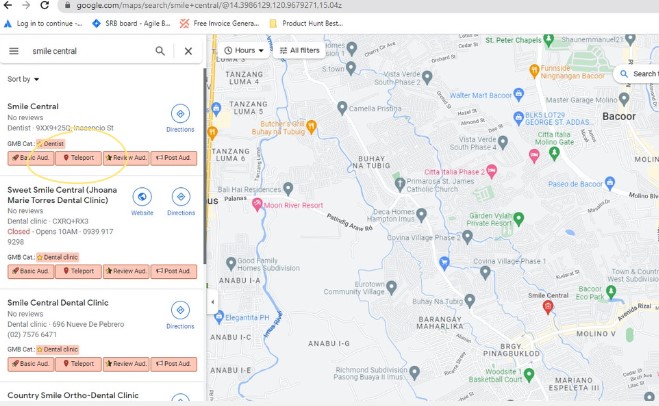
The Teleport button in search results
Step 3: A new tab opens with the Teleport page. Enter a search term your customers would use to find a business like yours (e.g., "dentist" or "plumber near me").
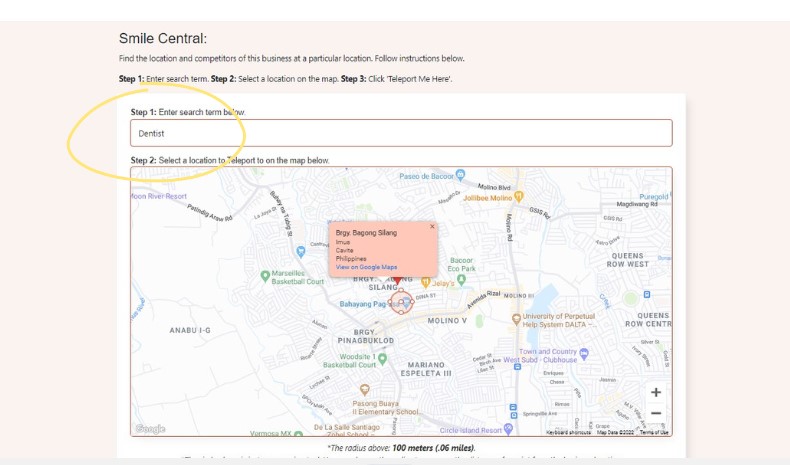
Enter your search term
Step 4: Click on the map to drop a pin where you want to simulate the search from.
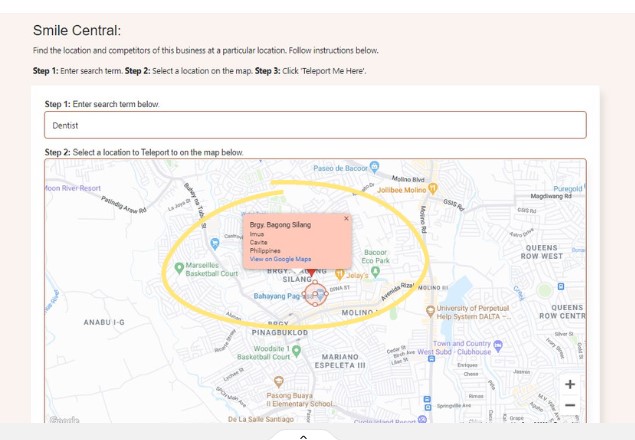
Drop a pin on the map
Step 5: Click Teleport Me Here.
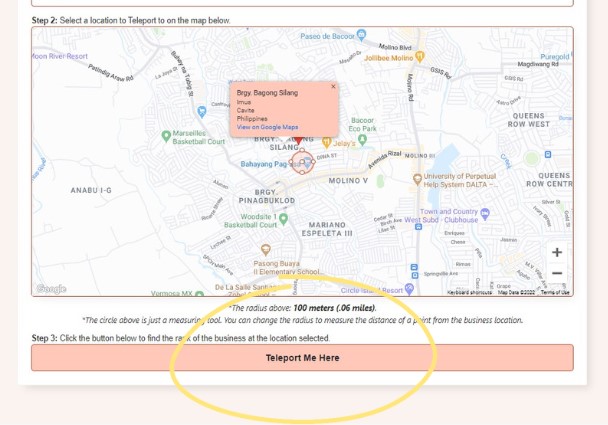
The Teleport Me Here button
The tool runs a simulated search from that location and shows your ranking. In the center of the screen, you'll see your rank number. In this example, the business ranks #1 in the selected area.
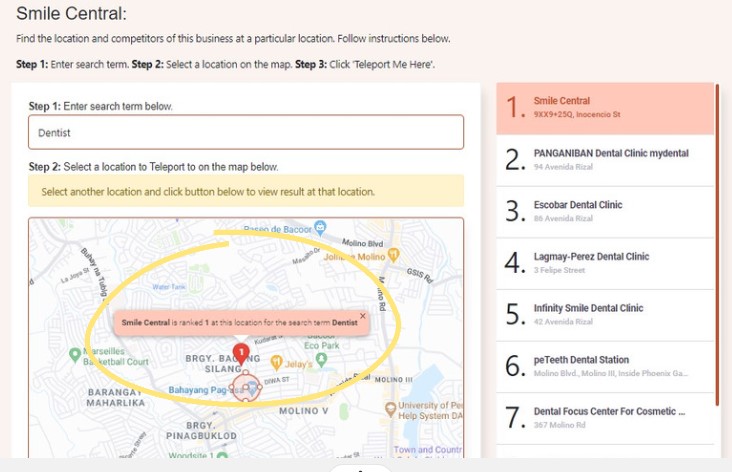
Your ranking result
On the right side, you'll see a list of all businesses that showed up for that search term and location. This is a quick way to see who your competitors are and how they rank compared to you.
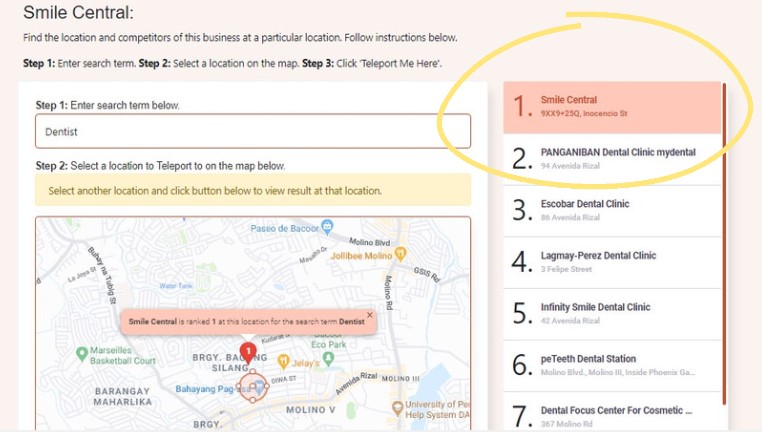
The full list of competing businesses
Video Tutorial
Conclusion
Checking your ranking from different locations helps you understand where you're visible and where you need to improve. Try running Teleport searches from several spots around your service area to get a complete picture. For more ways to improve your profile, visit our guides section.