Every Google Business Profile has three unique identifiers: a Place ID, a Customer ID (CID), and a Business Profile ID. You might need these when working with Google support, setting up API integrations, or connecting ad accounts. This guide shows you how to find all three in one place using GMB Everywhere.
What Are These IDs?
- Place ID – A unique code Google assigns to every place on Maps. You'll need it for Google Maps API integrations.
- Customer ID (CID) – The number tied to your Google Ads account. Useful for ad integrations and support tickets.
- Business Profile ID – Your profile's unique identifier. Google Support often asks for this when you contact them about your listing.
You can look these up separately using Google's Place ID finder or by digging through your profile settings, but that means jumping between tools. GMB Everywhere shows all three in one place.
How to Find All Three IDs
First, install the GMB Everywhere Chrome extension if you haven't already. Head to gmbeverywhere.com and click Install Chrome Extension.
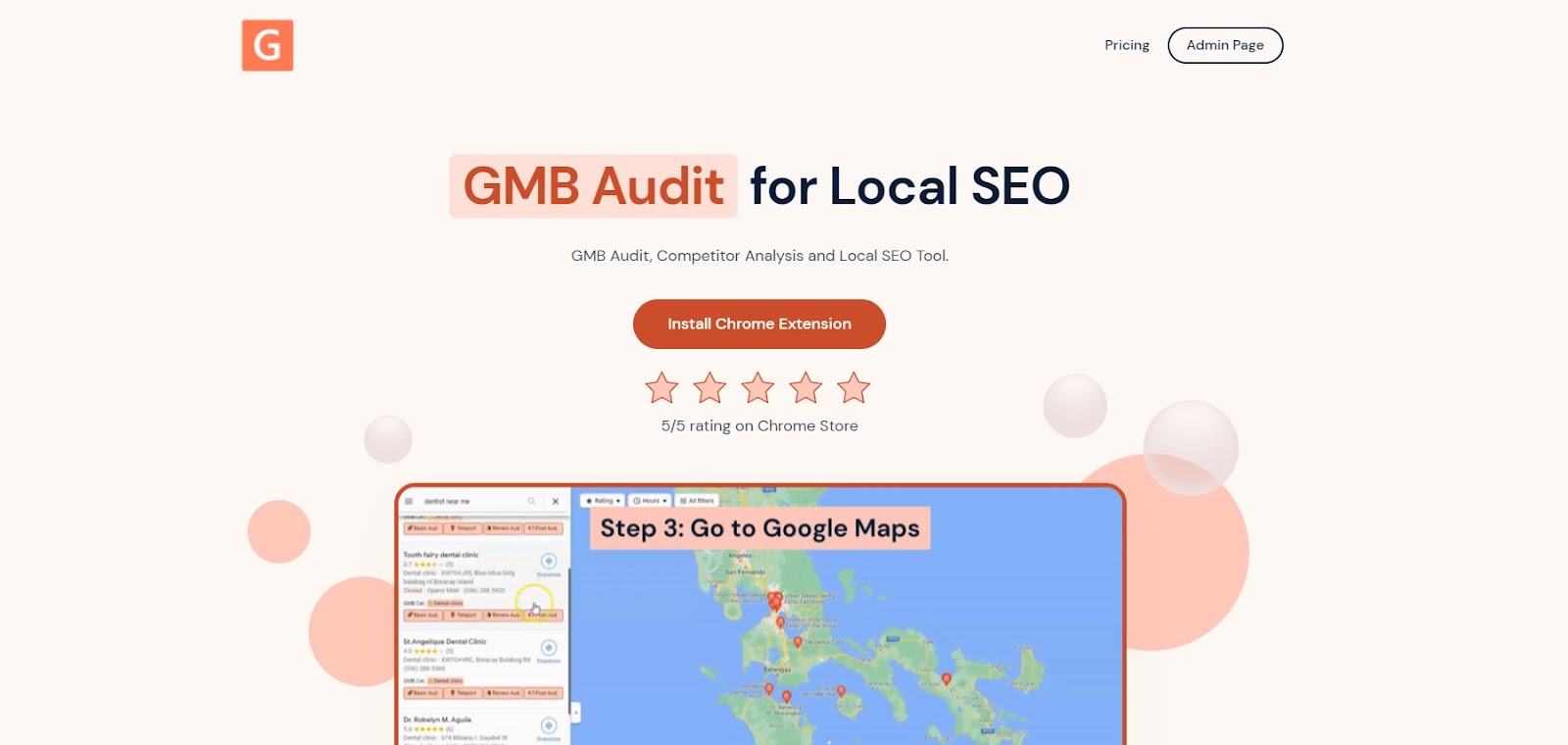
The GMB Everywhere homepage
On the Chrome Web Store page, click Add to Chrome.
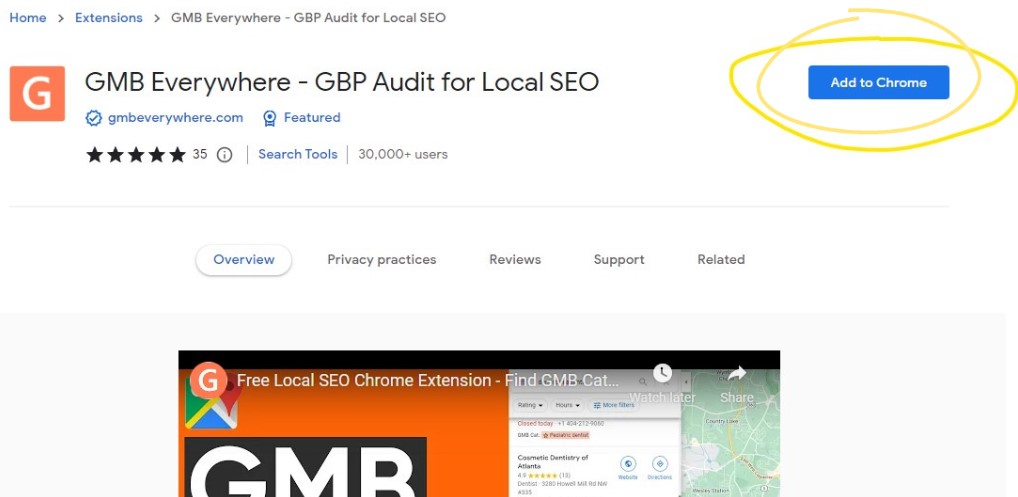
The Add to Chrome button on the Chrome Web Store
Once installed, go to maps.google.com and search for your business.
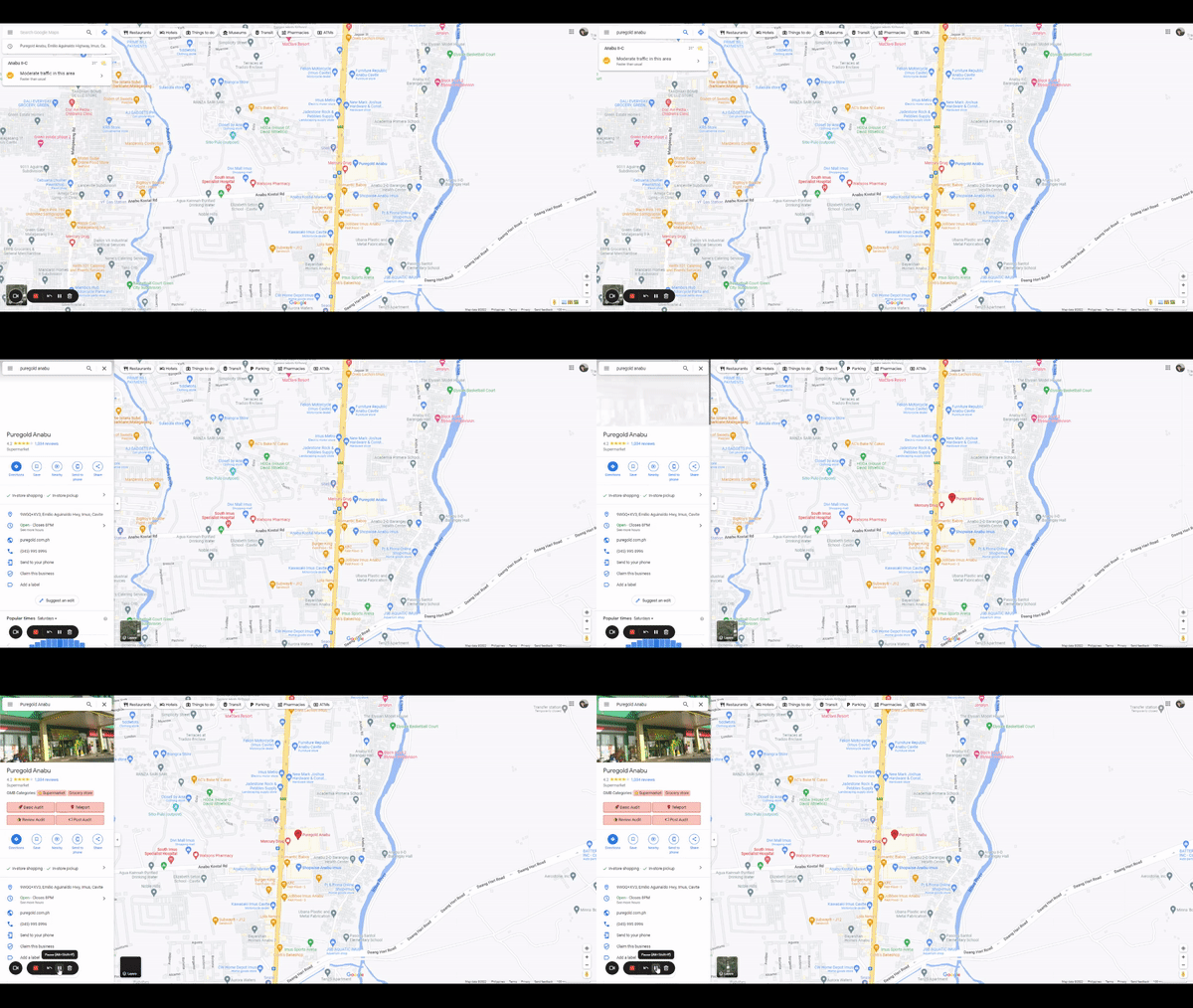
Searching for a business on Google Maps
In the search results on the left, you'll see GMB Everywhere buttons. Click Basic Audit.
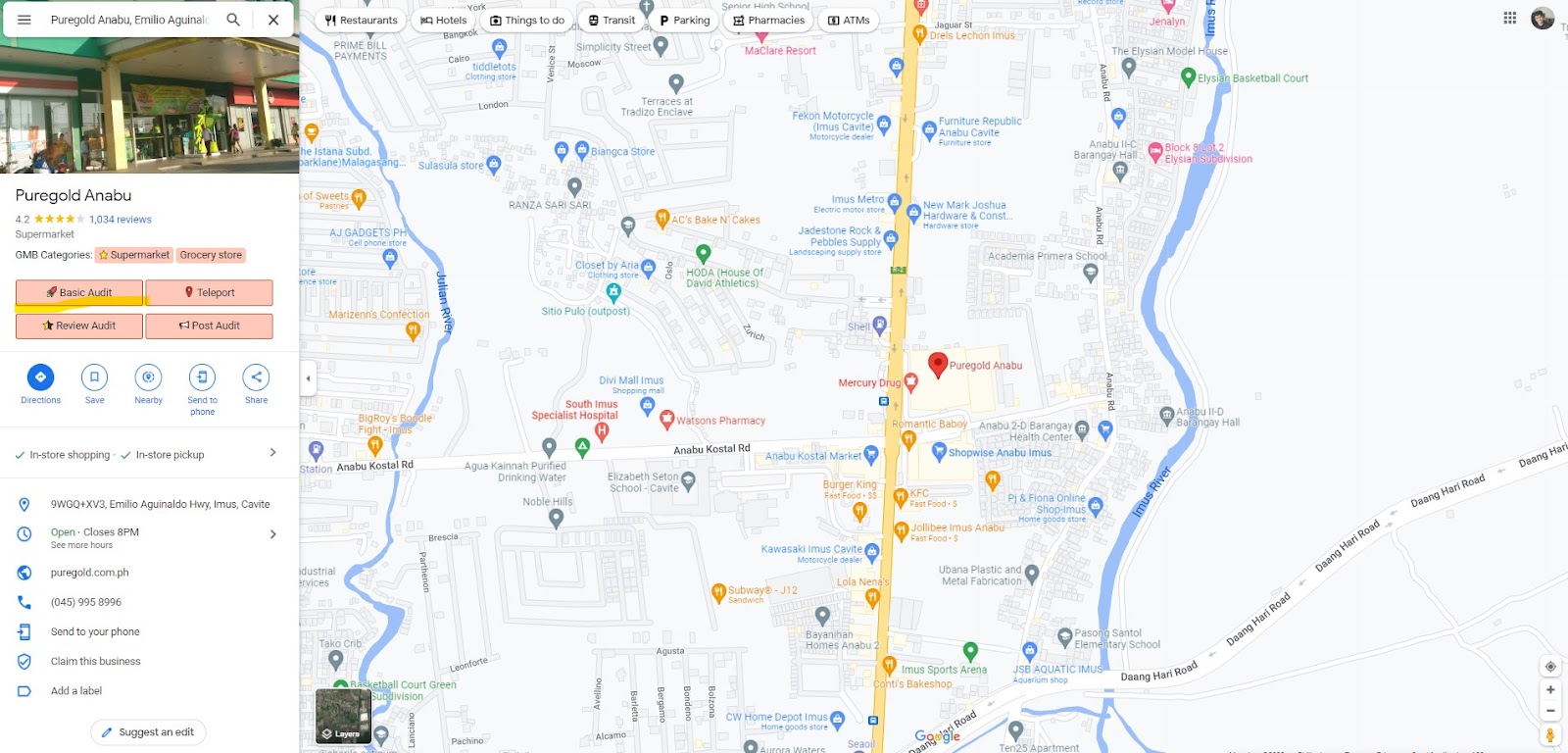
The Basic Audit button in search results
This opens the audit page, which shows your profile details, audit insights, and all three IDs.
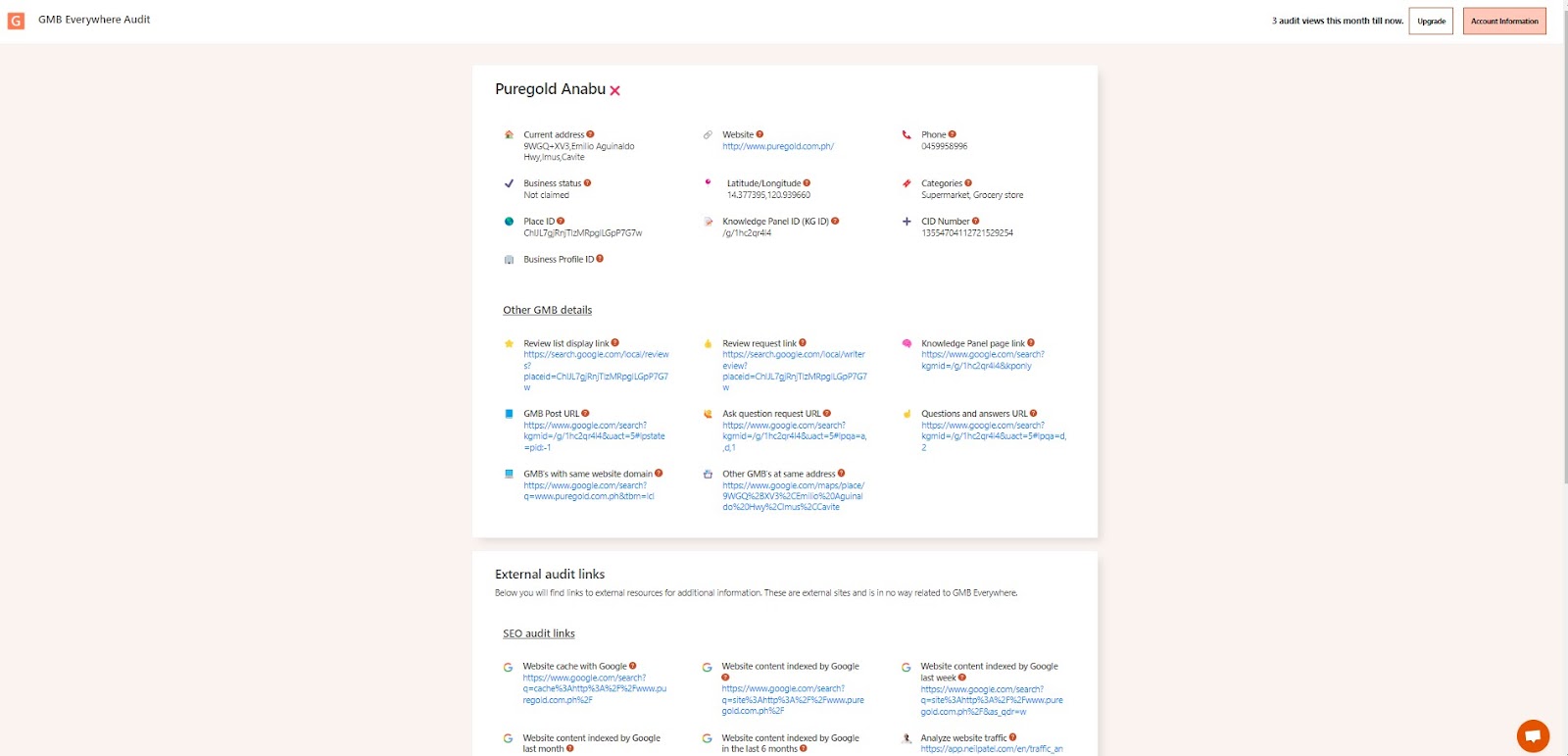
The GMB Everywhere audit page
Where to Find Each ID
At the top of the audit page, you'll see your profile details. Here's where each ID appears:
Place ID
The Place ID is highlighted below.
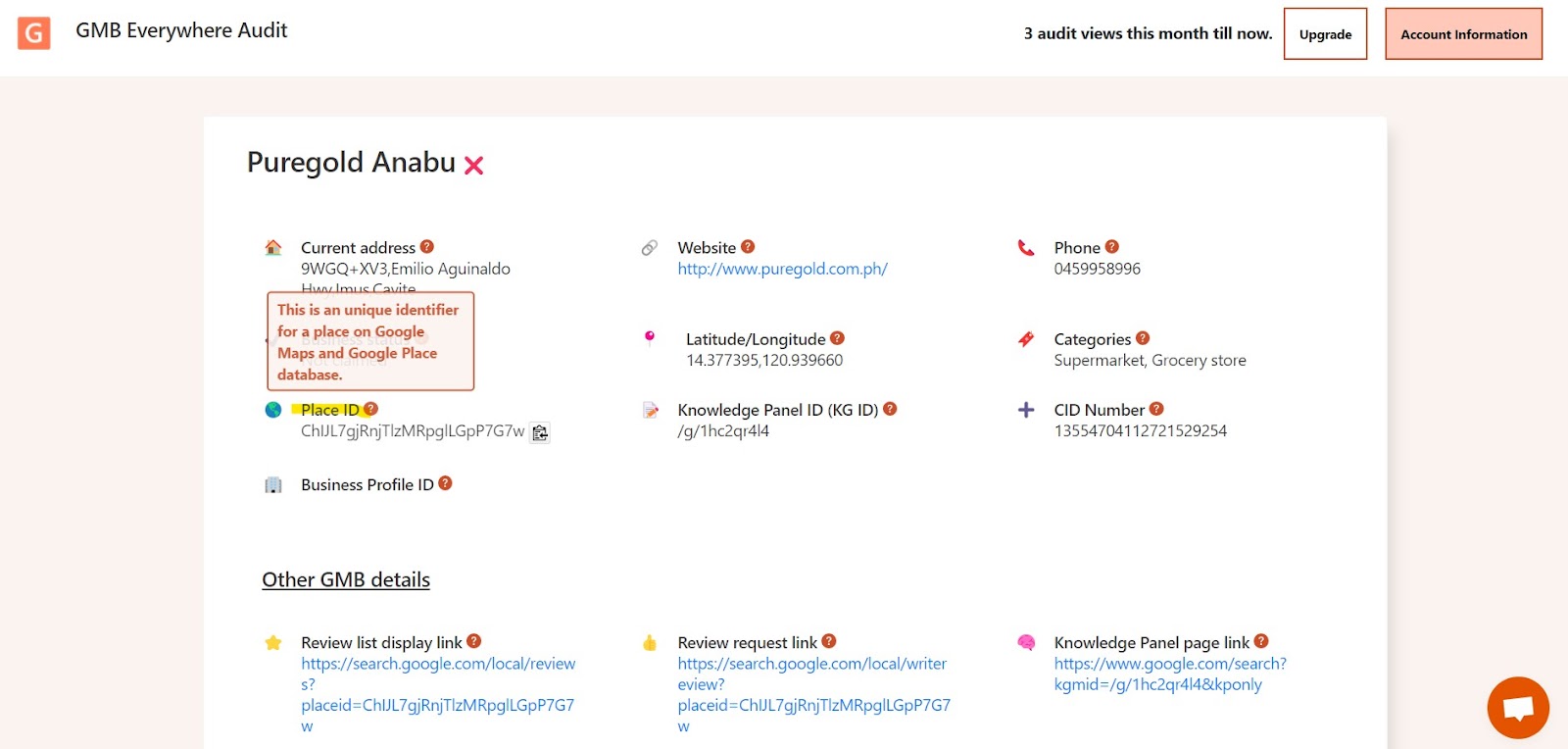
The Place ID highlighted on the audit page
Customer ID (CID)
The CID is highlighted below.
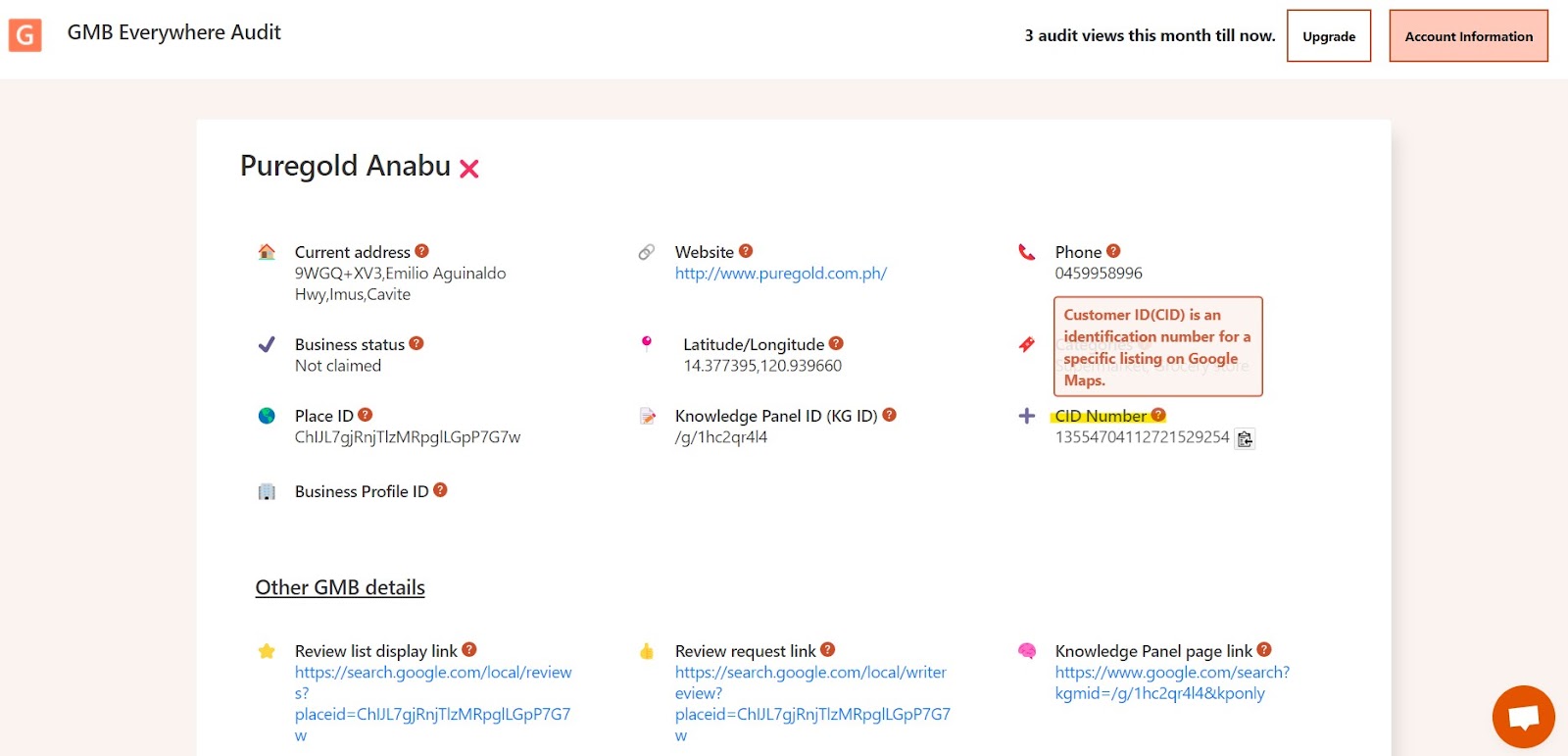
The Customer ID (CID) highlighted on the audit page
Business Profile ID
The Business Profile ID is highlighted below.
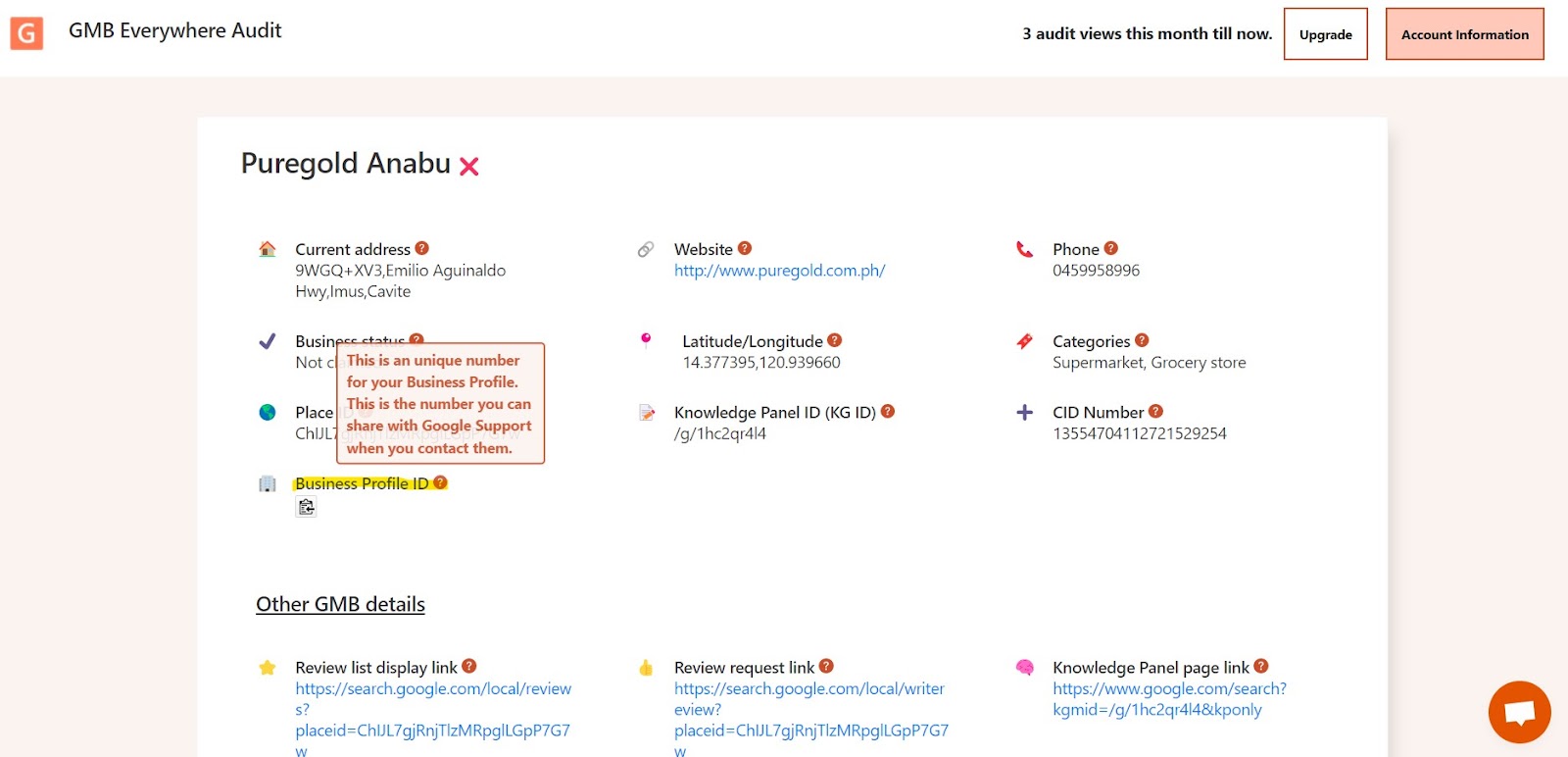
The Business Profile ID highlighted on the audit page
Video Tutorial
Conclusion
Instead of hunting through multiple tools, you can find your Place ID, CID, and Business Profile ID all from the same audit page. For more ways to get the most out of your profile, check out our guides section.