If you want to know who you're competing against on Google Maps in a specific area, GMB Everywhere's Teleport feature makes it easy. You can search for any keyword at any location and see exactly which businesses show up and where you rank. This guide shows you how to do it step by step.
Why Check Your Competitors
Looking at your competition helps you understand what's working in your market and where you can improve. Here's what you can learn:
- What customers expect: See what services, hours, and information top-ranked businesses offer in your area.
- Where you stand: Find out who ranks above and below you for specific searches so you know what you're up against.
- What you can do better: Spot gaps in your own profile by comparing it to competitors who rank higher.
- What's changing: Keep track of new competitors entering your area or changes in who ranks at the top.
How Google Maps Helps You Research Competitors
Google Maps is where most people find local businesses. You can search any area and see the businesses that show up, check their reviews, look at their photos, and visit their websites. But doing this manually only gives you a snapshot from your current location.
That's where GMB Everywhere's Teleport feature comes in. It lets you search from any location, so you can see exactly who ranks for a given keyword in a specific neighborhood, city, or zip code, even if you're not physically there.
How to Find Competitors at Any Location
The GMB Everywhere Chrome extension lets you check your ranking in local search results and see who else shows up for the same keywords. You can also look into competitor strategies like their categories, services, and posts. The free plan includes up to 5 audits per month.
To get started, go to gmbeverywhere.com and click the Install Chrome Extension button.
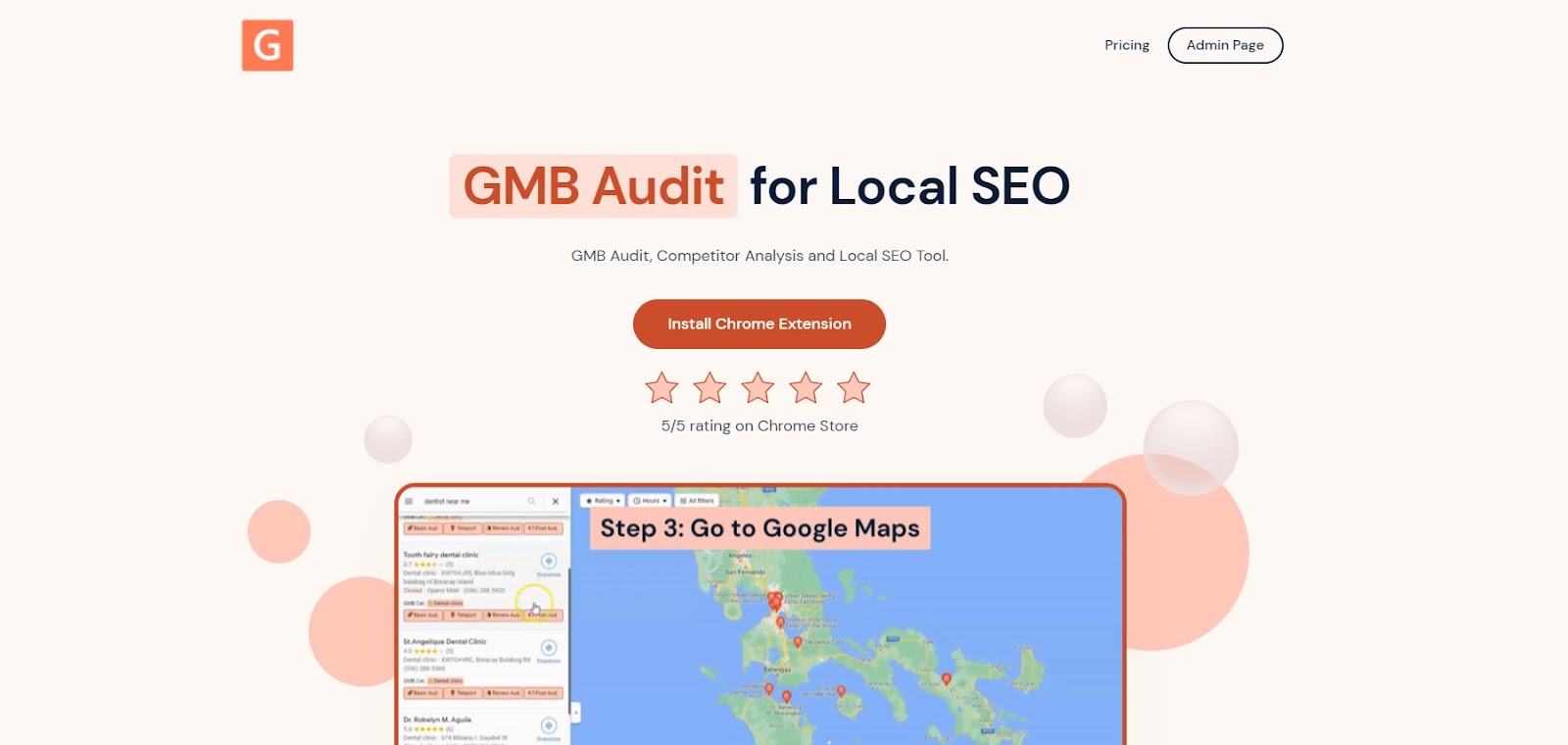
The GMB Everywhere homepage.
You'll land on the Chrome Web Store page. Click Add To Chrome to install.
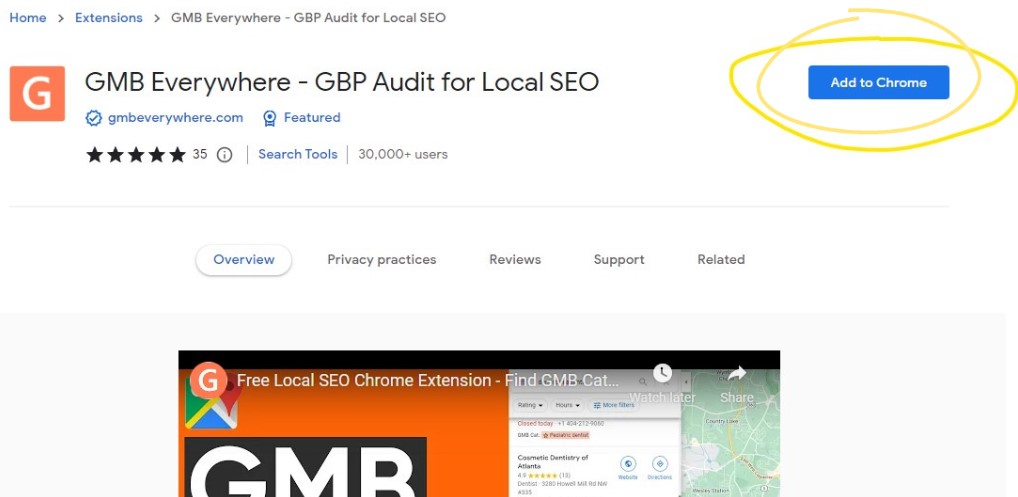
Click "Add to Chrome" to install the extension.
Once installed, go to maps.google.com and search for your business. In the results panel on the left, click the Teleport button.
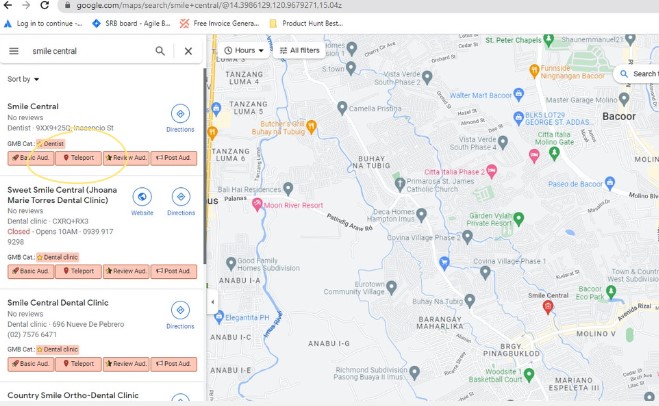
The Teleport button in the search results panel.
This opens the Teleport page in a new tab. Enter the search term your customers would use to find a business like yours on Google Maps.
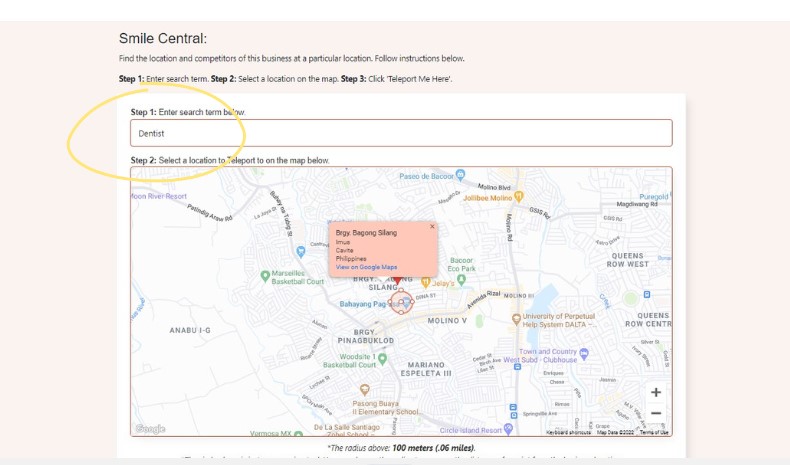
Type the keyword your customers would search for.
Next, drop a pin on the map at the location you want to search from.
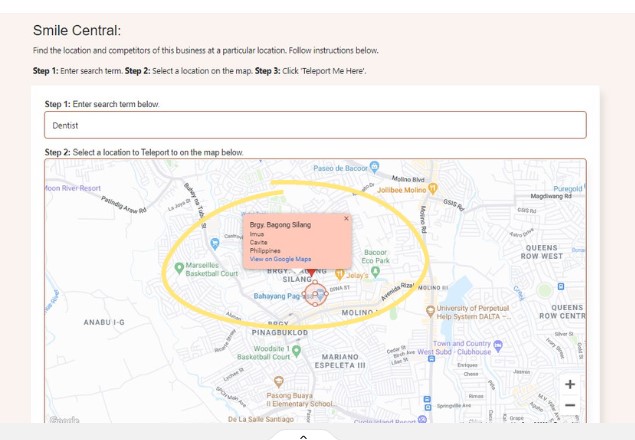
Click anywhere on the map to drop a pin at that location.
Once your pin is placed, click the Teleport Me Here button to run the search.
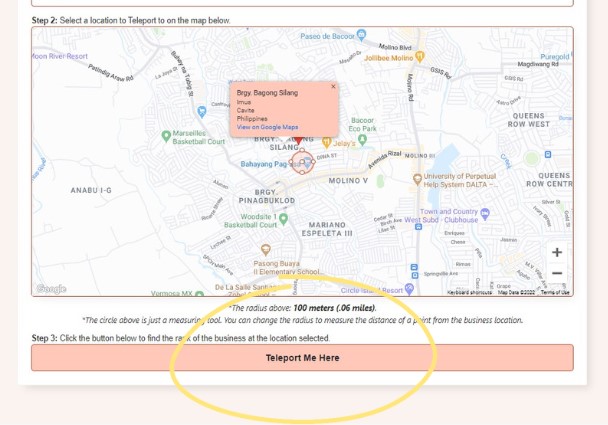
Click "Teleport Me Here" to run the search.
GMB Everywhere will show your ranking for that keyword at the location you chose. In the center of the screen, you'll see your rank number. In this example, the business ranks #1.
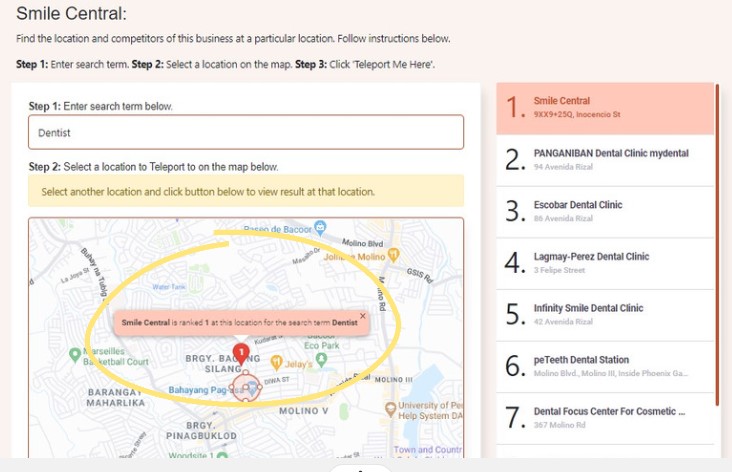
Your ranking for the keyword at the chosen location.
On the right side, you'll see a full list of all the businesses that showed up for that keyword at that location. This is your competitor list, ranked in order.
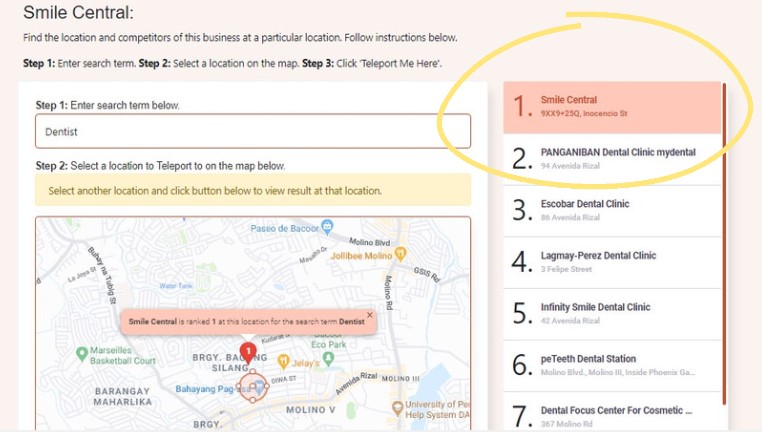
The full list of competitors for this keyword and location.
That's all it takes. You now have a clear view of every competitor at that location for your keyword.
Conclusion
Run this search regularly to stay on top of new competitors and changes in your local rankings. Check out more tips in our guides section.