Since April 2025, Google has been surfacing service and product "chips" directly inside mobile search results. When someone taps one of those chips, they see prices, short descriptions, and action buttons — all without ever leaving the listing. If your Google Business Profile is missing this information, you are quietly handing clicks to competitors who took ten minutes to fill it in.
This guide explains the difference between Services and Products, walks through the setup process, and shows you how GMB Everywhere can speed up research so you never have to guess which offerings to list. Everything here aligns with Google's current GBP guidelines.
Services vs Products: Know the Difference
Google treats Services and Products as two separate sections in your profile, and each one follows its own rules. Mixing them up leads to rejected edits or, worse, blank fields that searchers interpret as a bare-bones operation.
Services
Services represent what your business does. Think haircuts, HVAC maintenance, tax preparation, or personal training. Each service name can be up to 80 characters, and each description can be up to 300 characters. Google may pre-populate suggestions based on your primary category, but you can add custom services that better describe your actual offerings. Pricing is optional but recommended — searchers who see a price range upfront are more likely to call. For full details, see Google's Services & Products documentation.
Products
Products represent what your business sells. They appear in a scrollable carousel on your profile and can include a photo, a name (up to 58 characters), a description (up to 1,000 characters), a price, and a direct link to a purchase or booking page. Products work especially well for retail shops, restaurants with featured menu items, and service businesses that sell physical goods alongside their core work.
Product-Catalog Basics
Products live inside Collections, which act like folders. A bakery might create collections called "Cakes," "Pastries," and "Seasonal Specials." Each collection can hold an unlimited number of products, and you can reorder them to highlight bestsellers.
- Photos: Upload square images at 720 × 720 pixels minimum. Google crops non-square images unpredictably, so crop them yourself before uploading.
- UTM tags: Append UTM parameters to every product link so you can track how many clicks come from your GBP catalog in Google Analytics.
- Descriptions: Lead with the benefit, not the feature. Instead of "16 oz stainless-steel tumbler," try "Keeps your coffee hot for 8 hours — 16 oz stainless-steel tumbler."
Upload Workflow
Step 1: Log into your Google Business Profile dashboard and click Edit Services or Edit Products depending on which section you are updating.
Step 2: For services, add the service name, an optional price or price range, and a short description. For products, create or select a collection first, then add the product name, price, description, photo, and a link to your website.
Step 3: Compress every image to under 300 KB before uploading. Large files slow down the editor and can time out on shaky connections. Free tools like TinyPNG handle this in seconds.
Step 4: Save and preview your profile on mobile. Check that names are not truncated, photos render correctly in the carousel, and all links resolve to the right landing pages.
Refresh Cadence & Policy Safeguards
A quarterly review is the minimum. At the start of each quarter, open your profile and confirm that every price is still accurate, discontinued items have been removed, and seasonal offerings are in place. Stale pricing erodes trust fast — if a customer calls expecting the price they saw on Google and hears a different number, you have already lost credibility.
On the policy side, avoid keyword-stuffing service names or adding promotional language like "Best in Town!" inside a product title. Google's automated review system flags these, and repeated violations can limit your editing access. Keep names factual and descriptions informative.
How GMB Everywhere Solves This
Figuring out which services to list is often the hardest part. GMB Everywhere removes the guesswork with its AI Service Finder, which generates category-specific service suggestions in seconds. Here is how to use it:
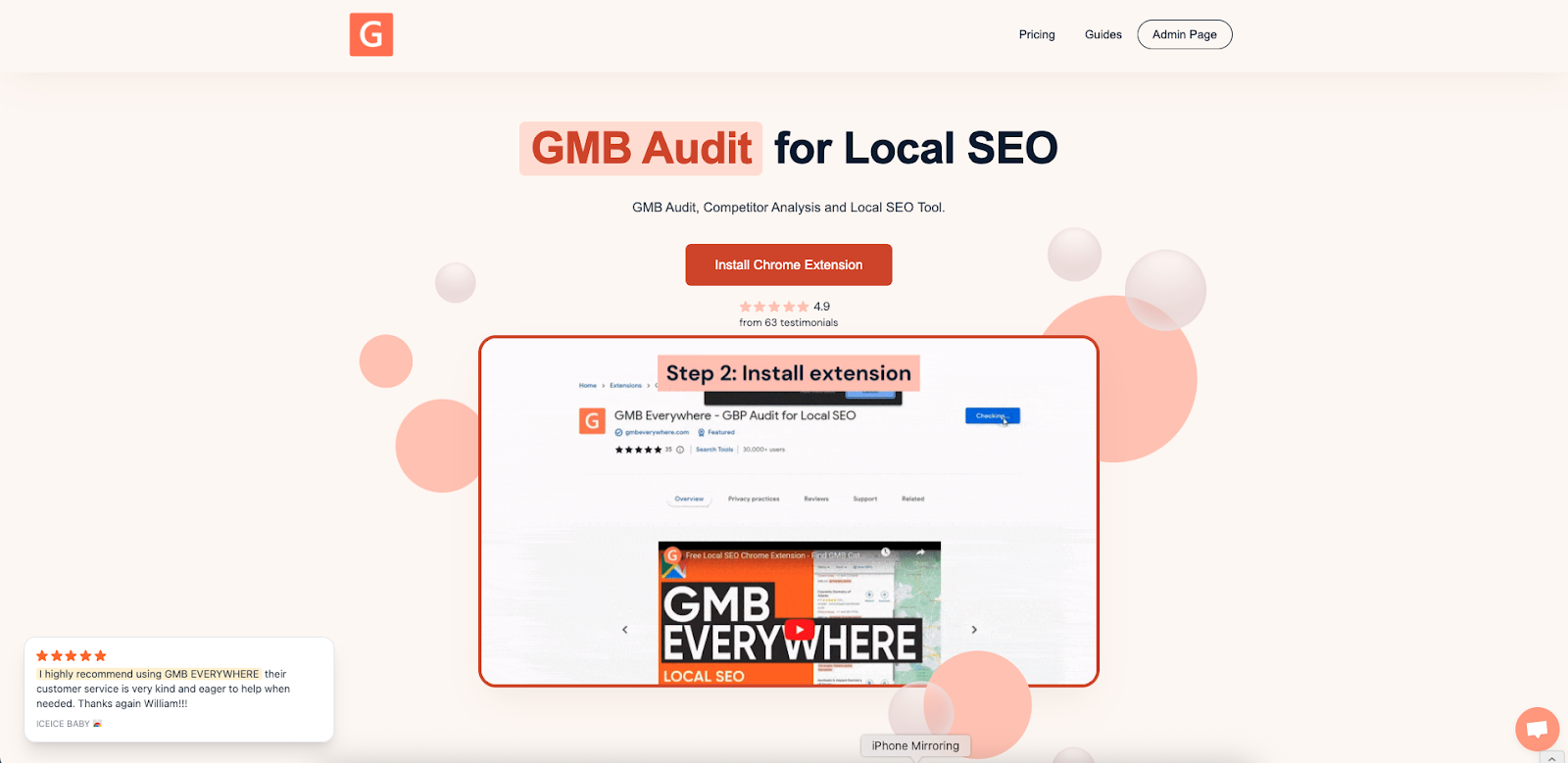
Step 1: Install the GMB Everywhere Chrome extension from gmbeverywhere.com.
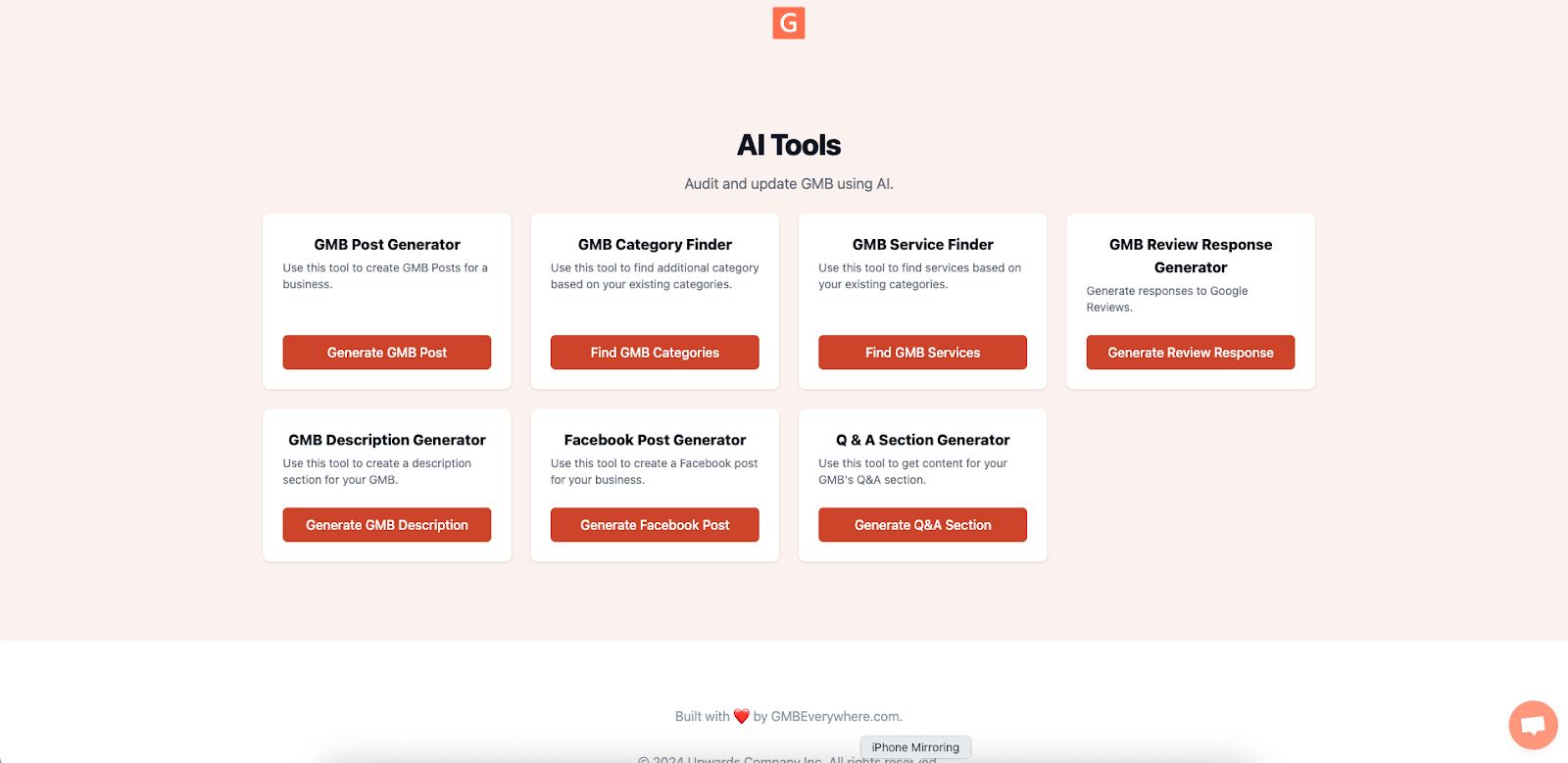
Step 2: Open the AI tools dashboard inside the extension.
Step 3: Click AI Service Finder and enter your business category (e.g., "Plumber," "Dentist," "Pet Groomer").
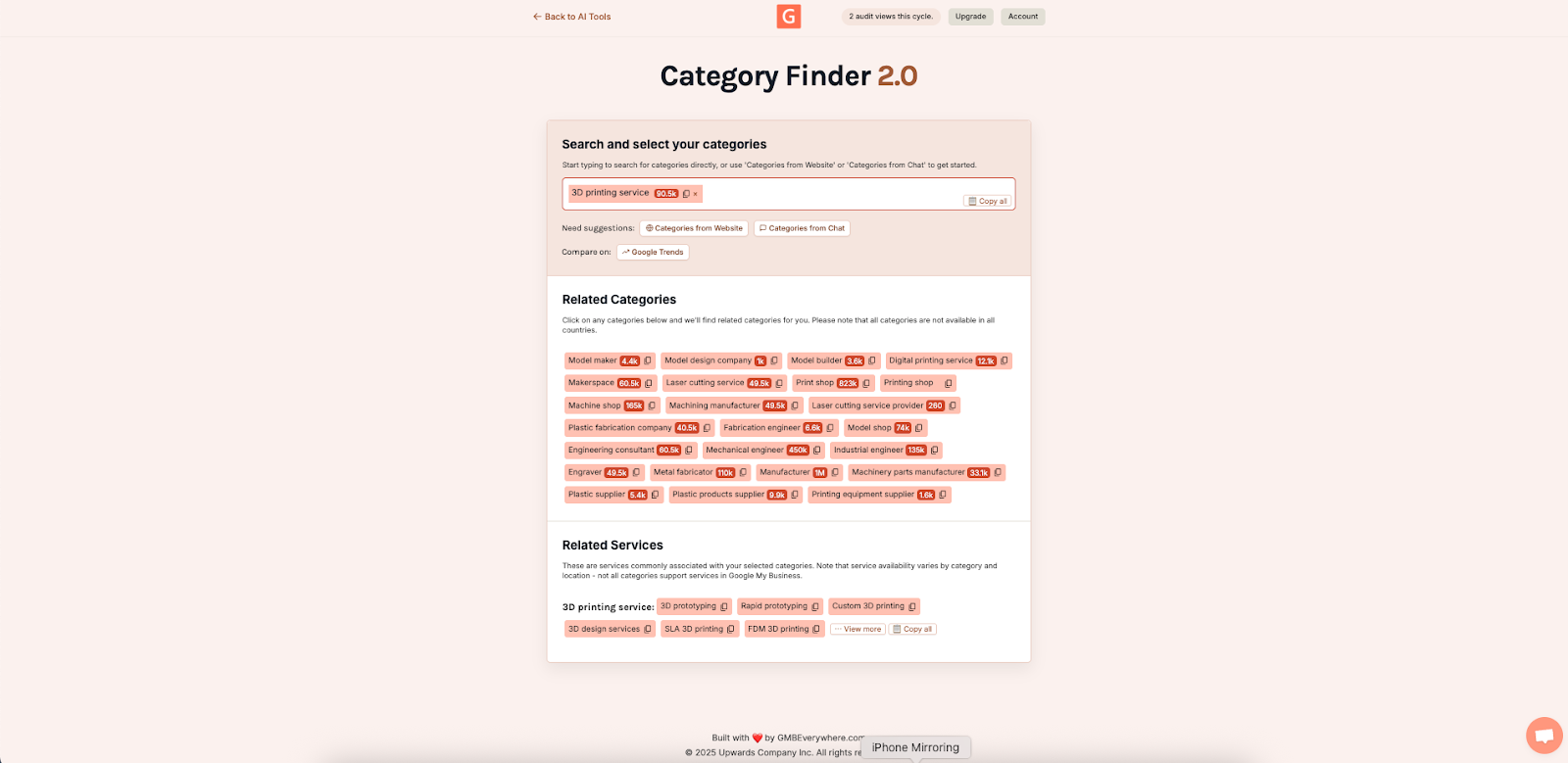
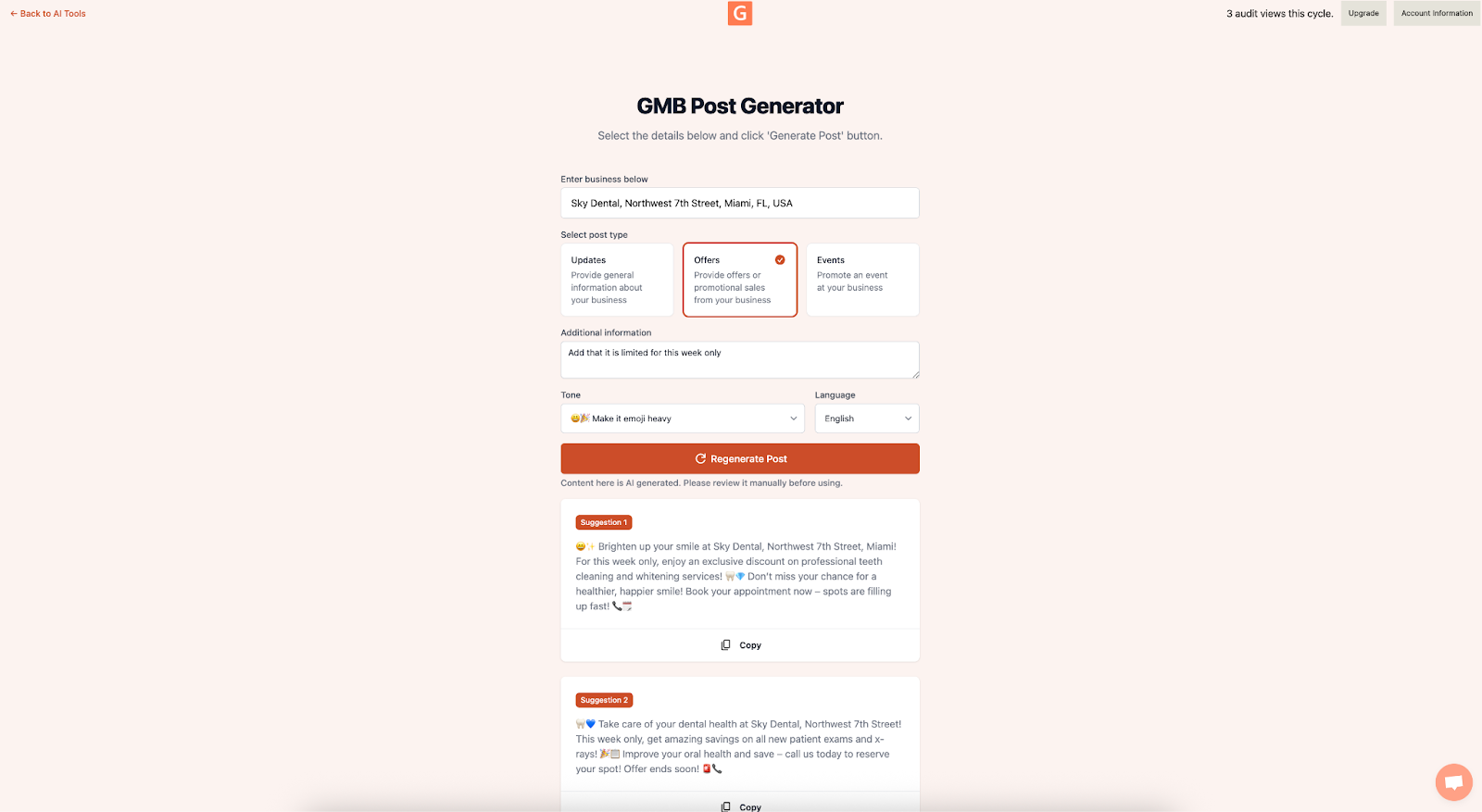
Step 4: Review the generated list of service suggestions. Copy any that match what you offer and paste them directly into your GBP Services section.
Metrics to Track
Once your Services and Products are live, keep an eye on three numbers inside GBP Insights and Google Analytics:
- Discovery calls: Businesses that complete their Services section typically see around a 5% lift in direction requests and phone calls within the first month.
- Product views: Track how often users tap into your product carousel. A steady climb means your photos and titles are doing their job.
- Service clicks: If service-related interactions account for 5% or more of your total profile views, your listings are pulling their weight. Below that threshold, revisit your descriptions and pricing.
Quick Wins & Smart Tweaks
- Use Posts for teasers. Create a GBP Post that highlights a new service or product, then link it to the relevant catalog entry. Posts appear in the Updates tab and can drive additional views.
- List each offering once. Duplicating a service under slightly different names (e.g., "AC Repair" and "Air Conditioning Repair") can confuse Google's matching algorithm and dilute click data.
- Write specific descriptions. Instead of "We offer plumbing services," write "Same-day drain clearing for kitchen and bathroom sinks, starting at $99." Specificity builds confidence and filters out poor-fit inquiries.
- Use original photos. Stock images are technically allowed, but original photos of your actual products outperform them in click-through rate. A quick smartphone shot in good lighting beats a polished stock photo every time.
Frequently Asked Questions
How many services can I add to my Google Business Profile?
There is no hard cap published by Google, but most businesses find that 15 to 25 well-described services cover their full offering without overwhelming searchers. Focus on the services that drive the most revenue rather than listing every minor task you can perform.
Do I need to add prices to my services and products?
Pricing is optional, but profiles that include price ranges tend to receive more qualified leads. Searchers who see a price upfront and still choose to call are already comfortable with your rate, which reduces back-and-forth during the sales conversation.
Will adding services and products improve my local ranking?
Google has stated that profile completeness is a ranking factor for local results. A fully filled-out Services and Products section signals relevance for a wider range of search queries, which can lead to more appearances in the local pack and Maps results.
Conclusion
Services and Products are two of the most underused sections in Google Business Profile, yet they directly influence whether a searcher taps your listing or scrolls past it. Setting them up takes less than an hour, and maintaining them requires just a few minutes each quarter.
Use GMB Everywhere to research the right services for your category, fill in your catalog with clear descriptions and honest pricing, and watch your profile engagement climb.