Some Google Business Profile (GBP) categories let you list your Services directly on your profile. When done well, a clear service list can turn profile views into real calls and bookings. While cafés and restaurants often focus on Products or Menus, this guide walks through the process using a plumbing business as an example.
You'll learn how to plan, write, and publish services that get clicks, using GMB Everywhere.
Note: the option to add services is only available for certain GBP categories and not every business type.
Why Services Matter
Your services show up before someone even opens your full profile. A clear, well-written list answers the key question customers have: "Do they offer this?" It also helps with Local Services Ads matching and signals to Google what your business actually does. Clear answers build trust and lead to more calls and bookings.
Build a Strong Service List (≈5 minutes)
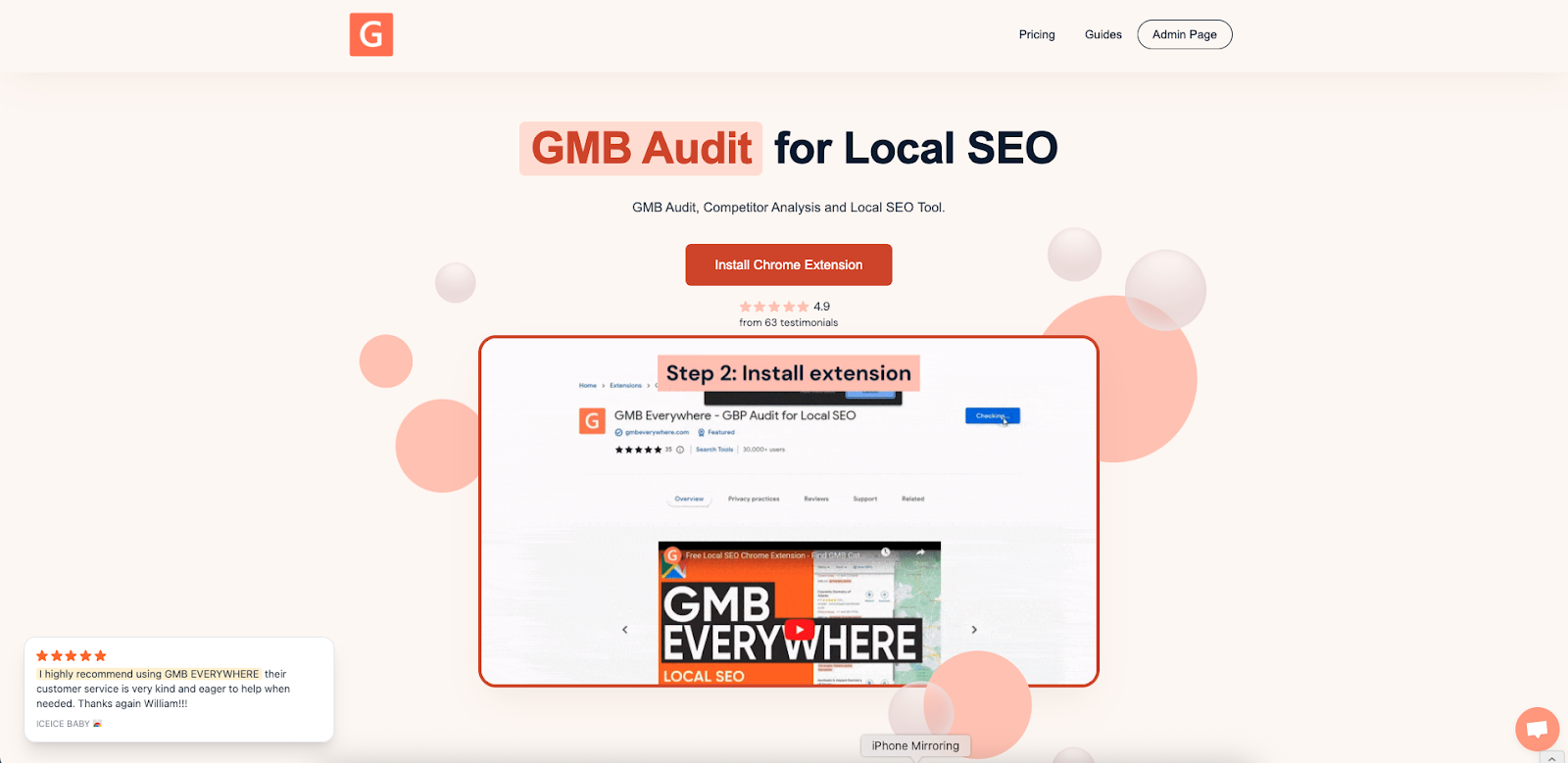
First, install the GMB Everywhere Chrome extension. Go to gmbeverywhere.com, click Install Chrome Extension, then Add to Chrome, and pin the icon.
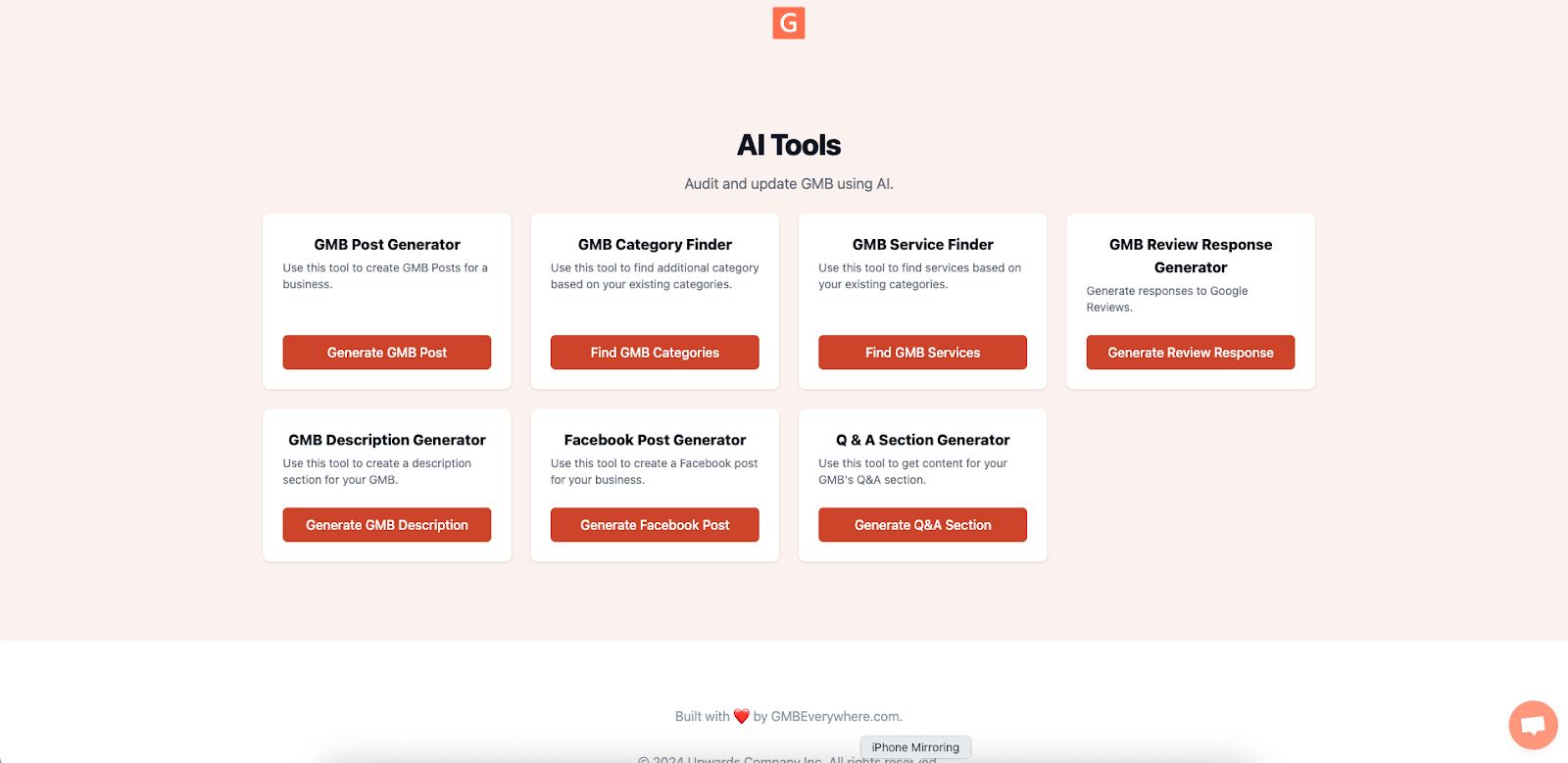
Next, open the GMB Everywhere AI tools dashboard and choose Category Finder.
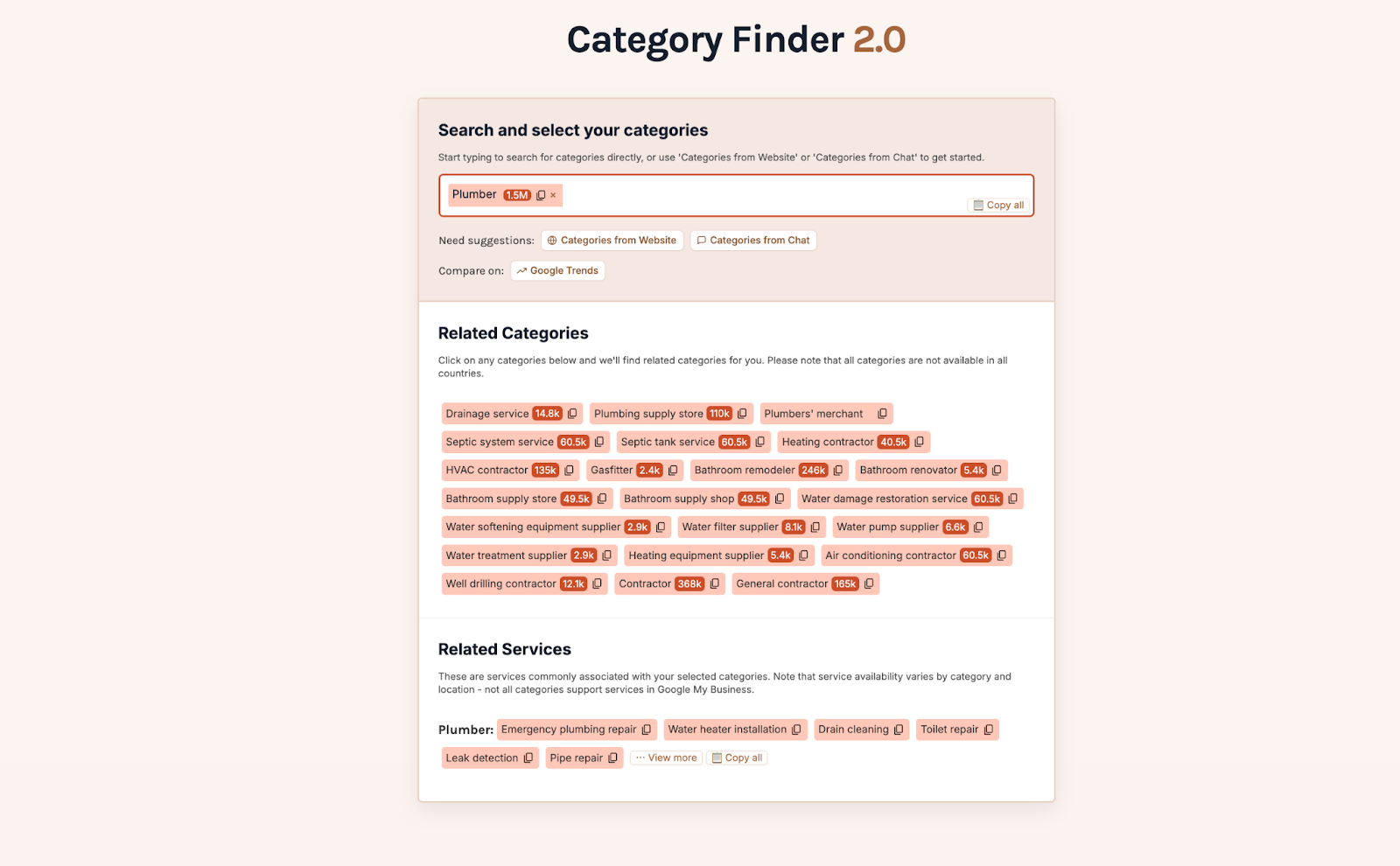
Enter your main category or core service (e.g., "Plumber" or "Emergency Plumbing") and pick the ideas that match what you actually offer.
Write Titles & Descriptions That Sell (≈7 minutes)
Each service entry includes:
- Title (around 45 characters) — clear and keyword-friendly.
- Description (up to 300 characters) — lead with the benefit.
- Price — use "Fixed price" or "From $...".
Example for a plumber:
- Title: "Emergency leak repair"
- Description: "Fast, same-day fix for burst or leaking pipes — clean work, quick relief."
- Price: "From $2,000"
Writing tips: start with what the customer gets ("Hot water back in one visit"), use natural language, and read it aloud to make sure it sounds like a real person wrote it.
Add Services in Your GBP Dashboard (≈5 minutes)
- Log in to your Google Business Profile and go to Edit profile → Services.
- Click Add service. Paste in your title, set the price, and add a benefit-first description.
- Save and repeat for your 5 to 10 core services. A focused list is easier to read and loads faster.
Make sure each service aligns with your chosen categories so your profile sends consistent signals to Google.
Order, Test, and Refresh for More Clicks (≈10 minutes over time)
- Put your top three highest-value services first — Google shows these before the "See more" cutoff.
- Run small tests each quarter: tweak one description, note the date, then check calls, messages, and bookings in the Performance tab after two weeks.
- Update prices and remove outdated items every quarter. Accurate info builds trust and keeps your profile within Google's guidelines.
Example test: change "Water heater install — same-day" to "Tank & tankless water heater install — same-day service" and see if call volume changes.
Three Common Gaps (and Quick Fixes)
- Be specific with titles. "15-minute drain inspection call" tells more than "Consultation."
- Show a price. "From $..." sets expectations and gives customers a reason to tap.
- Only list what you actually offer. Real services keep your profile accurate and policy-friendly.
See Google's local ranking guide and photo guidelines for more details.
Frequently Asked Questions
How many services can I list?
Google sets no fixed cap. Many profiles perform best with 5–20 well‑chosen services that load quickly.
Can I include brand names (e.g., “Rinnai™ water heater install”)?
Yes—licensed brand names can boost trust.
How fast do edits go live?
Most appear within minutes; some updates go through a brief review.
Conclusion
Your Services section works like a mini menu that sells for you around the clock. With GMB Everywhere you can find the right service ideas, write benefit-first descriptions, set prices, and keep everything up to date.
Follow this guide, track your results in the Performance tab, and repeat each quarter. Small, consistent updates add up — and your GBP Services section can become one of your best sources of new leads.