Your Google Business Profile ID is a unique number Google assigns to your listing. You might need it when contacting Google support, setting up ads, or connecting analytics tools. The problem is that Google doesn't make it easy to find. This guide shows you how to look it up in a few clicks using GMB Everywhere.
Why You Need Your Profile ID
Your Business Profile ID connects your listing across Google Maps, Google Search, and Google Ads. Here are the most common reasons you'd need it:
- Google support. When you contact Google about a listing issue, they'll often ask for your Profile ID to pull up your account.
- Ads setup. Linking Google Ads campaigns to your Business Profile requires this ID.
- Analytics and reporting. Third-party tools that track your profile's performance (views, clicks, calls) often need the ID to connect to your data.
- Profile management. If you manage multiple locations, the Profile ID is the quickest way to identify the right listing.
How to Find Your Business Profile ID
The GMB Everywhere Chrome extension shows your Profile ID right on the audit page. The free plan includes a few audits per month, which is enough to look this up. Here's how.
Step 1: Go to gmbeverywhere.com and click Install Chrome Extension.
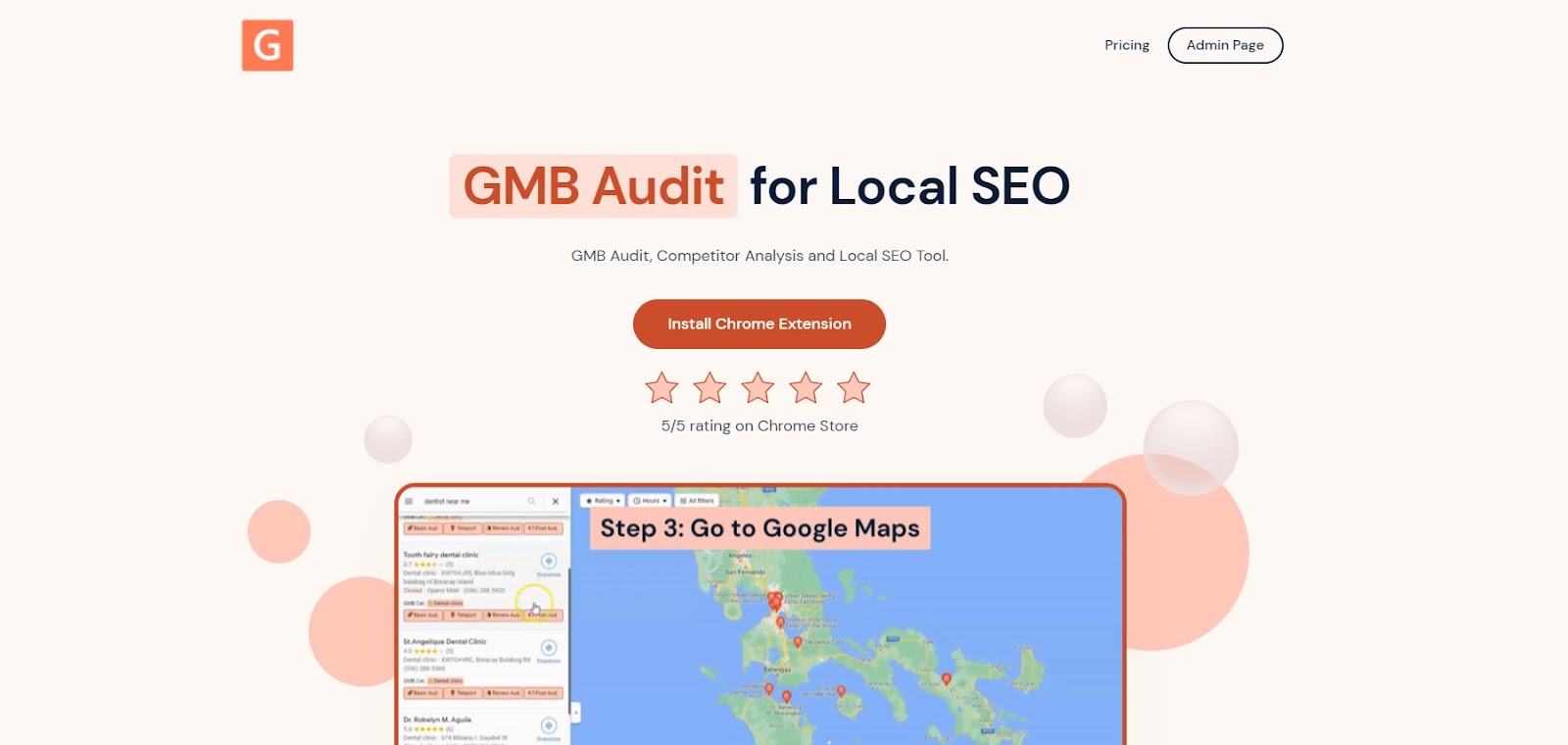
The GMB Everywhere homepage
On the Chrome Web Store page, click Add to Chrome.
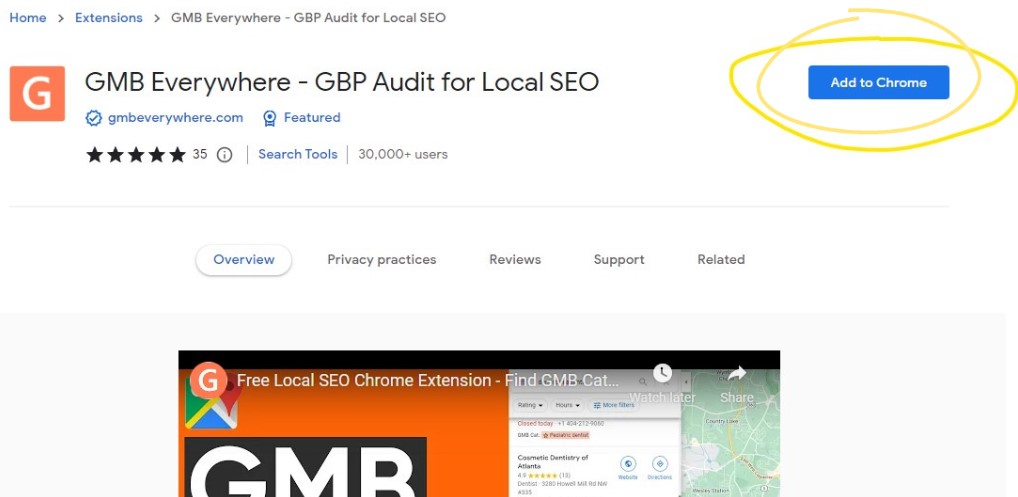
The Add to Chrome button on the Chrome Web Store
Step 2: Go to maps.google.com and search for your business.
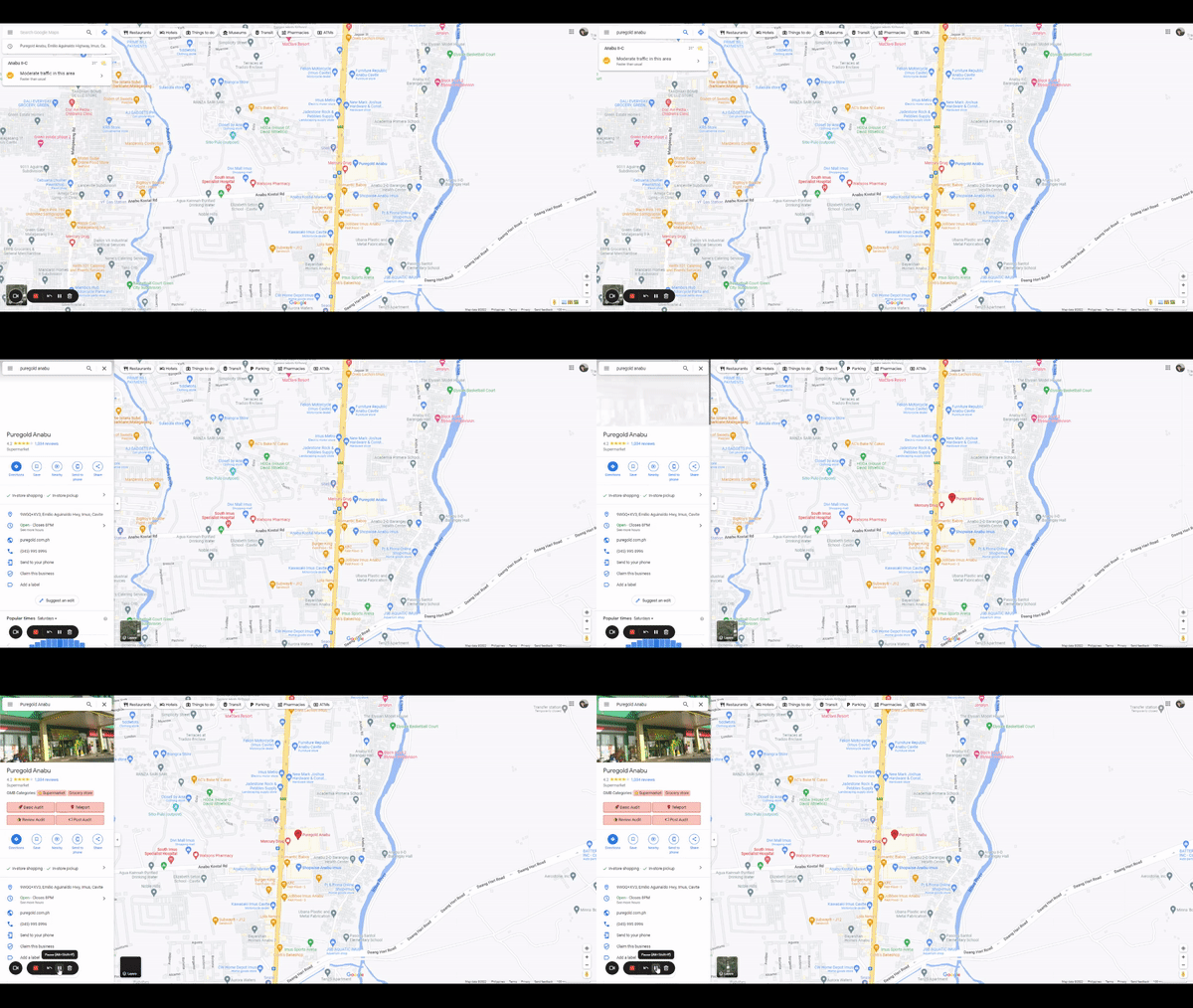
Searching for a business on Google Maps
Step 3: In the search results, click the Basic Audit button.
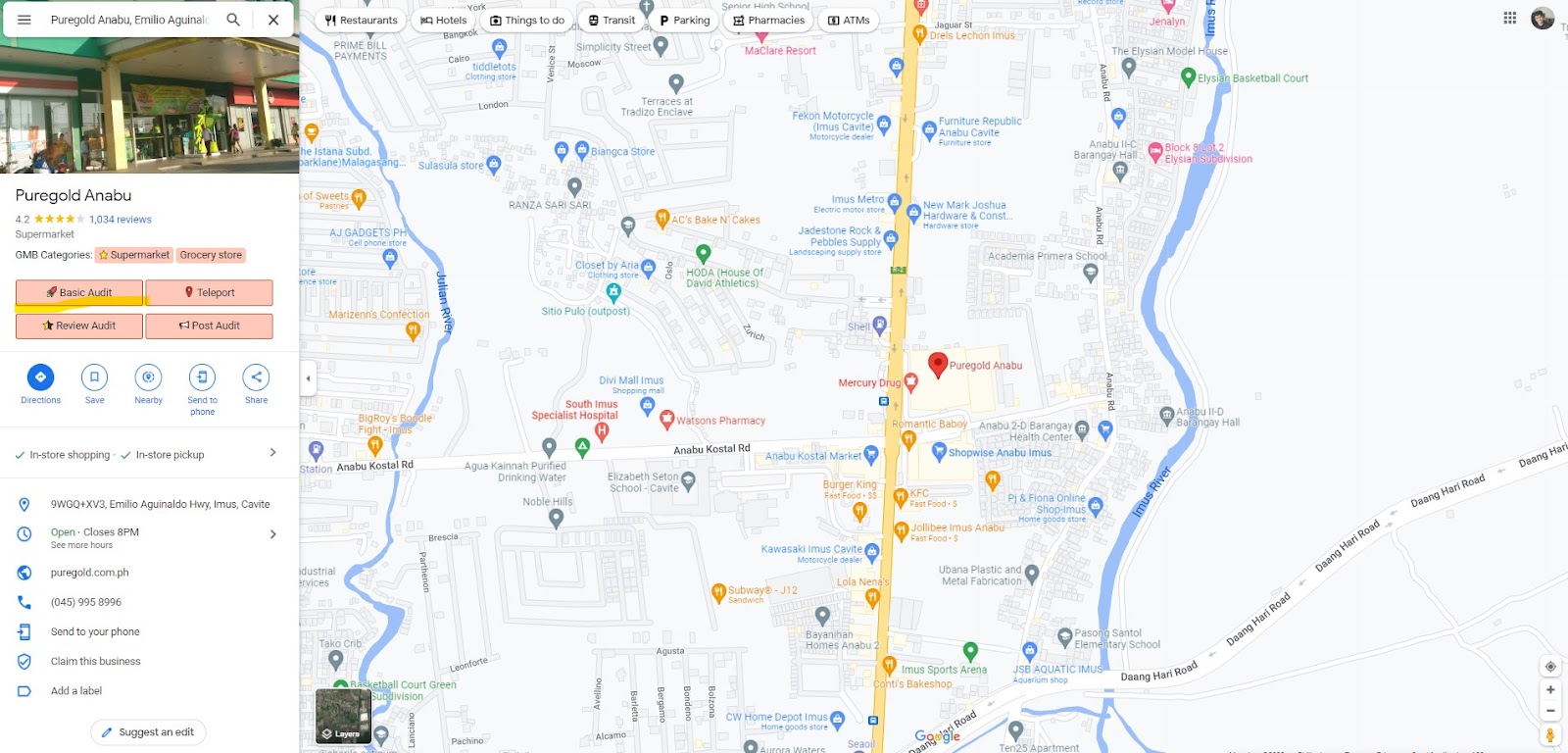
The Basic Audit button in search results
This opens the audit page with your profile details.
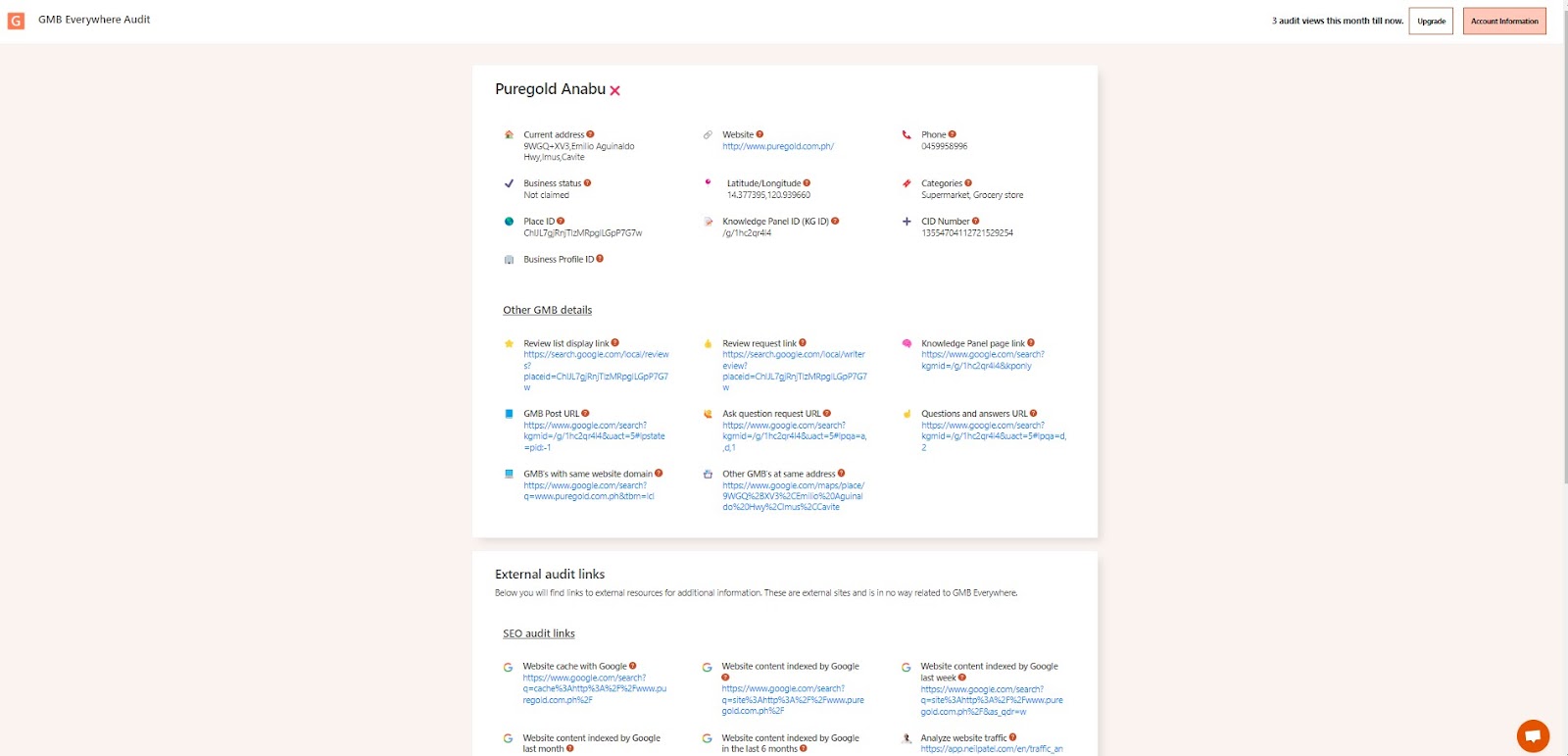
The audit page overview
Step 4: Look at the top of the page. Your Business Profile ID is listed right there alongside other profile details.
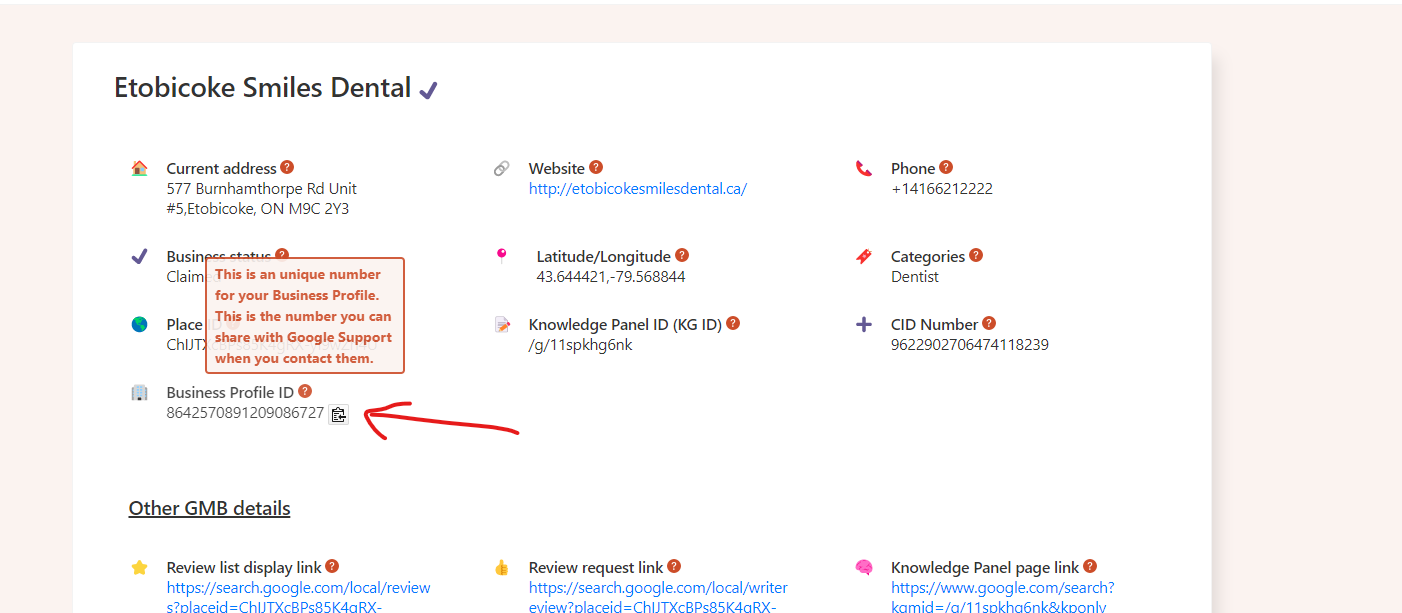
The Business Profile ID on the audit page
Conclusion
Once you have your Profile ID, save it somewhere easy to find. You'll need it anytime you contact Google support or connect your listing to ads and analytics tools. For more ways to manage your profile, visit our guides section.