This guide shows how to use LinkedGPT—a Chrome extension built on ChatGPT—to write posts and reply to comments directly on LinkedIn.
LinkedGPT is available at chatgpteverywhere.com and uses AI to generate content that fits the context of your post or comment. You can create a post or reply with one click, so you spend less time staring at a blank box and more time on what matters.
Step 1: Install LinkedGPT
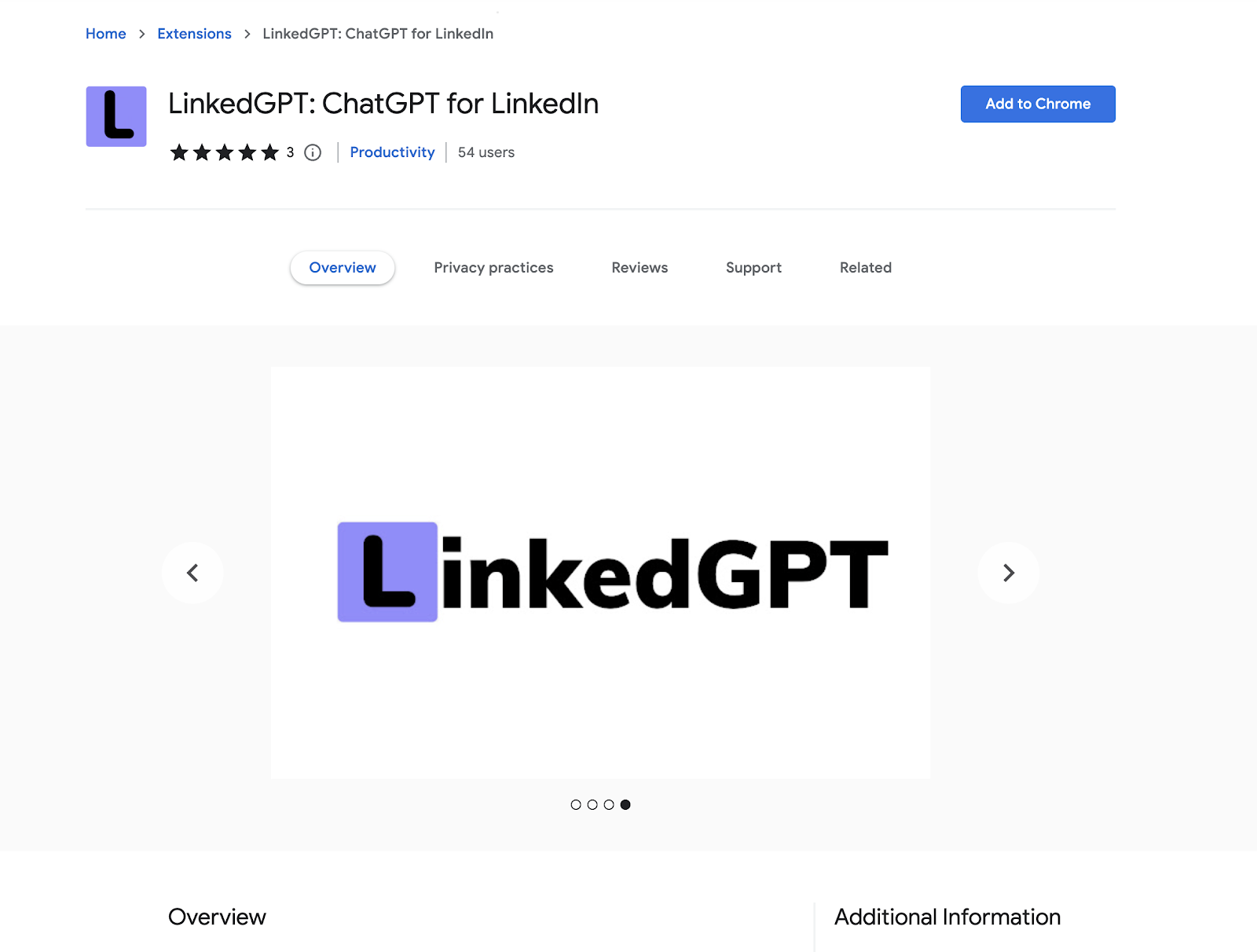
Go to the Chrome Web Store and search for LinkedGPT, or click directly: LinkedGPT. Click the result and click Add to Chrome.
Step 2: Write Posts on LinkedIn
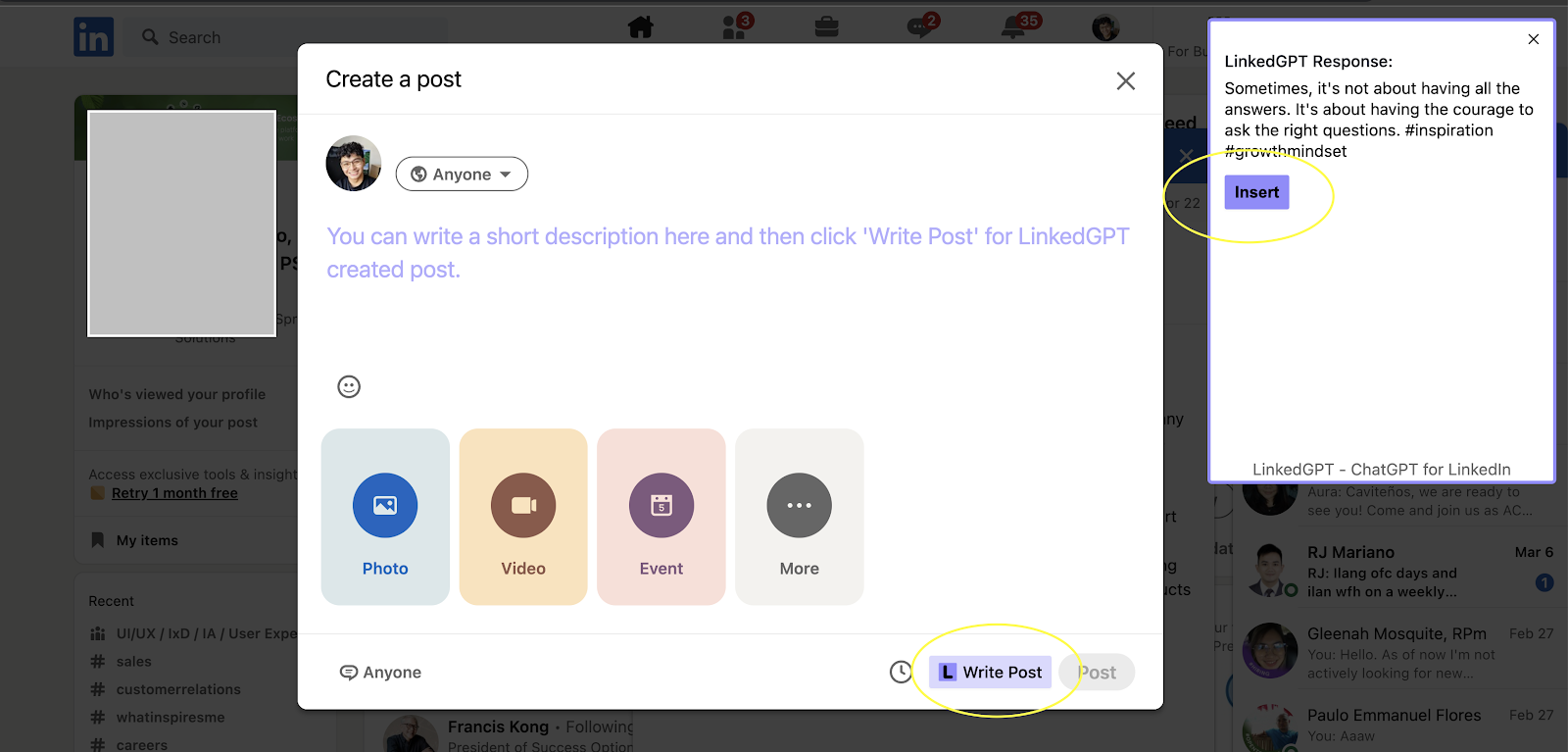
Go to linkedin.com and open the post area. Click the Write Post button—the LinkedGPT sidebar appears on the right. Review the suggested post, then click Insert to transfer the content to the post box. Click Post when you're ready.
Reply to Comments on LinkedIn
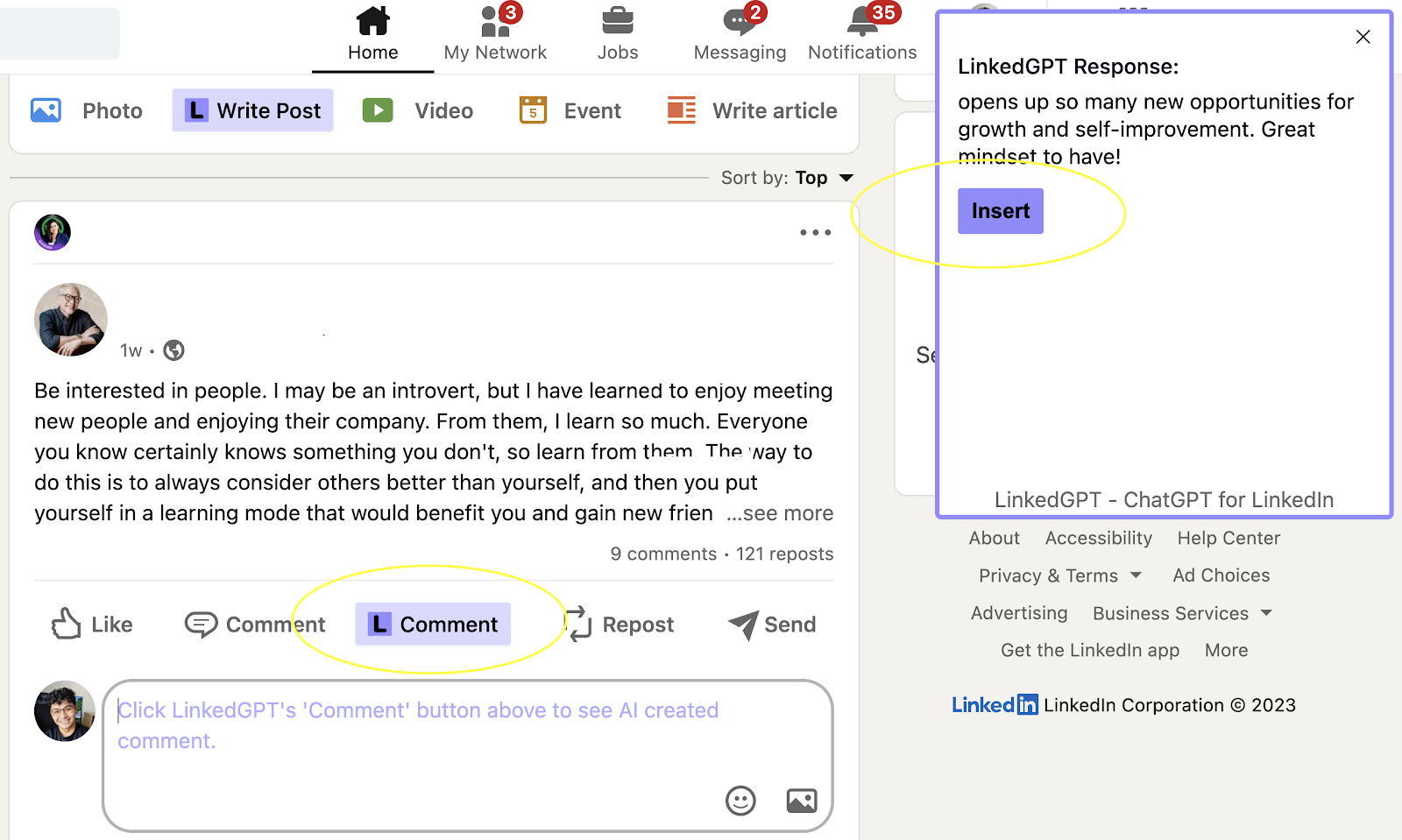
LinkedGPT also helps you respond to comments without typing anything. It reads the context of the post and suggests a relevant reply. To use it, click the AI Comment button in the comments section. The LinkedGPT sidebar appears with a suggested reply. Click Insert to transfer it to the comments box.
Whether you are promoting your business, networking with other professionals, or sharing ideas, LinkedGPT helps you create content fast without writing everything from scratch.
Conclusion
LinkedGPT saves time by handling the writing for you. Install it from the Chrome Web Store and start using it on LinkedIn. The extension handles posts and comments, so you can keep your presence active without spending hours on content.
Want to explore more AI tools? Browse our guide articles section.