This guide covers how to capture a full page screenshot using the Full Page Screenshot Chrome extension.
A Step-by-Step Guide
The Full Page Screenshot tool captures an entire webpage with a single click. It automatically scrolls through the page to ensure nothing is missed. Once the screenshot is taken, you can download the image or copy it to your clipboard.
Step 1: Install the Extension
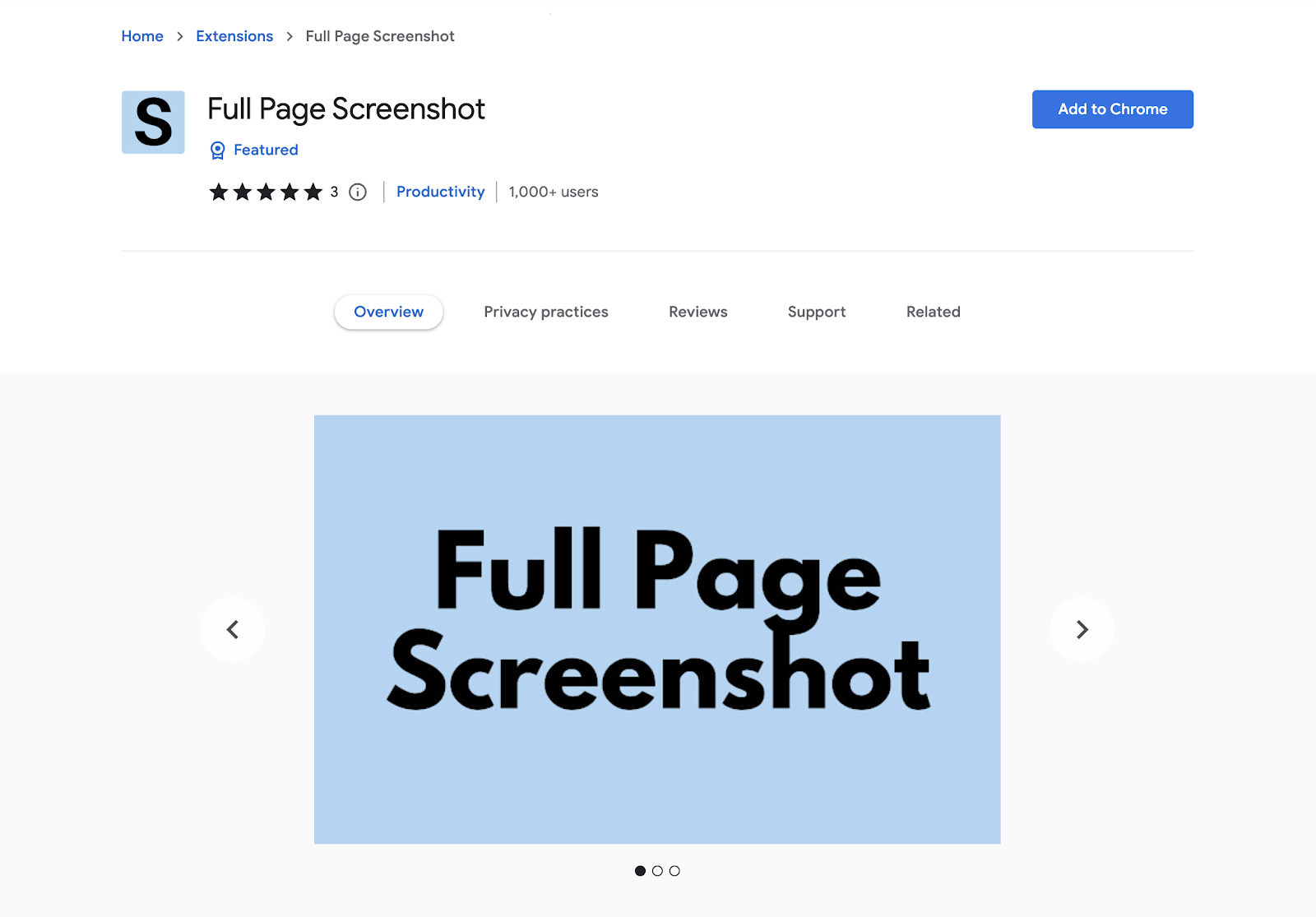
Go to the Full Page Screenshot Chrome Store page and click Add to Chrome. You can also reach this page from screentool.io.
Step 2: Activate the Extension
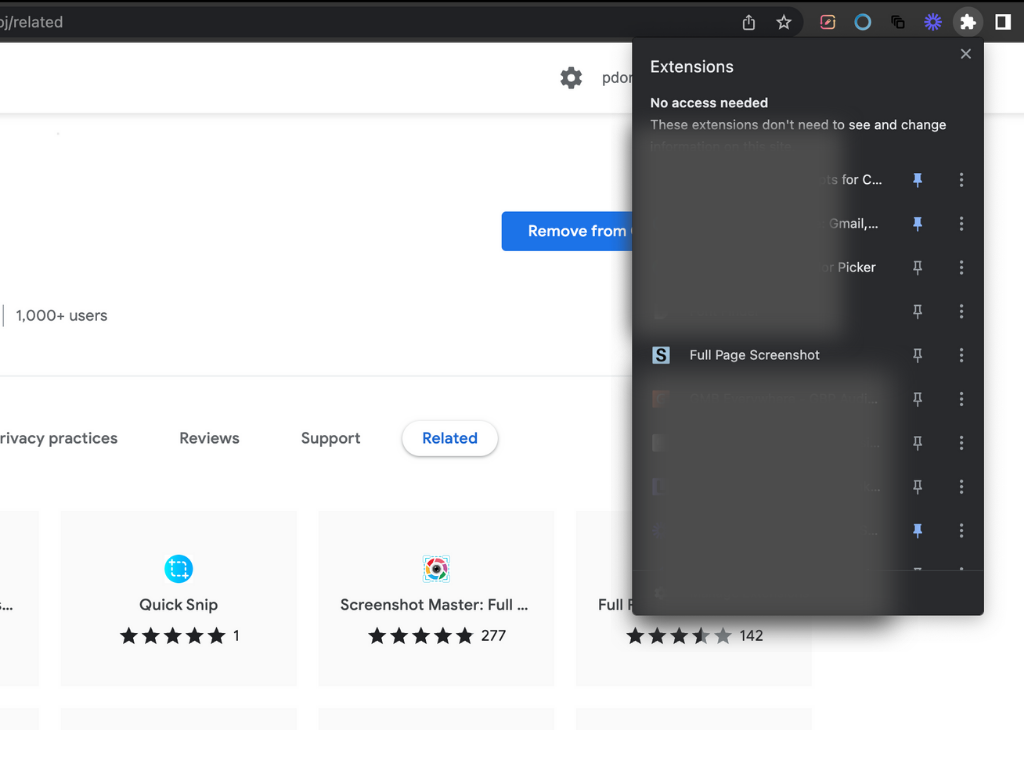
Once installed, click the Extensions icon in the upper right corner of your Chrome browser. You can also pin the extension to your address bar for quicker access.
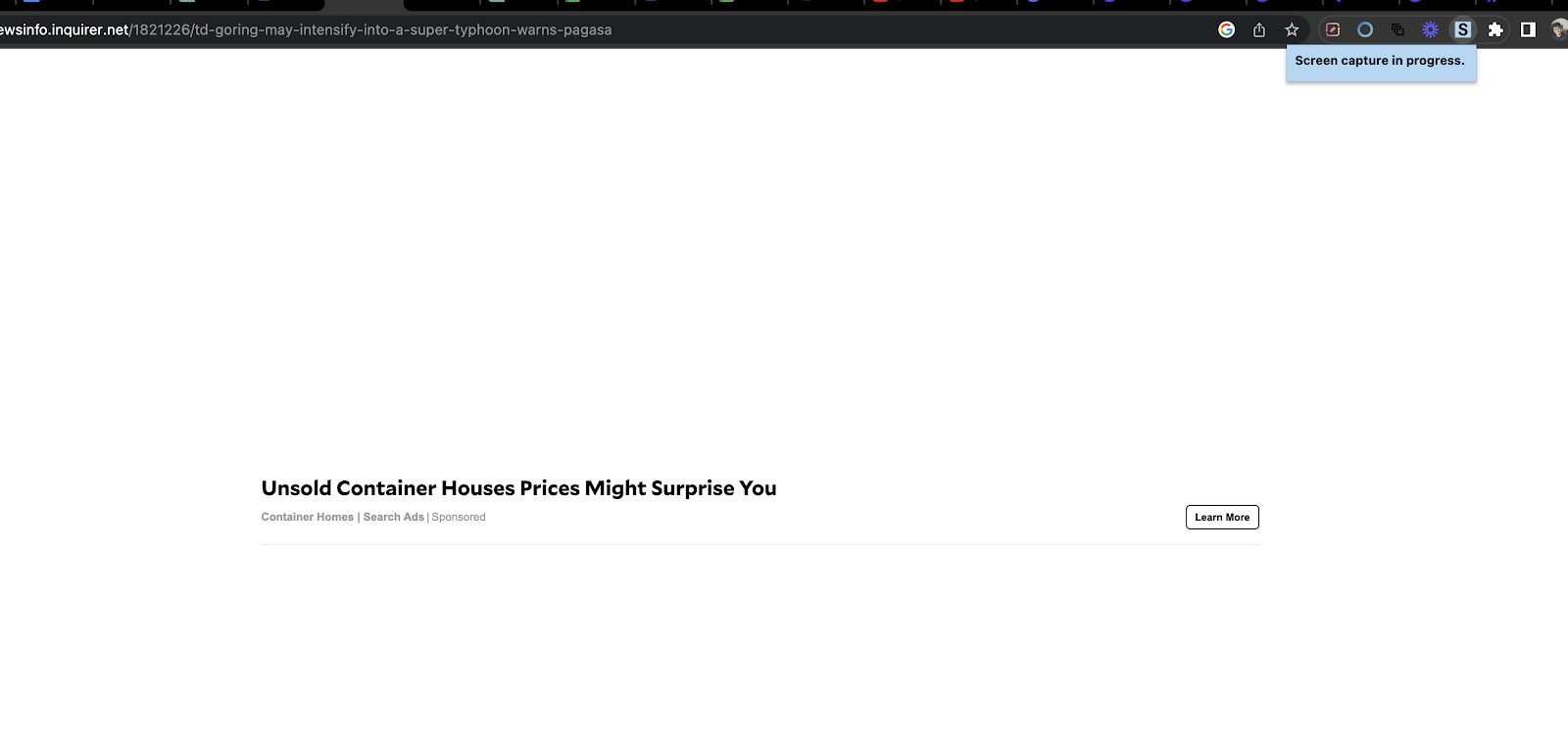
The extension scrolls through the current tab and takes a snapshot of the full page.
Step 3: Save or Copy the Screenshot
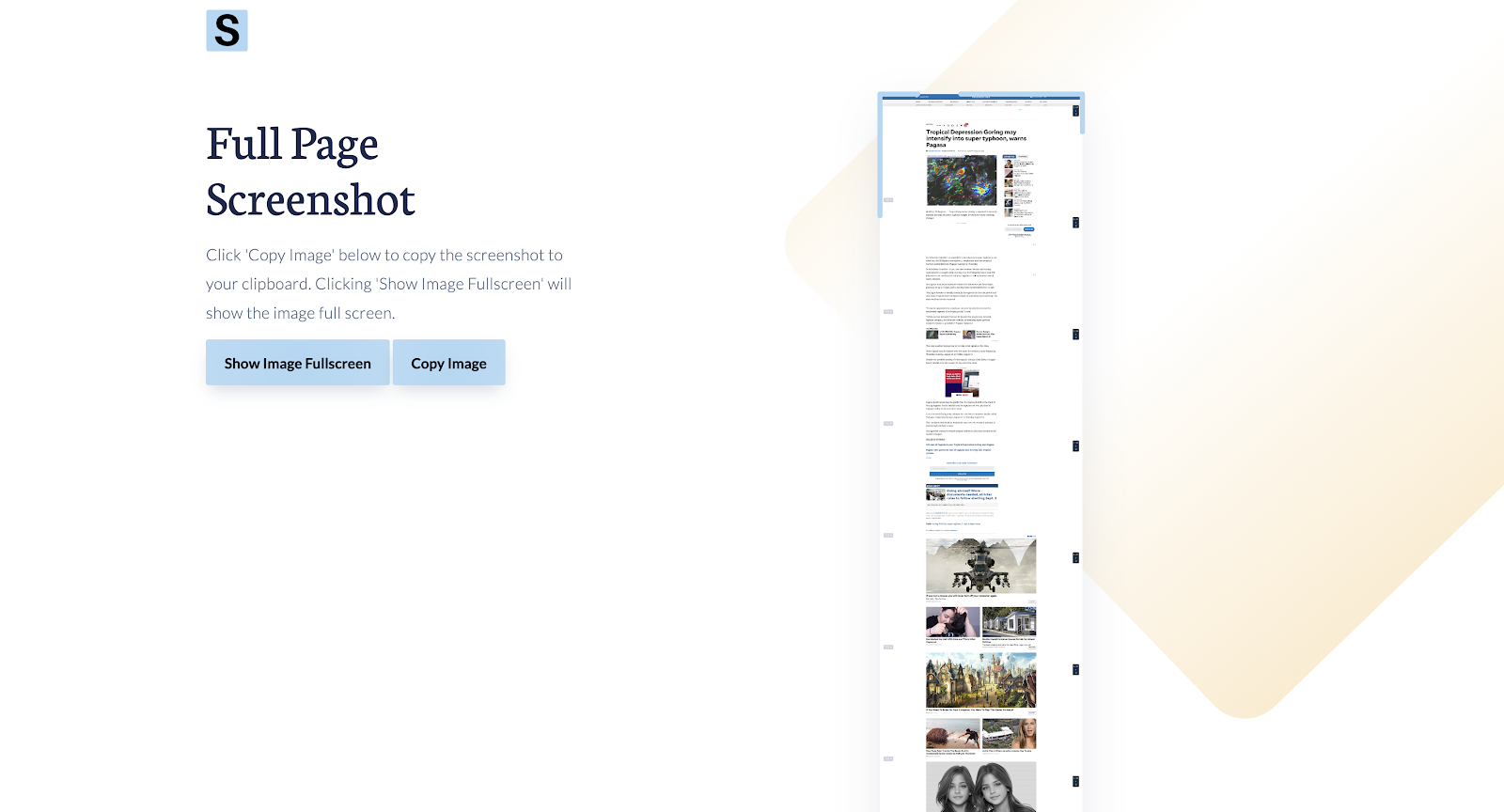
You have two options:
- Copy Image—places the screenshot in your clipboard so you can paste it into any document or image-supported field.
- Show Image Fullscreen—opens the screenshot in a new tab. Right-click the image and select Save Image As to save it to your preferred folder.
What is a Screenshot?
A screenshot, also called a screen capture or screen grab, is a digital snapshot of the current display on a computer or mobile screen. It may cover the full screen, a specific window, or a selected section. Most devices have built-in screenshot tools, but specialized extensions add features like full-page capture that built-in tools lack.
The Importance of Screenshots for Web Designers
- Design evaluation: Full-page screenshots let designers assess overall consistency and coherence across an entire webpage.
- Client communication: Sharing a complete view of a webpage makes feedback more specific and actionable.
- Portfolio building: Full-page screenshots are a practical addition to a design portfolio.
- Error identification: Capturing the full page makes it easier to spot and fix design inconsistencies.
- Documentation: Screenshots serve as a record, helping teams track changes and revisions over time.
- Collaboration: Screenshots can be shared to gather feedback or troubleshoot issues with a team.
Screenshots in Remote Learning and Education
- Tutorials and workshops: Full-page screenshots can be built into design tutorials, giving students a complete view of web design structures.
- Feedback and grading: Educators can annotate screenshots to provide targeted feedback on design assignments.
- Resource sharing: Capturing essential tools or references ensures students have access to the exact materials needed.
- Collaborative projects: Students can share design progress through screenshots to enable critique and brainstorming.
- Exams and quizzes: Screenshots of web designs can be used to ask students to identify elements, critique layouts, or suggest improvements.
- Demonstrations: Full-page screenshots sidestep internet speed or compatibility issues that affect live demos.
Conclusion
In web design, the ability to capture and review every part of a webpage is useful for designers, educators, and collaborators alike. Full-page screenshots support clearer communication, better documentation, and more effective feedback.
As remote work and online learning continue to grow, tools like the Full Page Screenshot extension remain a simple, practical choice. Check out our guide articles for more.