The quickest way to showcase a product or service in a Google Post is to open the GBP Image Generator, choose GBP Post, and pick Showcase your most popular product or service. Add a real photo if you want the item to look like yours.
Google asks for product photos that help customers understand the goods you offer, and for photos at work that show the services you deliver. The generator can lay that out, but the optional reference image lets you drop a PNG or JPG up to 5 MB so the picture can include your logo or photo.
That reference step is how you stay closer to photo guidelines than a fully invented product. After the image is ready, write the post around the same item with the GMB post AI tool.
Pick the showcase idea, then add a photo you already own.
Idea
Showcase your most popular product or service
Ideas like a product or service showcase.
Reference
Optional logo or photo
The reference image field says drop your logo or photo, PNG or JPG, up to 5 MB.
Prompt
Name the real item
A custom prompt can add the product or service name if the suggested idea is too broad.
Here’s how to use it.
Open GMB Everywhere AI Tools and find the card titled GBP Image Generator. It says it creates on-brand images for your profile, Google Posts and social. Click Generate Images.
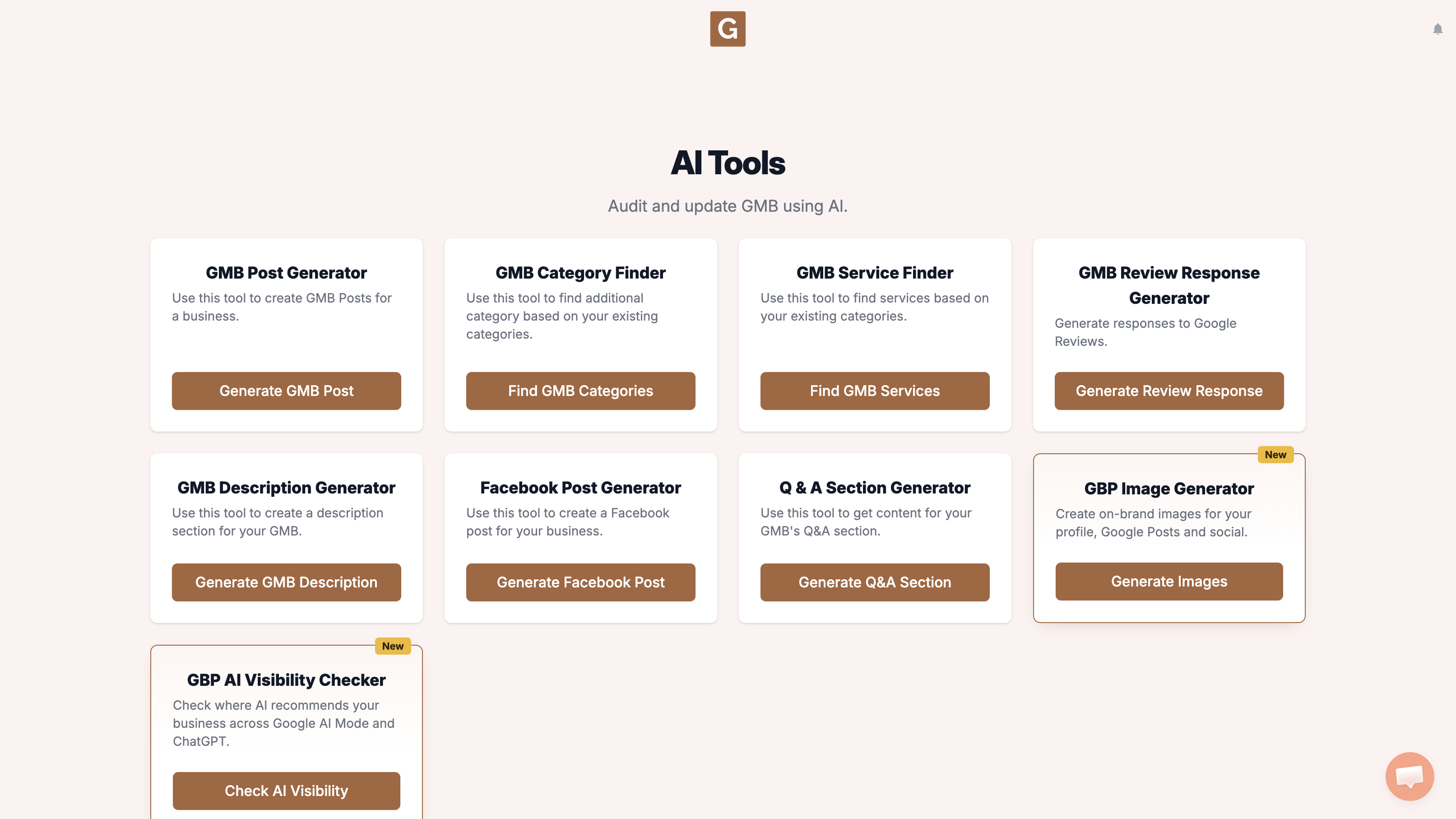
You’ll land on GBP Image Generator. Under Find your business, start typing your business name and pick the listing. Under Where will you use it? choose GBP Post (Landscape · 4:3). The four options are GBP Post (Landscape · 4:3), Profile Photo (Square · 1:1), Facebook / Instagram Post (Square · 1:1), and Instagram Story / Reel (Vertical · 9:16). There is no 16:9 option.
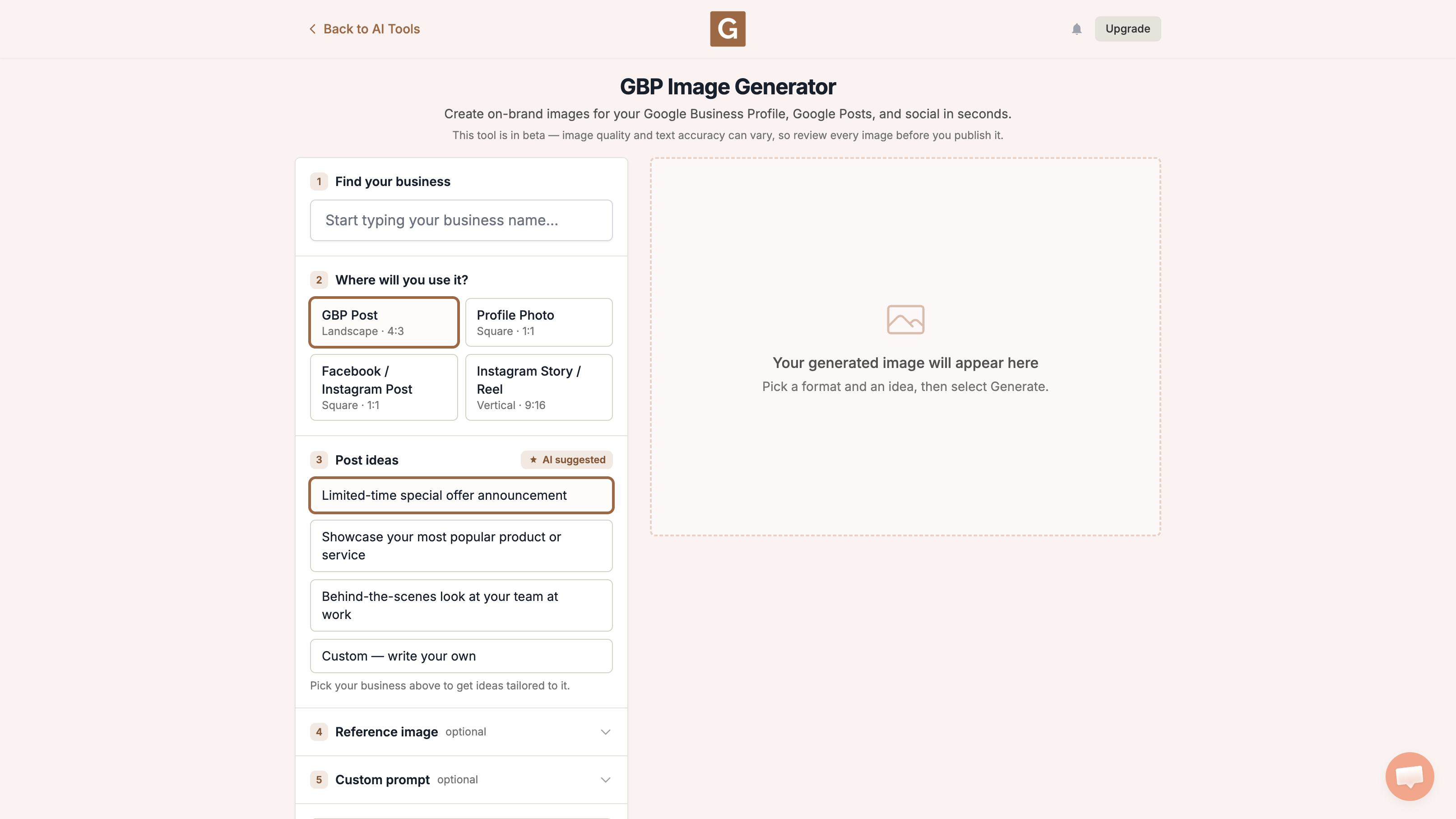
After you pick a business, that list becomes 3 ideas suggested for the listing. Pick the one closest to what you need, or choose Custom — write your own. The names below are examples of the defaults, not a promise you will see those exact lines. A reference image and the optional Custom prompt are separate fields. Then click Generate image.
What the tool does not do
It does not upload the image to Google Business Profile, Instagram, or Facebook. Download it, take a look, then add it yourself. Keep the picture honest, and do not invent a shop, team, or offer you do not have.
After the image is ready, write the post around the same item with the GMB post AI tool. If the listing has gone quiet, use posts to revive a Google Business Profile is a good next read.
What people try first
What actually helps
Is the reference image required?
No. It is labeled optional.
Can I showcase a service, not a product?
Yes. Pick the suggested idea closest to your product, or use Custom — write your own.
Will this add a GBP product catalog item?
No. It only makes a post image.
Complete suite of professional tools for Google Business Profile management
How to use:
Open any business on Google Maps - primary and secondary categories display automatically beside the profile
Features:
How to use:
Search for any term on Google Maps - click the Local Scan button to compare all GBPs
Features:
How to use:
Open any business on Google Maps - click the 'AI' button beside the GBP to use AI features
Features:
How to use:
Open any business on Google Maps - click the 'Find more' button beside categories
Features:
How to use:
Open any business on Google Maps - click the 'Basic Audit' button beside the GBP
Features:
How to use:
Open any business on Google Maps - click the 'Review Audit' button beside the GBP
Features:
How to use:
Open any business on Google Maps - click the 'Teleport' button beside the GBP
Features:
How to use:
Open any business on Google Maps - click the 'Post Audit' button beside the GBP
Features:
How to use:
Open any business on Google Maps - click the 'Website Audit' button beside the GBP
Features:
Join thousands of agencies and businesses using GMB Everywhere daily
Join 250,000+ users who use GMB Everywhere to analyze competitors and optimize their Google Business Profiles
Install GMB Everywhere - It’s FreeSeptember 22, 2026
GuidesSeptember 22, 2026