GBP Images

How to Make Instagram Posts for a Local Business

The quickest way to make Instagram posts for a local business is to open the GBP Image Generator and choose Facebook / Instagram Post. That makes a square picture you can upload in Instagram, and the same square also works for Facebook.

Make an Instagram Post Image
Free to Start 250,000+ Users

September 22, 2026

Why local businesses should start from the listing

Find your business first so ideas can be tailored to the listing. The format list then has a card labeled Facebook / Instagram Post Square · 1:1. Ideas like a limited-time offer, a customer favourite product spotlight, and a behind-the-scenes look.

If you also publish a Google Post, make a second GBP Post picture. Do not stretch the square. After you post, you can still share a GBP post to social when you want the caption to match.

What a local Instagram post image needs

A square frame, one idea, and a business people can recognize.

Format

Facebook / Instagram Post 1:1

That option is the square feed size. Do not use Instagram Story / Reel for the feed.

Idea

Offer, product, or team

Ideas like an offer, a product spotlight, and a behind-the-scenes look, plus Custom.

Upload

You add it in Instagram

The generator does not publish to Instagram.

How to Use the GBP Image Generator

Here’s how to use it.

1

Open GBP Image Generator

Open GMB Everywhere AI Tools and find the card titled GBP Image Generator. It says it creates on-brand images for your profile, Google Posts and social. Click Generate Images.
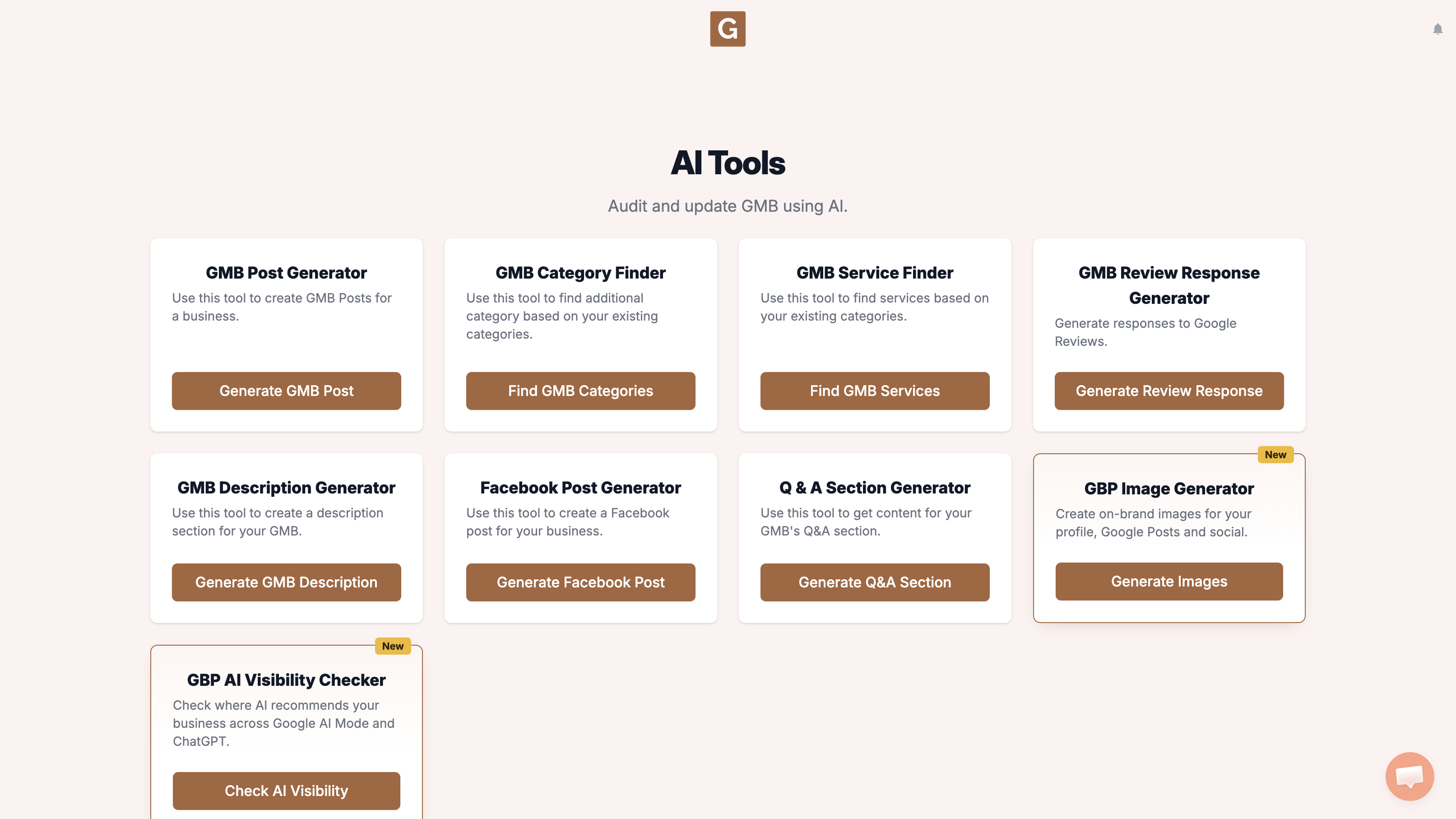
GMB Everywhere AI Tools page showing the GBP Image Generator card and the Generate Images button
2

Find your business and pick a format

You’ll land on GBP Image Generator. Under Find your business, start typing your business name and pick the listing. Under Where will you use it? choose Facebook / Instagram Post (Square · 1:1). The four options are GBP Post (Landscape · 4:3), Profile Photo (Square · 1:1), Facebook / Instagram Post (Square · 1:1), and Instagram Story / Reel (Vertical · 9:16). There is no 16:9 option.
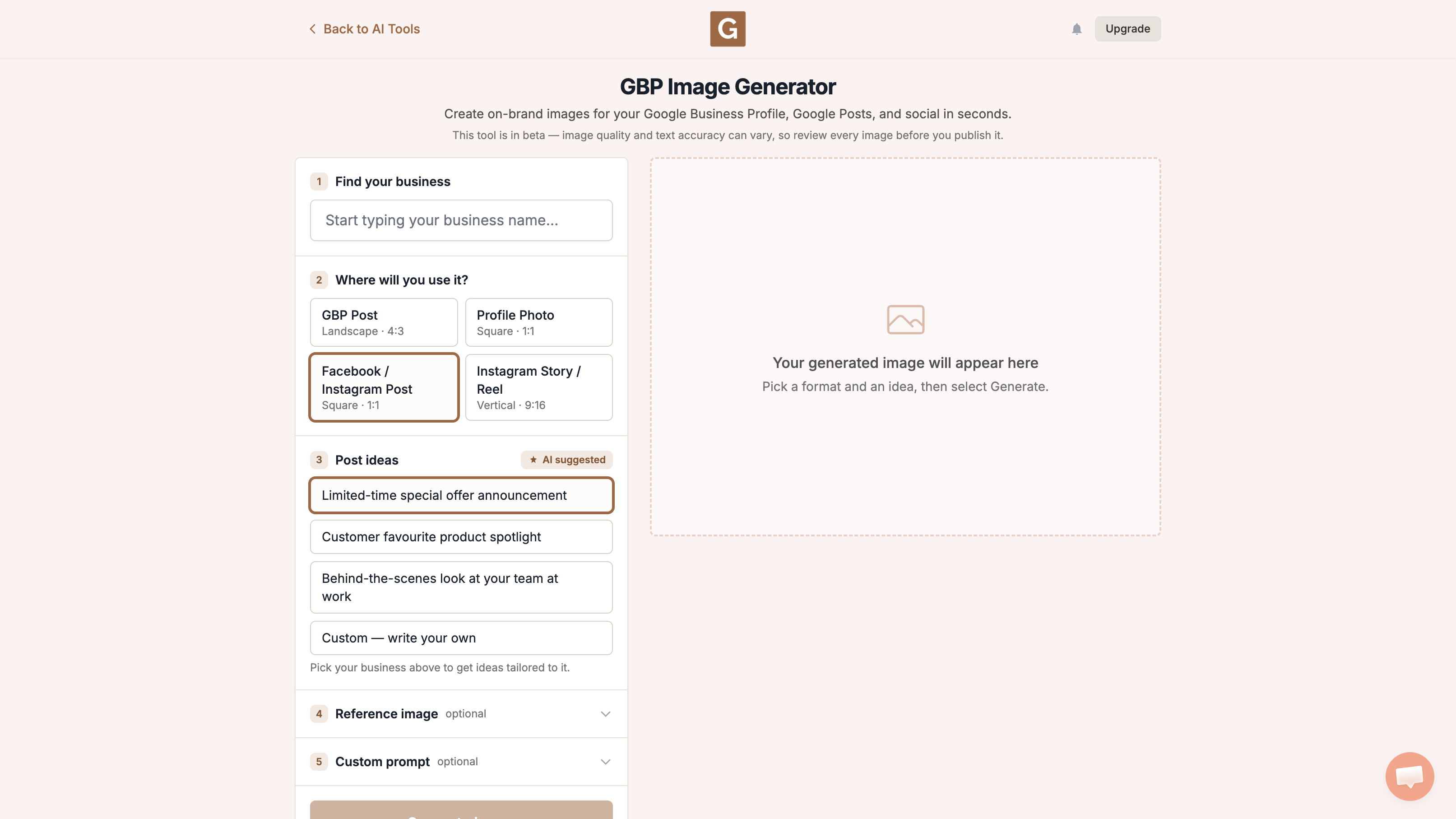
GBP Image Generator with Facebook Instagram Post Square 1:1 selected
3

Pick an idea and generate

After you pick a business, that list becomes 3 ideas suggested for the listing. Pick the one closest to what you need, or choose Custom — write your own. The names below are examples of the defaults, not a promise you will see those exact lines. A reference image and the optional Custom prompt are separate fields. Then click Generate image.

  • Limited-time special offer announcement
  • Customer favourite product spotlight
  • Behind-the-scenes look at your team at work

What the tool does not do

It does not upload the image to Google Business Profile, Instagram, or Facebook. Download it, take a look, then add it yourself. Keep the picture honest, and do not invent a shop, team, or offer you do not have.

What to do next

To keep the same idea on a Story, make a second tall picture instead of stretching this square. After the Google Post is live, you can share a GBP post on Facebook and Instagram, or write a Facebook caption with the Facebook post AI tool.

What not to do, and what to do instead

What people try first

  • Stretching a Google Post picture to force it into a square
  • Using a Story picture in the feed
  • A product you do not sell

What actually helps

  • Facebook / Instagram Post 1:1
  • Customer favourite product spotlight when it is real
  • Download and upload in Instagram yourself

Quick FAQs

Is this an Instagram scheduler?

No. It only creates the image.

Can I use the same picture on Facebook?

Yes. The card is labeled Facebook / Instagram Post.

Do ideas change if I pick a business?

Yes. Pick the listing first so the ideas can match that business.

Features

Complete suite of professional tools for Google Business Profile management

View Competitor Category

How to use:

Open any business on Google Maps - primary and secondary categories display automatically beside the profile

Features:

  • Always Free to Use
  • Find Primary Category
  • Find All Secondary Categories
  • Direct Link to Category Finder
  • Always Displayed on Google Maps

Local Scan

How to use:

Search for any term on Google Maps - click the Local Scan button to compare all GBPs

Features:

  • Compare Multiple Competitors in One Click
  • Compare Competitors Categories & Services
  • Compare Competitor Reviews Across GBPs
  • Compare Competitor Location Advantage
  • Compare Attributes & Other Data

AI Tools

How to use:

Open any business on Google Maps - click the 'AI' button beside the GBP to use AI features

Features:

  • AI GBP Post Generator
  • AI Review Response Generator
  • AI GBP Description Generator
  • AI Q&A Section Generator
  • AI Facebook Post Generator

Category Finder

How to use:

Open any business on Google Maps - click the 'Find more' button beside categories

Features:

  • Find Related Categories Based on Real Data
  • Get Service Suggestions for Each Category
  • Analyze Traffic Potential per Category
  • Extract Category Suggestions from Website URL
  • Category Suggestions from AI Chat

Basic Audit

How to use:

Open any business on Google Maps - click the 'Basic Audit' button beside the GBP

Features:

  • GBP Info like Place ID, Knowledge ID, CID & More
  • Find Services, Attributes, Categories & More
  • GBP Links like Review Request, Service/Product & More
  • Compare on External Maps Outside Google Maps
  • 40+ Additional Data Points & Tools

Review Audit

How to use:

Open any business on Google Maps - click the 'Review Audit' button beside the GBP

Features:

  • Track Review & Rating Trends Over Time
  • Detailed Review Analysis for GBP
  • Discover Common Keywords in Reviews
  • Custom Review Filtering for Analysis
  • Other Review Features

Teleport

How to use:

Open any business on Google Maps - click the 'Teleport' button beside the GBP

Features:

  • Find GBP Rank at Any Location
  • Find GBP Rank for Any Search Term
  • Find GBP Competitors at Any Location
  • Customizable Location Settings
  • Can Run for Any Location Worldwide

Post Audit

How to use:

Open any business on Google Maps - click the 'Post Audit' button beside the GBP

Features:

  • GBP Posts Timeline Visualization
  • Track Total GBP Posts & Post Frequency
  • Analyze GBP Post Content & Character Count
  • Monitor GBP Posts with Links & Media
  • GBP Post Performance Insights

Website Audit

How to use:

Open any business on Google Maps - click the 'Website Audit' button beside the GBP

Features:

  • Compare NAP against the GBP
  • Check hours, categories, and meta tags
  • Review local keywords and category pages
  • Score content depth, spelling, and headers
  • Check mobile click-to-call

Loved by Local SEO Experts

Join thousands of agencies and businesses using GMB Everywhere daily

Make Your Local Instagram Post Image

Join 250,000+ users who use GMB Everywhere to analyze competitors and optimize their Google Business Profiles

Install GMB Everywhere - It’s Free

More GBP Guides