One Google Post picture will not fit Instagram and Stories if you stretch it. Keep the same listing, write the same message in Custom, then generate each size: GBP Post, Facebook / Instagram Post, and Instagram Story / Reel.
The form asks Where will you use it, then lists four separate options. Switching the option changes the size and the idea list. Keep the same business, change the format, generate again, and download again.
The tool does not upload any of those pictures for you. You still publish the Google Post, the Instagram feed post, and the Story yourself. If you want the caption to travel with a GBP post, use the share GBP post guide after the image is live. Keep Google’s photo guidelines in mind on the profile copy.
Same listing. Same custom message. Three Generate image clicks, one per size.
GBP Post 4:3
Landscape post image for Google Business Profile.
Feed
Facebook / Instagram Post 1:1
Square feed image.
Story
Instagram Story / Reel 9:16
Tall story or reel cover.
Here’s how to use it.
Open GMB Everywhere AI Tools and find the card titled GBP Image Generator. It says it creates on-brand images for your profile, Google Posts and social. Click Generate Images.
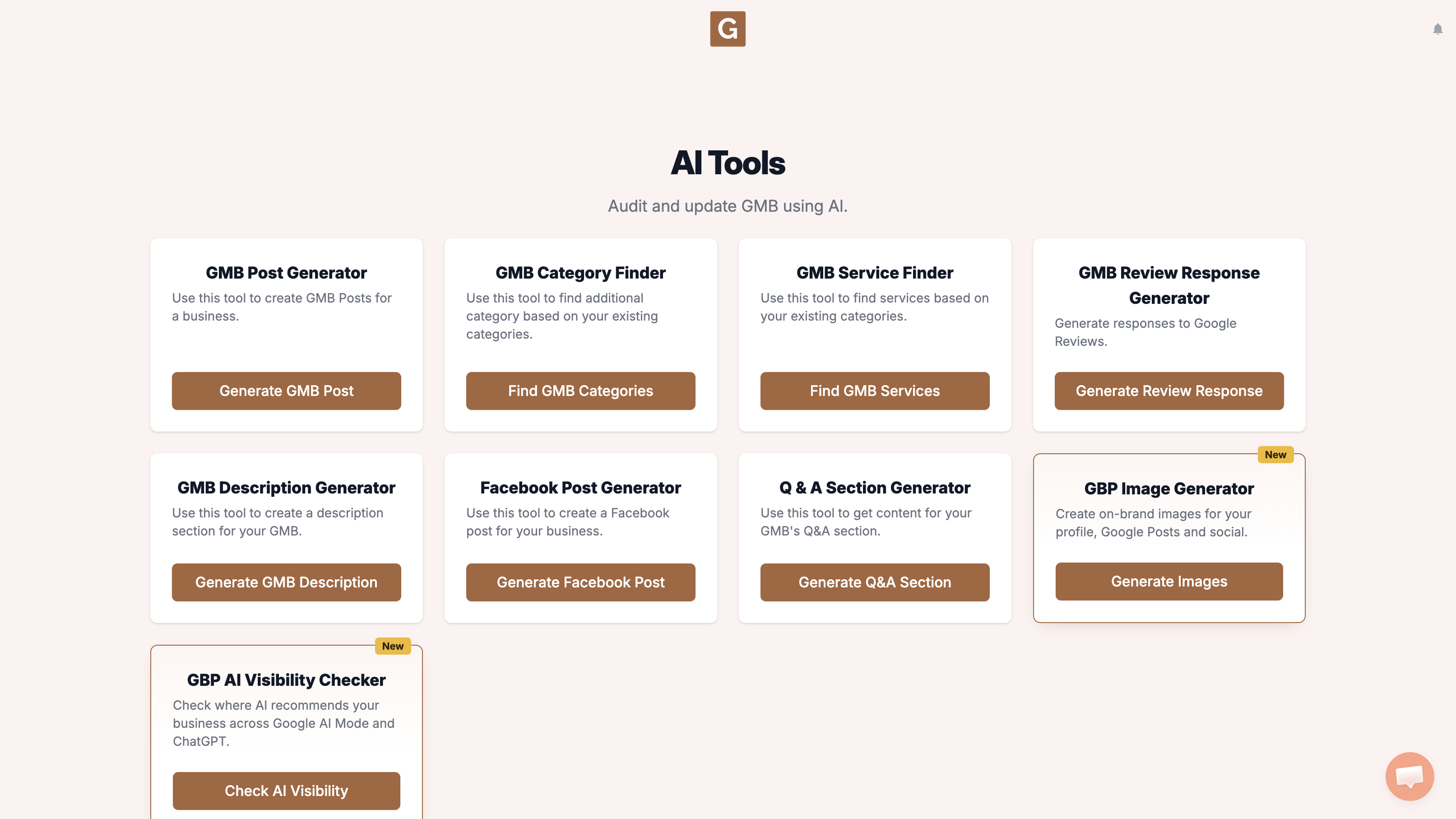
You’ll land on GBP Image Generator. Under Find your business, start typing your business name and pick the listing. Under Where will you use it? choose GBP Post, then repeat with Facebook / Instagram Post and Instagram Story / Reel. The four options are GBP Post (Landscape · 4:3), Profile Photo (Square · 1:1), Facebook / Instagram Post (Square · 1:1), and Instagram Story / Reel (Vertical · 9:16). There is no 16:9 option.
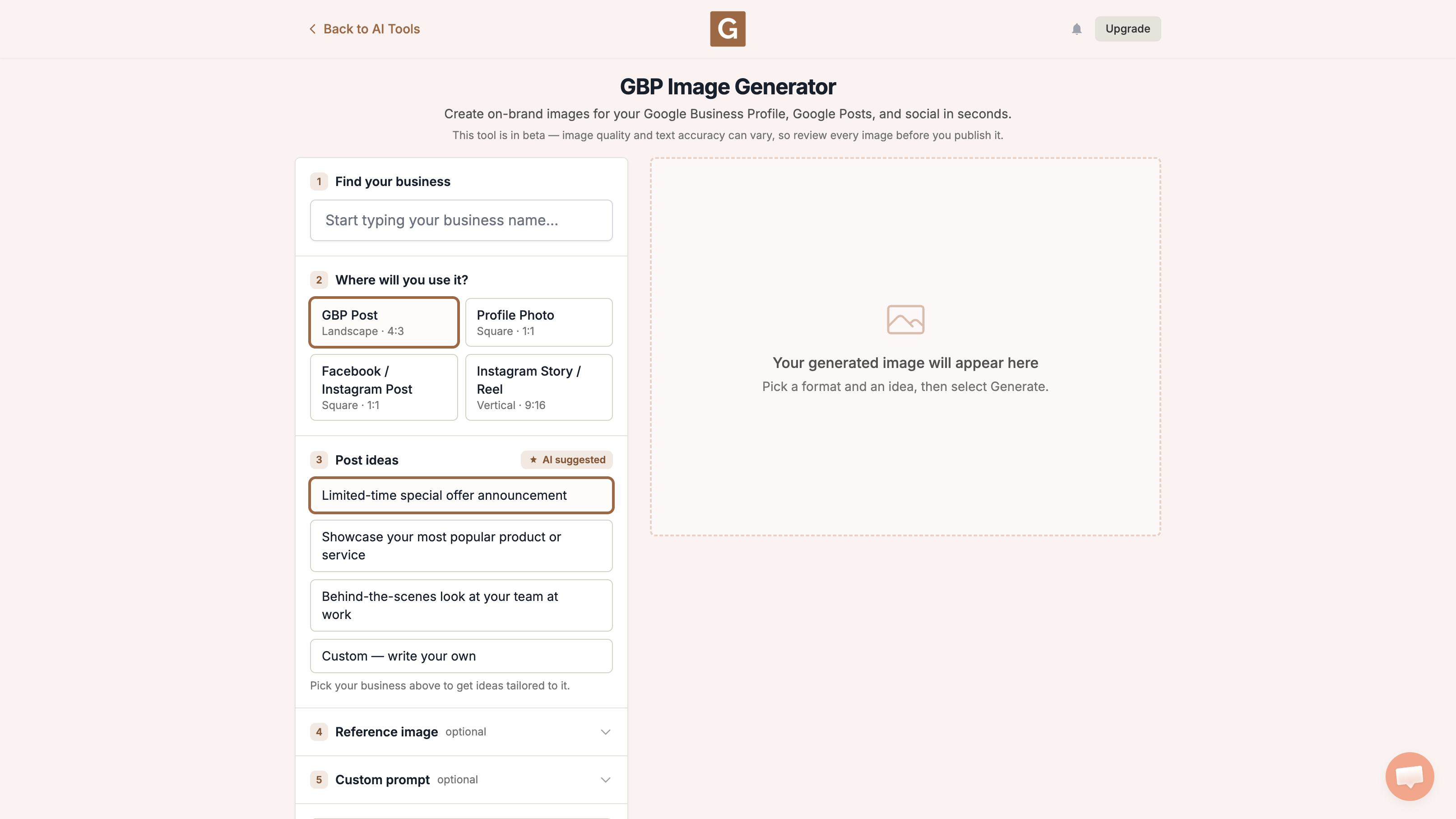
Choose Custom — write your own and paste the same message for every size. Then click Generate image. Repeat for GBP Post, Facebook / Instagram Post, and Instagram Story / Reel. Three sizes use 3 of the 5 free images on an account.
What the tool does not do
It does not upload the image to Google Business Profile, Instagram, or Facebook. Download it, take a look, then add it yourself. Keep the picture honest, and do not invent a shop, team, or offer you do not have.
Keep the same business so all three pictures belong to the same shop. After the Google Post is live, you can share it to Facebook and Instagram, and ideas for stronger GBP posts can help after the pictures are live.
What people try first
What actually helps
Does one click export all sizes?
No. Change the format option and generate again.
Will history keep the versions?
Yes. The last 5 images you generated are kept in History for this session, newest first.
Should the text match?
Yes. Choose Custom — write your own and paste the same message for each size. That is the idea field, not the optional Custom prompt.
Complete suite of professional tools for Google Business Profile management
How to use:
Open any business on Google Maps - primary and secondary categories display automatically beside the profile
Features:
How to use:
Search for any term on Google Maps - click the Local Scan button to compare all GBPs
Features:
How to use:
Open any business on Google Maps - click the 'AI' button beside the GBP to use AI features
Features:
How to use:
Open any business on Google Maps - click the 'Find more' button beside categories
Features:
How to use:
Open any business on Google Maps - click the 'Basic Audit' button beside the GBP
Features:
How to use:
Open any business on Google Maps - click the 'Review Audit' button beside the GBP
Features:
How to use:
Open any business on Google Maps - click the 'Teleport' button beside the GBP
Features:
How to use:
Open any business on Google Maps - click the 'Post Audit' button beside the GBP
Features:
How to use:
Open any business on Google Maps - click the 'Website Audit' button beside the GBP
Features:
Join thousands of agencies and businesses using GMB Everywhere daily
Join 250,000+ users who use GMB Everywhere to analyze competitors and optimize their Google Business Profiles
Install GMB Everywhere - It’s FreeSeptember 22, 2026
GuidesSeptember 22, 2026