GBP Images

How to Make an Event Image for Google Business Profile

The quickest way to make an event image for Google Business Profile is to use GBP Post in the Image Generator. Write the event name and date in Custom, then attach the picture to the post yourself.

Make an Event Image
Free to Start 250,000+ Users

September 22, 2026

How to make an event image on the form

The format list includes GBP Post, Profile Photo, Facebook / Instagram Post, and Instagram Story / Reel. The image form does not have a separate Event option, so stay on GBP Post. Write the event name in Custom. When you publish, use a Google Business Profile Event post so the date lives on the post.

Keep the facts true. Google’s photo guidelines still want the image to represent reality. After you download the picture, write the event details in the post body with the GMB post AI tool if you need help with the caption.

What to put on an event post image

Name, date, and a real location are enough. Do not invent a venue photo.

Format

GBP Post 4:3

That is the size for a Google Post. A tall Story picture will not fit well.

Copy

Custom idea or prompt

Ideas like an offer, a showcase, or a behind-the-scenes look. An event usually needs Custom.

Facts

Real date and place

Keep the date and place honest. Do not invent an event you are not hosting.

How to Use the GBP Image Generator

Here’s how to use it.

1

Open GBP Image Generator

Open GMB Everywhere AI Tools and find the card titled GBP Image Generator. It says it creates on-brand images for your profile, Google Posts and social. Click Generate Images.
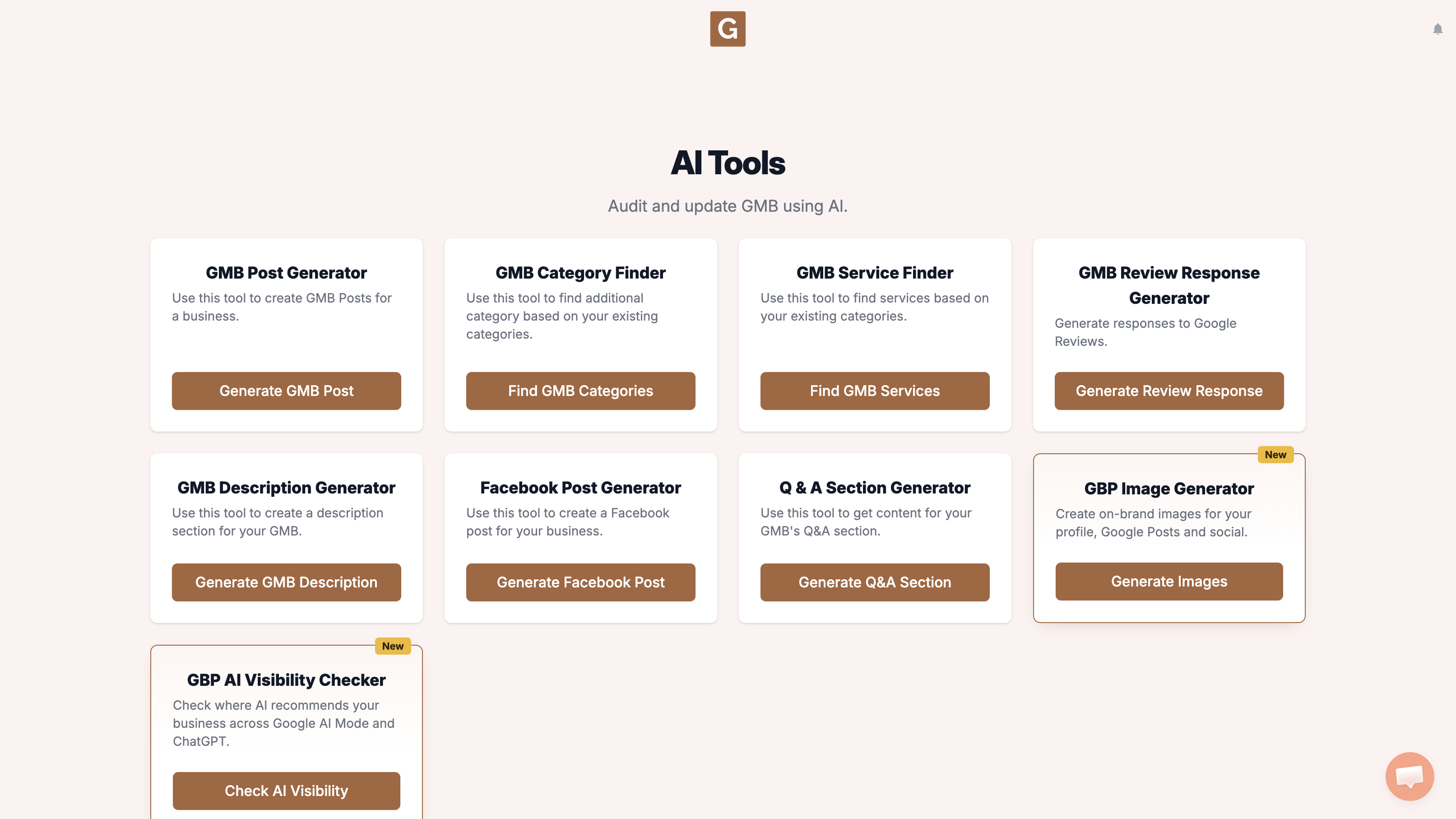
GMB Everywhere AI Tools page showing the GBP Image Generator card and the Generate Images button
2

Find your business and pick a format

You’ll land on GBP Image Generator. Under Find your business, start typing your business name and pick the listing. Under Where will you use it? choose GBP Post (Landscape · 4:3). The four options are GBP Post (Landscape · 4:3), Profile Photo (Square · 1:1), Facebook / Instagram Post (Square · 1:1), and Instagram Story / Reel (Vertical · 9:16). There is no 16:9 option.
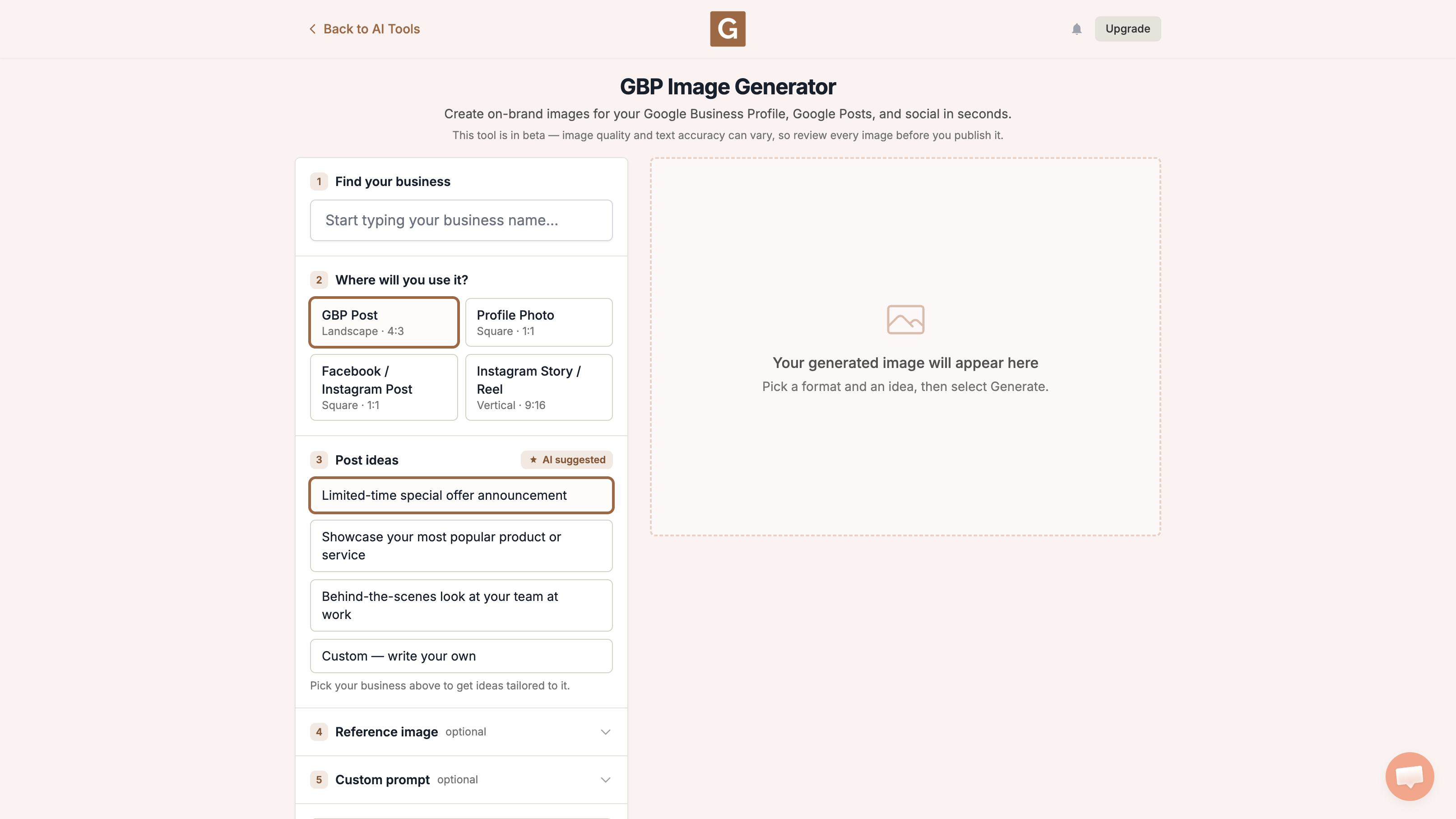
GBP Image Generator GBP Post format with Post ideas and Custom write your own
3

Pick an idea and generate

After you pick a business, that list becomes 3 ideas suggested for the listing. Pick the one closest to what you need, or choose Custom — write your own. The names below are examples of the defaults, not a promise you will see those exact lines. A reference image and the optional Custom prompt are separate fields. Then click Generate image.

  • Limited-time special offer announcement
  • Showcase your most popular product or service
  • Behind-the-scenes look at your team at work

What the tool does not do

It does not upload the image to Google Business Profile, Instagram, or Facebook. Download it, take a look, then add it yourself. Keep the picture honest, and do not invent a shop, team, or offer you do not have.

What to do next

If you also want a tall invite, make a second picture with Instagram Story / Reel (9:16). For the event caption, seasonal event posts with AI can help after the image is ready.

What not to do, and what to do instead

What people try first

  • Using a tall Story picture on the Google Post
  • A venue that is not yours
  • Forgetting to attach the picture to the Google Post

What actually helps

  • GBP Post 4:3
  • Custom idea with the real event name and date
  • Check the spelling, then upload the post yourself

Quick FAQs

Is there an Event format?

No. Use GBP Post and a custom idea or prompt.

Can I reuse it on Instagram?

Make a second picture with Facebook / Instagram Post (1:1) or Instagram Story / Reel (9:16). The tool does not resize one picture into all three.

Does Generate image publish the event?

No. It only creates the image.

Features

Complete suite of professional tools for Google Business Profile management

View Competitor Category

How to use:

Open any business on Google Maps - primary and secondary categories display automatically beside the profile

Features:

  • Always Free to Use
  • Find Primary Category
  • Find All Secondary Categories
  • Direct Link to Category Finder
  • Always Displayed on Google Maps

Local Scan

How to use:

Search for any term on Google Maps - click the Local Scan button to compare all GBPs

Features:

  • Compare Multiple Competitors in One Click
  • Compare Competitors Categories & Services
  • Compare Competitor Reviews Across GBPs
  • Compare Competitor Location Advantage
  • Compare Attributes & Other Data

AI Tools

How to use:

Open any business on Google Maps - click the 'AI' button beside the GBP to use AI features

Features:

  • AI GBP Post Generator
  • AI Review Response Generator
  • AI GBP Description Generator
  • AI Q&A Section Generator
  • AI Facebook Post Generator

Category Finder

How to use:

Open any business on Google Maps - click the 'Find more' button beside categories

Features:

  • Find Related Categories Based on Real Data
  • Get Service Suggestions for Each Category
  • Analyze Traffic Potential per Category
  • Extract Category Suggestions from Website URL
  • Category Suggestions from AI Chat

Basic Audit

How to use:

Open any business on Google Maps - click the 'Basic Audit' button beside the GBP

Features:

  • GBP Info like Place ID, Knowledge ID, CID & More
  • Find Services, Attributes, Categories & More
  • GBP Links like Review Request, Service/Product & More
  • Compare on External Maps Outside Google Maps
  • 40+ Additional Data Points & Tools

Review Audit

How to use:

Open any business on Google Maps - click the 'Review Audit' button beside the GBP

Features:

  • Track Review & Rating Trends Over Time
  • Detailed Review Analysis for GBP
  • Discover Common Keywords in Reviews
  • Custom Review Filtering for Analysis
  • Other Review Features

Teleport

How to use:

Open any business on Google Maps - click the 'Teleport' button beside the GBP

Features:

  • Find GBP Rank at Any Location
  • Find GBP Rank for Any Search Term
  • Find GBP Competitors at Any Location
  • Customizable Location Settings
  • Can Run for Any Location Worldwide

Post Audit

How to use:

Open any business on Google Maps - click the 'Post Audit' button beside the GBP

Features:

  • GBP Posts Timeline Visualization
  • Track Total GBP Posts & Post Frequency
  • Analyze GBP Post Content & Character Count
  • Monitor GBP Posts with Links & Media
  • GBP Post Performance Insights

Website Audit

How to use:

Open any business on Google Maps - click the 'Website Audit' button beside the GBP

Features:

  • Compare NAP against the GBP
  • Check hours, categories, and meta tags
  • Review local keywords and category pages
  • Score content depth, spelling, and headers
  • Check mobile click-to-call

Loved by Local SEO Experts

Join thousands of agencies and businesses using GMB Everywhere daily

Make Your GBP Event Image

Join 250,000+ users who use GMB Everywhere to analyze competitors and optimize their Google Business Profiles

Install GMB Everywhere - It’s Free

More GBP Guides