Local SEO

Do Your Google Business Profile Hours Match Your Website?

The fastest way to check if your Google Business Profile hours match your website is to line them up day by day and find the one row that disagrees. When your profile says you close at 6 and your site still says 8, Google sees two answers and customers get the wrong one. GMB Everywhere’s Website Audit runs that comparison for you and points to the exact day that is off. Here is how to run it and read the result.

Audit Your GBP for Free
Free to Start 250,000+ Users

June 12, 2026

Why Your Hours Need to Match in Two Places

Customers act on whichever hours they see first, and Google leans on the most consistent answer it can find. When your website and your profile disagree on a single day, someone drives over to a closed door and Google loses confidence in your listing. Keeping your business hours accurate on both sources removes that doubt.

A day-by-day check sounds tedious, so most owners skip it and never notice the gap. The Website Audit inside GMB Everywhere’s Google Business Profile audit tool compares your two sets of hours automatically and flags the row that is off, so you can fix it in minutes.

What the Hours Comparison Looks At

The audit focuses on the hours signals that customers and Google rely on most.

Day by day

Every weekday lined up

It compares your website hours against your profile hours for each day, not just a single open or closed status.

The mismatch

The day that disagrees

Where the two sources differ, that day is flagged so you know exactly which row to correct.

One source

Same answer everywhere

The goal is a single set of hours that reads the same on your site and your profile.

Run the Audit and Read Each Day

Three steps take you from a mismatch to a clean, matching schedule.

1

Run the Website Audit

Add GMB Everywhere to Chrome, open your business in Google Maps, and run the Website Audit. The results split into GBP & Website Match and Website Quality, and the hours live under the first group.

Fix

Scroll to the Operating Hours Comparison under GBP & Website Match to see your two schedules side by side.

2

Read the Operating Hours Comparison

The comparison lists your profile hours next to the hours it reads from your website for each day of the week. A flagged day is the audit telling you the two sources do not agree.
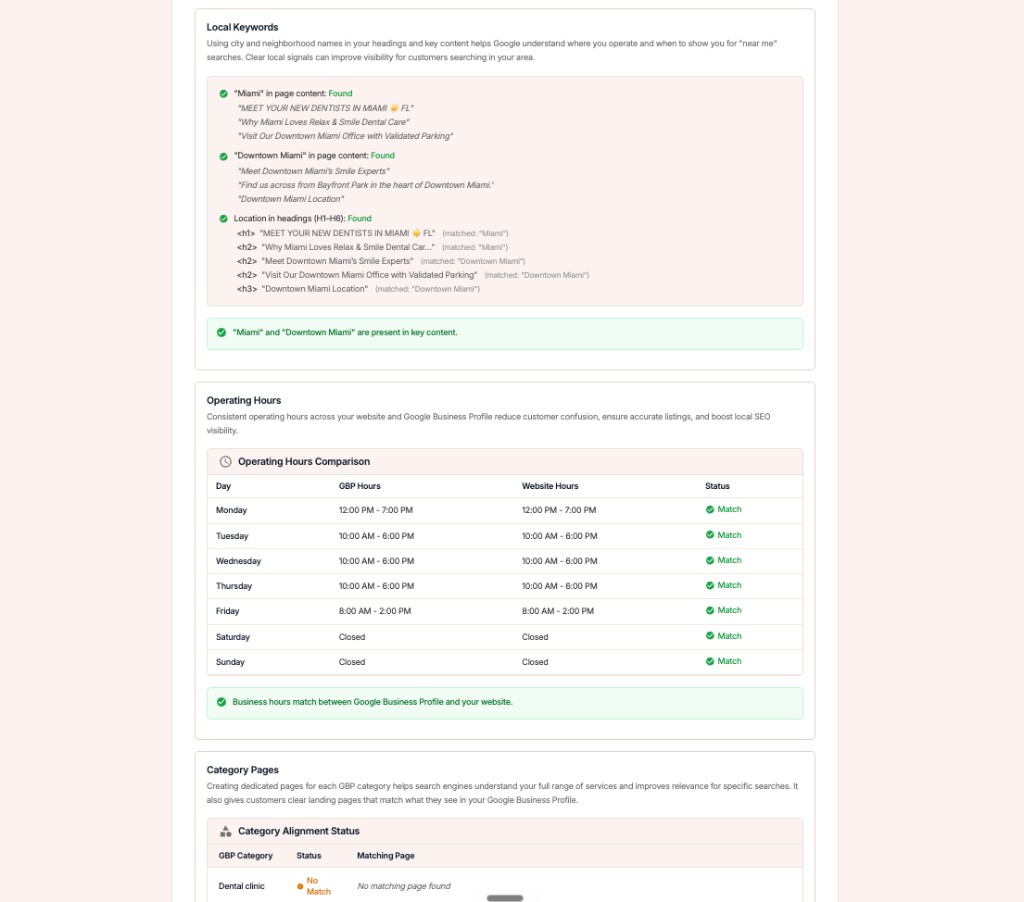
GMB Everywhere Website Audit showing a day-by-day operating hours comparison between a Google Business Profile and a website

What it shows

  • Profile hours for each day
  • Website hours for each day
  • The day or days that disagree

Where to find it

Open Edit profileHours on your Google Business Profile, then match it to your website (or the other way around) so both read the same.

3

Fix the day that disagrees

Pick which version is correct, then update the other source. Most mismatches come from seasonal changes made in one place but not the other.

Mismatch

  • Profile updated for new winter hours, website still on summer times
  • Closed on a holiday on the profile, open on the site
  • Hours edited on the site but never mirrored to the profile

Match

  • Both sources show the same open and close time every day
  • Holiday changes made in both places
  • One schedule that you maintain in two synced spots

Line Up Your Hours with GMB Everywhere

1

Run the audit

Open your business in Google Maps and run the Website Audit with GMB Everywhere.

2

Find the flagged day

Check the Operating Hours Comparison and note any day marked as a mismatch.

3

Match and re-run

Edit the wrong source, then run the audit again to confirm every day agrees.

What Google Sees: Conflicting vs. Matching Hours

Conflicting hours

  • At least one day disagrees across site and profile
  • Google may override your hours with another source
  • Customers arrive to a closed door

Matching hours

  • Every day reads the same on both
  • Google has one clear answer to trust
  • Customers always see the right times

Quick FAQs

Why does Google show different hours than my website?

Google may pull hours from several sources and favor the most consistent one. When your website disagrees with your profile, it can display the version it trusts more, which may not be the one you intended.

How often should I check my hours match?

A quick check each quarter, plus any time you change seasonal hours, move, or adjust holiday times, is enough to catch a mismatch before customers do.

Does the audit check special or holiday hours?

The Operating Hours Comparison lines up your regular weekly hours day by day. For one-off holiday changes, update both your profile and your website so they continue to agree.

Where do I edit my profile hours?

Open your Google Business Profile, go to Edit profile, then Hours. Set the correct times there and mirror the same hours on your website.

Do mismatched hours really affect ranking?

Consistency is a trust signal for local search. Keeping your name, address, phone, and hours aligned removes a conflict Google would otherwise have to resolve, which supports your visibility.

Features

Complete suite of professional tools for Google Business Profile management

View Competitor Category

How to use:

Open any business on Google Maps - primary and secondary categories display automatically beside the profile

Features:

  • Always Free to Use
  • Find Primary Category
  • Find All Secondary Categories
  • Direct Link to Category Finder
  • Always Displayed on Google Maps

Local Scan

How to use:

Search for any term on Google Maps - click the Local Scan button to compare all GBPs

Features:

  • Compare Multiple Competitors in One Click
  • Compare Competitors Categories & Services
  • Compare Competitor Reviews Across GBPs
  • Compare Competitor Location Advantage
  • Compare Attributes & Other Data

AI Tools

How to use:

Open any business on Google Maps - click the 'AI' button beside the GBP to use AI features

Features:

  • AI GBP Post Generator
  • AI Review Response Generator
  • AI GBP Description Generator
  • AI Q&A Section Generator
  • AI Facebook Post Generator

Category Finder

How to use:

Open any business on Google Maps - click the 'Find more' button beside categories

Features:

  • Find Related Categories Based on Real Data
  • Get Service Suggestions for Each Category
  • Analyze Traffic Potential per Category
  • Extract Category Suggestions from Website URL
  • Category Suggestions from AI Chat

Basic Audit

How to use:

Open any business on Google Maps - click the 'Basic Audit' button beside the GBP

Features:

  • GBP Info like Place ID, Knowledge ID, CID & More
  • Find Services, Attributes, Categories & More
  • GBP Links like Review Request, Service/Product & More
  • Compare on External Maps Outside Google Maps
  • 40+ Additional Data Points & Tools

Review Audit

How to use:

Open any business on Google Maps - click the 'Review Audit' button beside the GBP

Features:

  • Track Review & Rating Trends Over Time
  • Detailed Review Analysis for GBP
  • Discover Common Keywords in Reviews
  • Custom Review Filtering for Analysis
  • Other Review Features

Teleport

How to use:

Open any business on Google Maps - click the 'Teleport' button beside the GBP

Features:

  • Find GBP Rank at Any Location
  • Find GBP Rank for Any Search Term
  • Find GBP Competitors at Any Location
  • Customizable Location Settings
  • Can Run for Any Location Worldwide

Post Audit

How to use:

Open any business on Google Maps - click the 'Post Audit' button beside the GBP

Features:

  • GBP Posts Timeline Visualization
  • Track Total GBP Posts & Post Frequency
  • Analyze GBP Post Content & Character Count
  • Monitor GBP Posts with Links & Media
  • GBP Post Performance Insights

Loved by Local SEO Experts

Join thousands of agencies and businesses using GMB Everywhere daily

Check Your Hours with GMB Everywhere

Join 250,000+ users who use GMB Everywhere to analyze competitors and optimize their Google Business Profiles

Install GMB Everywhere - It’s Free

More GBP Guides