The quickest way to check whether your website matches your Google Business Profile is to compare the details customers and Google rely on most — your name, address, phone, hours, and categories. When those disagree across the two, Google has to guess which version is right, and that uncertainty costs you local visibility. Here is how to spot every mismatch in minutes and line them back up.
Google cross-references the details it finds about your business. When your website, your profile, and other listings tell a consistent story, that is a trust signal. When they conflict, Google has to guess which version to show — and that uncertainty can quietly cost you visibility. Keeping your business information accurate is one of the highest-value local SEO basics.
Mismatched hours or phone numbers also frustrate customers at the exact moment they want to call or visit. The goal is simple: one set of facts everywhere. GMB Everywhere’s Google Business Profile audit tool includes a Website Audit that compares the two and shows you exactly where they drift apart.
The Website Audit groups its findings around the signals Google and customers rely on most.
Contact details
Name, address, phone
Your core NAP should read identically on your site and your profile, down to the suite number and phone format.
When you’re open
Hours, day by day
If your website hours and profile hours disagree, Google may override what you set and show the wrong day.
What you do
Categories & service pages
Each profile category is stronger when a matching page on your site backs it up with real content.
Add GMB Everywhere to Chrome, open your business, and run the Website Audit. Results split into GBP & Website Match and Website Quality.
The audit compares your core contact details and marks each field Match or Mismatch. Usual culprits: a shortened business name, a missing suite or street suffix, and a different phone format.
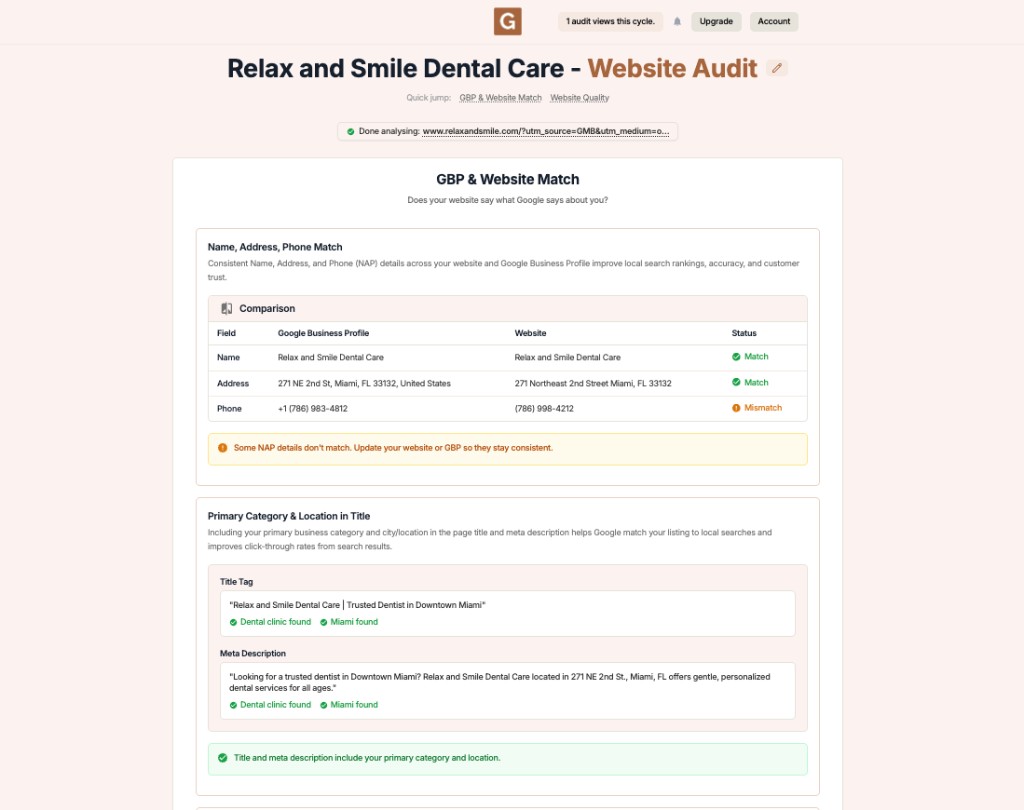
Fix
Decide which version is correct, then update the other source so they line up character‑for‑character.
The audit checks whether your primary category and city appear in your page title tag and meta description — the first things a searcher sees and a signal that helps Google match your page to local searches.
Fix
If the check is missing, add your main service and city to the title and description in plain, natural language — no keyword stuffing.
The audit lines up your hours day by day and flags any day where your website and profile disagree. It also confirms your city and neighborhood terms appear in your content and headings, and checks whether each profile category has a matching page.
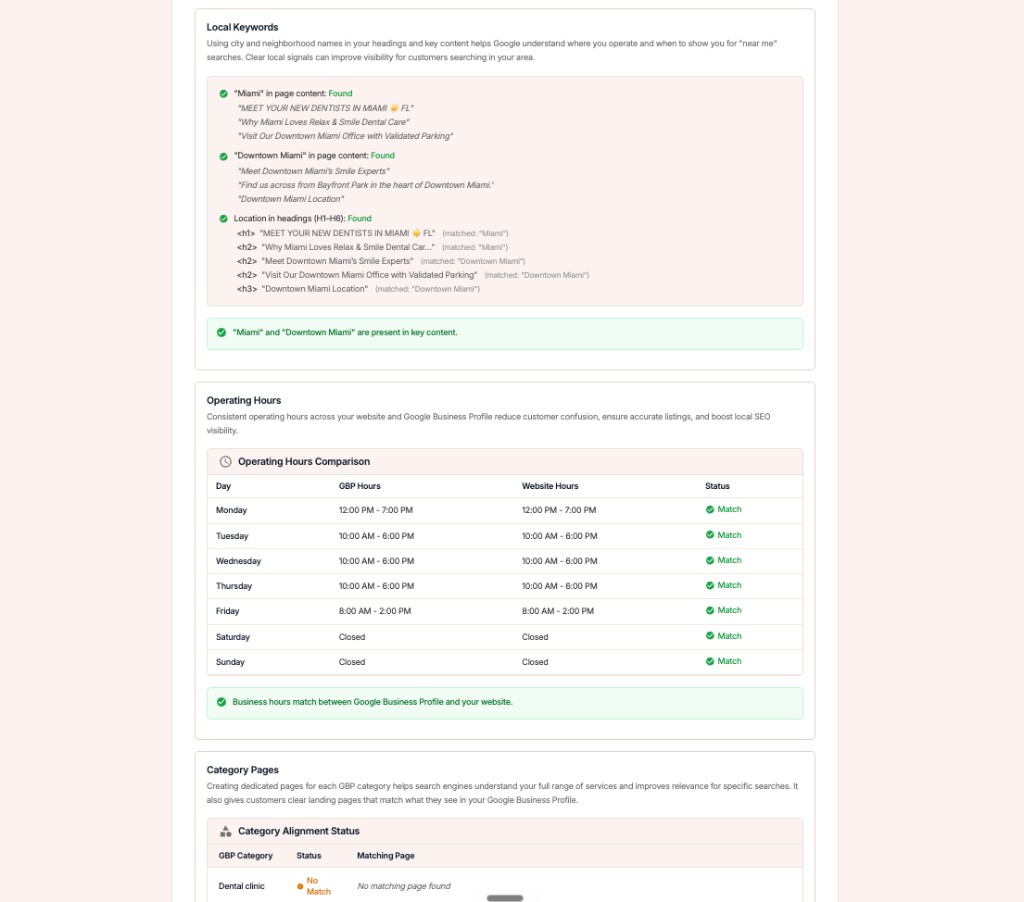
Fix
Where a category shows No Match, add a dedicated page for that service. Unsure which to align to? See how to choose your profile categories.
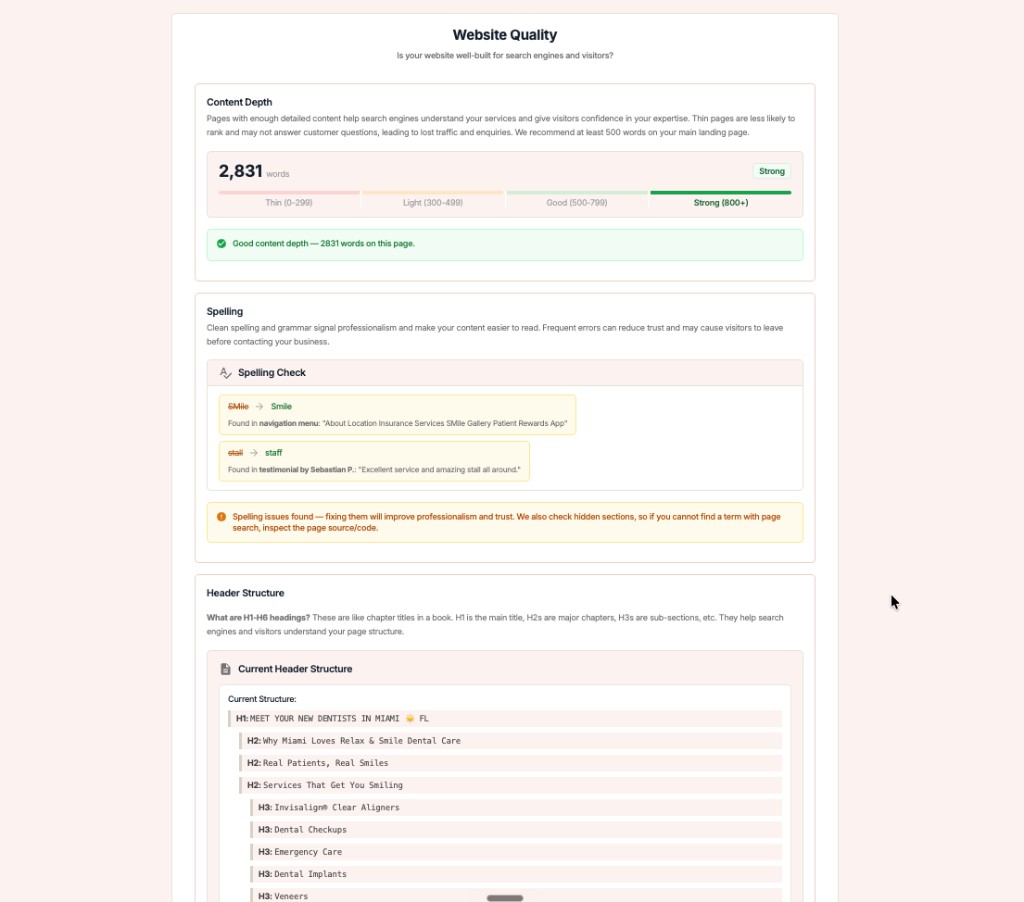
The second half scores your content depth against simple bands, runs a spelling check that points to the exact word, and lays out your header structure so you can confirm a clean H1–H6 hierarchy.
Decide the correct name, address, phone, and hours, and write them down.
Correct your website first, then mirror the same details on your profile so they agree.
Confirm each field now shows Match, and make it a routine — details drift over time.
Conflicting setup
Aligned setup
What is NAP and why does it matter?
NAP stands for Name, Address, and Phone number. Keeping it identical across your website and profile is a trust signal that supports local rankings and prevents customer confusion.
Why does Google keep changing my hours?
Google may adjust your hours when it finds conflicting information on your website or elsewhere. Making your website match your profile removes the conflict it is trying to resolve.
Do I really need a page for every category?
A dedicated page for each main service gives customers a clear landing point and helps Google connect your profile categories to real content on your site.
How often should I run a Website Audit?
A quick check each quarter, plus any time you change hours, move, or rebrand, is enough to catch drift before it affects your visibility.
Complete suite of professional tools for Google Business Profile management
How to use:
Open any business on Google Maps - primary and secondary categories display automatically beside the profile
Features:
How to use:
Search for any term on Google Maps - click the Local Scan button to compare all GBPs
Features:
How to use:
Open any business on Google Maps - click the 'AI' button beside the GBP to use AI features
Features:
How to use:
Open any business on Google Maps - click the 'Find more' button beside categories
Features:
How to use:
Open any business on Google Maps - click the 'Basic Audit' button beside the GBP
Features:
How to use:
Open any business on Google Maps - click the 'Review Audit' button beside the GBP
Features:
How to use:
Open any business on Google Maps - click the 'Teleport' button beside the GBP
Features:
How to use:
Open any business on Google Maps - click the 'Post Audit' button beside the GBP
Features:
Join thousands of agencies and businesses using GMB Everywhere daily
Join 250,000+ users who use GMB Everywhere to analyze competitors and optimize their Google Business Profiles
Install GMB Everywhere - It’s FreeFebruary 20, 2026
GuidesFebruary 20, 2026