Local SEO

Do You Need a Separate Page for Each Google Business Profile Category?

If you are wondering whether you need a page for each Google Business Profile category, the honest answer is that your core categories deserve one and minor ones often do not. Each category tells Google what you do, and a matching page backs it with real content. GMB Everywhere’s Website Audit maps every category to a page and flags the ones with no home. Here is how to read it and decide where to invest.

Audit Your GBP for Free
Free to Start 250,000+ Users

June 12, 2026

Why Categories and Pages Belong Together

Each category on your Google Business Profile tells Google what you do, and a matching page on your site backs that claim with real content. When a category has no page behind it, the signal is weaker and a searcher who clicks through lands somewhere generic. Choosing the right business categories is only half the job; your website has to support them.

You do not need a page for literally every category, but your core services are stronger with a dedicated page each. The Website Audit in GMB Everywhere’s Google Business Profile audit tool maps each of your categories to a page on your site and flags the ones that show No Match.

How the Audit Thinks About Category Pages

The Category Pages check looks for a clear home on your site for each category.

Mapping

Category to page

It takes each category from your profile and looks for a matching page on your website.

No Match

The gap it flags

A category with no supporting page is marked No Match so you can decide whether it needs one.

Priority

Core first

Your primary category and main services earn a page first; minor categories can share or wait.

Map Each Category to a Page

Read the mapping, prioritize, then close the gaps that matter.

1

Open the Category Pages section

Run the Website Audit on your business and open the Category Pages section under GBP & Website Match. The audit lists your categories and whether each one maps to a page.
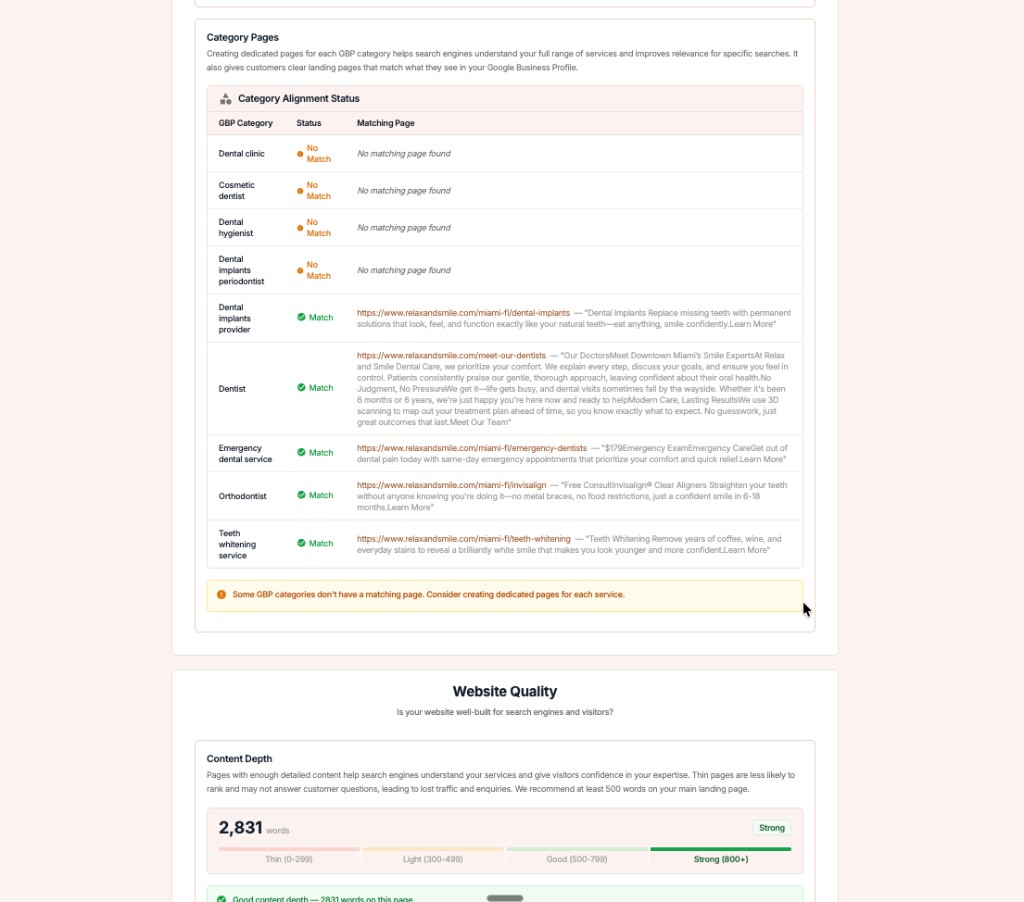
GMB Everywhere Website Audit Category Pages check showing each Google Business Profile category mapped to a website page with Match and No Match flags
2

Decide which categories need a page

Treat the list like a priority queue. Your primary category and the services that bring revenue deserve a real page; a rarely used secondary category may not.

PrimaryNeeds its own page with depth
SecondaryPage recommended for core services
SecondaryCan share a page if minor
3

Build the missing pages

For each flagged category, build a focused page that explains the service, who it is for, and your service area. Then re-run the audit to confirm the match.

Fix

Not sure which categories to align to in the first place? See how to choose your profile categories before you build pages.

Close the Category Gaps with GMB Everywhere

1

Run the audit

Use GMB Everywhere to run the Website Audit and open Category Pages.

2

Spot the No Match rows

Note which categories have no supporting page on your site.

3

Add pages, re-run

Create pages for your core categories, then run the audit again to confirm the matches.

What Google Sees: No Match vs. Mapped

Categories without pages

  • Several categories show No Match
  • Visitors land on a generic homepage
  • Weaker link between profile and site

Categories with pages

  • Core categories each map to a page
  • Visitors reach a relevant service page
  • Profile categories backed by real content

Quick FAQs

Do I need a page for every single category?

No. Focus on your primary category and the services that drive your business. Minor or overlapping categories can share a page or wait until you have the content.

What does No Match mean in the audit?

It means the audit could not find a page on your website that clearly matches that profile category. It is a prompt to consider building one, not a penalty.

Should a service page target a city too?

Yes, where it fits naturally. Pair the service with your city in the content and headings, the same way the local keywords check looks for them.

How is this different from choosing categories?

Choosing categories is about your profile; this check is about your website supporting them. Start with category selection, then build the pages.

How often should I re-run this check?

Run it whenever you add a category, launch a new service, or redesign your site, so new gaps do not go unnoticed.

Features

Complete suite of professional tools for Google Business Profile management

View Competitor Category

How to use:

Open any business on Google Maps - primary and secondary categories display automatically beside the profile

Features:

  • Always Free to Use
  • Find Primary Category
  • Find All Secondary Categories
  • Direct Link to Category Finder
  • Always Displayed on Google Maps

Local Scan

How to use:

Search for any term on Google Maps - click the Local Scan button to compare all GBPs

Features:

  • Compare Multiple Competitors in One Click
  • Compare Competitors Categories & Services
  • Compare Competitor Reviews Across GBPs
  • Compare Competitor Location Advantage
  • Compare Attributes & Other Data

AI Tools

How to use:

Open any business on Google Maps - click the 'AI' button beside the GBP to use AI features

Features:

  • AI GBP Post Generator
  • AI Review Response Generator
  • AI GBP Description Generator
  • AI Q&A Section Generator
  • AI Facebook Post Generator

Category Finder

How to use:

Open any business on Google Maps - click the 'Find more' button beside categories

Features:

  • Find Related Categories Based on Real Data
  • Get Service Suggestions for Each Category
  • Analyze Traffic Potential per Category
  • Extract Category Suggestions from Website URL
  • Category Suggestions from AI Chat

Basic Audit

How to use:

Open any business on Google Maps - click the 'Basic Audit' button beside the GBP

Features:

  • GBP Info like Place ID, Knowledge ID, CID & More
  • Find Services, Attributes, Categories & More
  • GBP Links like Review Request, Service/Product & More
  • Compare on External Maps Outside Google Maps
  • 40+ Additional Data Points & Tools

Review Audit

How to use:

Open any business on Google Maps - click the 'Review Audit' button beside the GBP

Features:

  • Track Review & Rating Trends Over Time
  • Detailed Review Analysis for GBP
  • Discover Common Keywords in Reviews
  • Custom Review Filtering for Analysis
  • Other Review Features

Teleport

How to use:

Open any business on Google Maps - click the 'Teleport' button beside the GBP

Features:

  • Find GBP Rank at Any Location
  • Find GBP Rank for Any Search Term
  • Find GBP Competitors at Any Location
  • Customizable Location Settings
  • Can Run for Any Location Worldwide

Post Audit

How to use:

Open any business on Google Maps - click the 'Post Audit' button beside the GBP

Features:

  • GBP Posts Timeline Visualization
  • Track Total GBP Posts & Post Frequency
  • Analyze GBP Post Content & Character Count
  • Monitor GBP Posts with Links & Media
  • GBP Post Performance Insights

Loved by Local SEO Experts

Join thousands of agencies and businesses using GMB Everywhere daily

Map Your Categories with GMB Everywhere

Join 250,000+ users who use GMB Everywhere to analyze competitors and optimize their Google Business Profiles

Install GMB Everywhere - It’s Free

More GBP Guides