If you are wondering whether you need a page for each Google Business Profile category, the honest answer is that your core categories deserve one and minor ones often do not. Each category tells Google what you do, and a matching page backs it with real content. GMB Everywhere’s Website Audit maps every category to a page and flags the ones with no home. Here is how to read it and decide where to invest.
Each category on your Google Business Profile tells Google what you do, and a matching page on your site backs that claim with real content. When a category has no page behind it, the signal is weaker and a searcher who clicks through lands somewhere generic. Choosing the right business categories is only half the job; your website has to support them.
You do not need a page for literally every category, but your core services are stronger with a dedicated page each. The Website Audit in GMB Everywhere’s Google Business Profile audit tool maps each of your categories to a page on your site and flags the ones that show No Match.
The Category Pages check looks for a clear home on your site for each category.
Mapping
Category to page
It takes each category from your profile and looks for a matching page on your website.
No Match
The gap it flags
A category with no supporting page is marked No Match so you can decide whether it needs one.
Priority
Core first
Your primary category and main services earn a page first; minor categories can share or wait.
Read the mapping, prioritize, then close the gaps that matter.
Run the Website Audit on your business and open the Category Pages section under GBP & Website Match. The audit lists your categories and whether each one maps to a page.
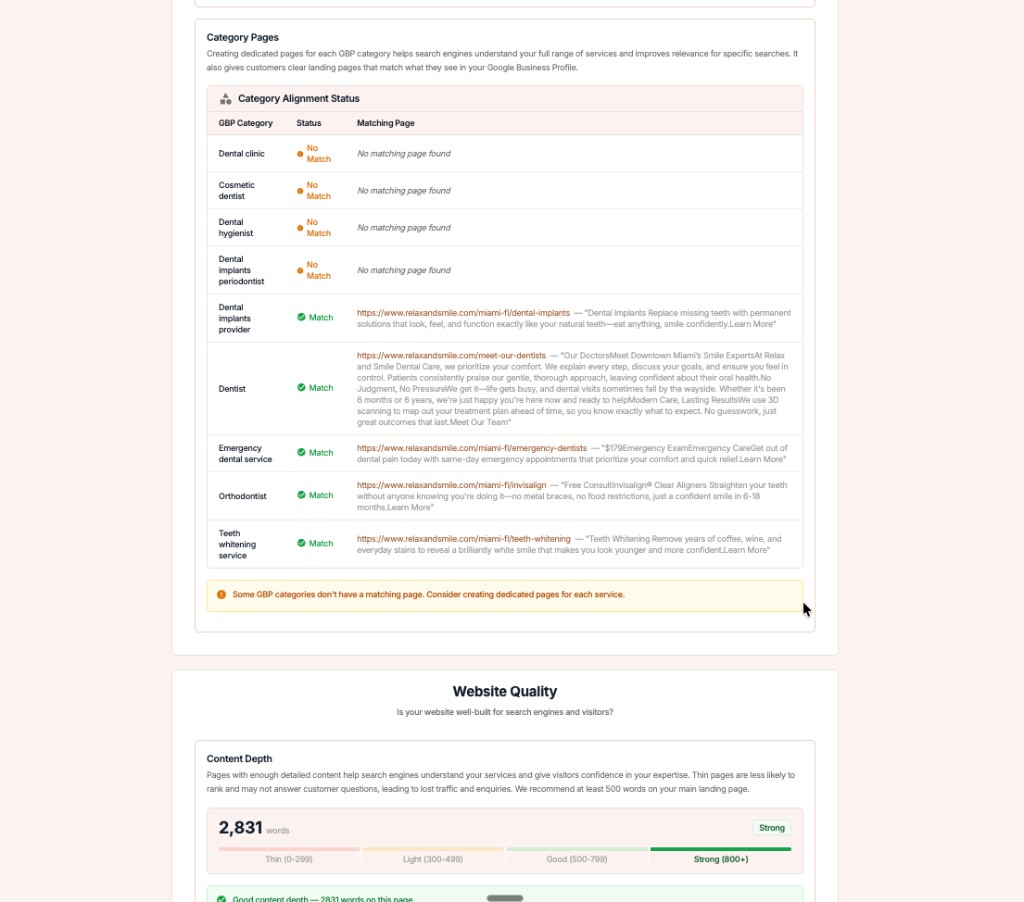
Treat the list like a priority queue. Your primary category and the services that bring revenue deserve a real page; a rarely used secondary category may not.
For each flagged category, build a focused page that explains the service, who it is for, and your service area. Then re-run the audit to confirm the match.
Fix
Not sure which categories to align to in the first place? See how to choose your profile categories before you build pages.
Note which categories have no supporting page on your site.
Create pages for your core categories, then run the audit again to confirm the matches.
Categories without pages
Categories with pages
Do I need a page for every single category?
No. Focus on your primary category and the services that drive your business. Minor or overlapping categories can share a page or wait until you have the content.
What does No Match mean in the audit?
It means the audit could not find a page on your website that clearly matches that profile category. It is a prompt to consider building one, not a penalty.
Should a service page target a city too?
Yes, where it fits naturally. Pair the service with your city in the content and headings, the same way the local keywords check looks for them.
How is this different from choosing categories?
Choosing categories is about your profile; this check is about your website supporting them. Start with category selection, then build the pages.
How often should I re-run this check?
Run it whenever you add a category, launch a new service, or redesign your site, so new gaps do not go unnoticed.
Complete suite of professional tools for Google Business Profile management
How to use:
Open any business on Google Maps - primary and secondary categories display automatically beside the profile
Features:
How to use:
Search for any term on Google Maps - click the Local Scan button to compare all GBPs
Features:
How to use:
Open any business on Google Maps - click the 'AI' button beside the GBP to use AI features
Features:
How to use:
Open any business on Google Maps - click the 'Find more' button beside categories
Features:
How to use:
Open any business on Google Maps - click the 'Basic Audit' button beside the GBP
Features:
How to use:
Open any business on Google Maps - click the 'Review Audit' button beside the GBP
Features:
How to use:
Open any business on Google Maps - click the 'Teleport' button beside the GBP
Features:
How to use:
Open any business on Google Maps - click the 'Post Audit' button beside the GBP
Features:
Join thousands of agencies and businesses using GMB Everywhere daily
Join 250,000+ users who use GMB Everywhere to analyze competitors and optimize their Google Business Profiles
Install GMB Everywhere - It’s FreeFebruary 20, 2026
GuidesFebruary 20, 2026