When a potential patient searches for "dentist near me," seeing a "Closed" label on your Google listing — even during business hours — can mean missed calls and appointments every day. Outdated or incorrect business hours create friction before you ever speak to a customer, affecting trust and sending them straight to a competitor whose schedule they can rely on.
Why Accurate Hours Matter
Your business hours are more than a logistical detail — they set expectations and shape first impressions. If your Google Business Profile shows wrong or stale hours, customers may assume you're unreliable or unresponsive. Google's local algorithm also favors profiles with complete and accurate information, pushing businesses with up‑to‑date hours higher in search results.
Local Scan: Your Hours Radar
Local Scan from GMB Everywhere benchmarks your Google Business Profile alongside competitors, with a dedicated Business Hours tab so you can:
- See today's opening and closing times along with your current "Open" or "Closed" status.
- Review your full weekly schedule, including any special or holiday hours you've set.
- Compare your hours directly against the top-ranked businesses in your area to identify where they're capturing early‑bird or late‑night traffic.
To get started, head to gmbeverywhere.com and add the extension to your Chrome browser.
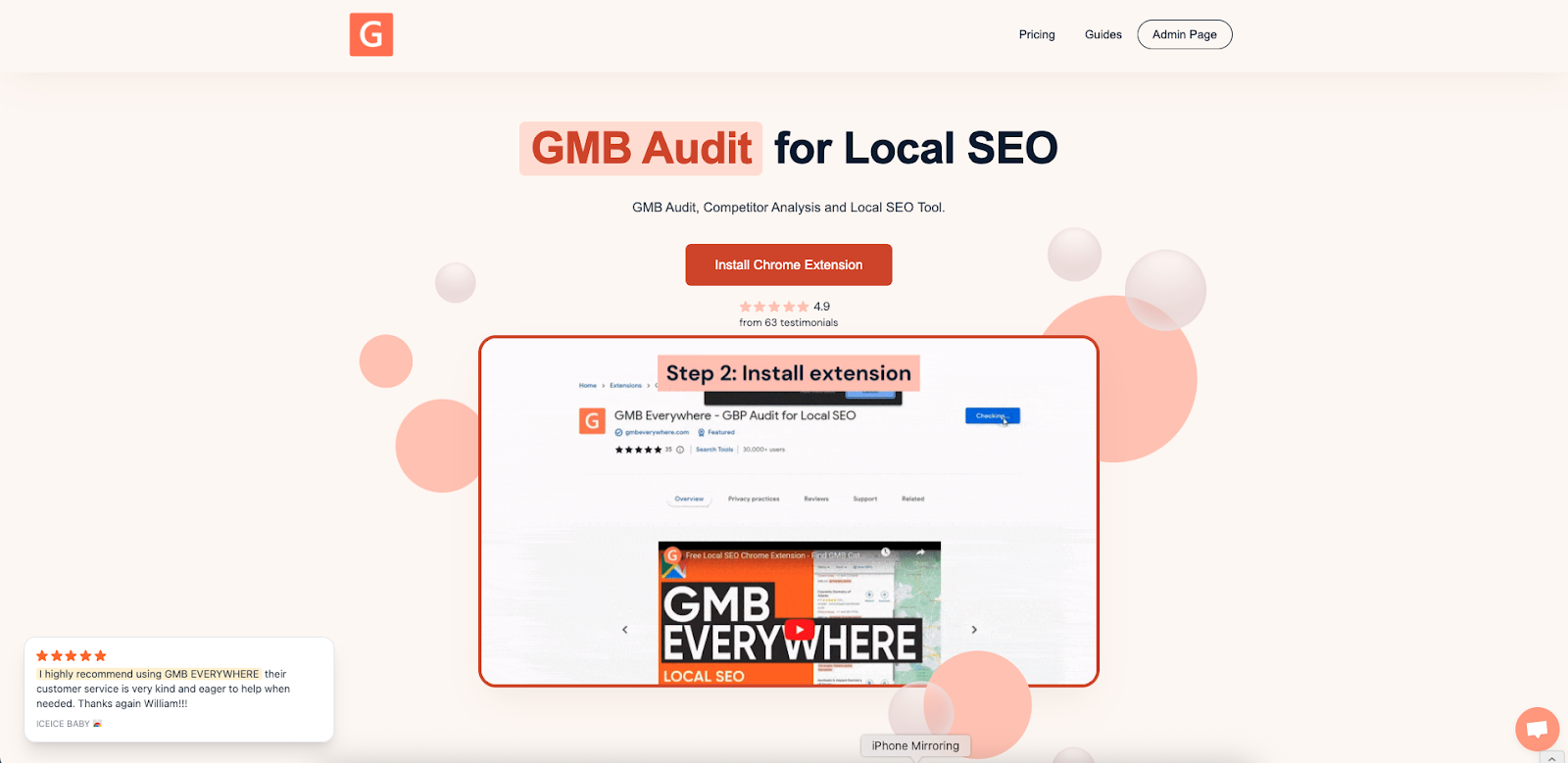
Then open Google Maps and search for your business name. Click Local Scan in the left panel.
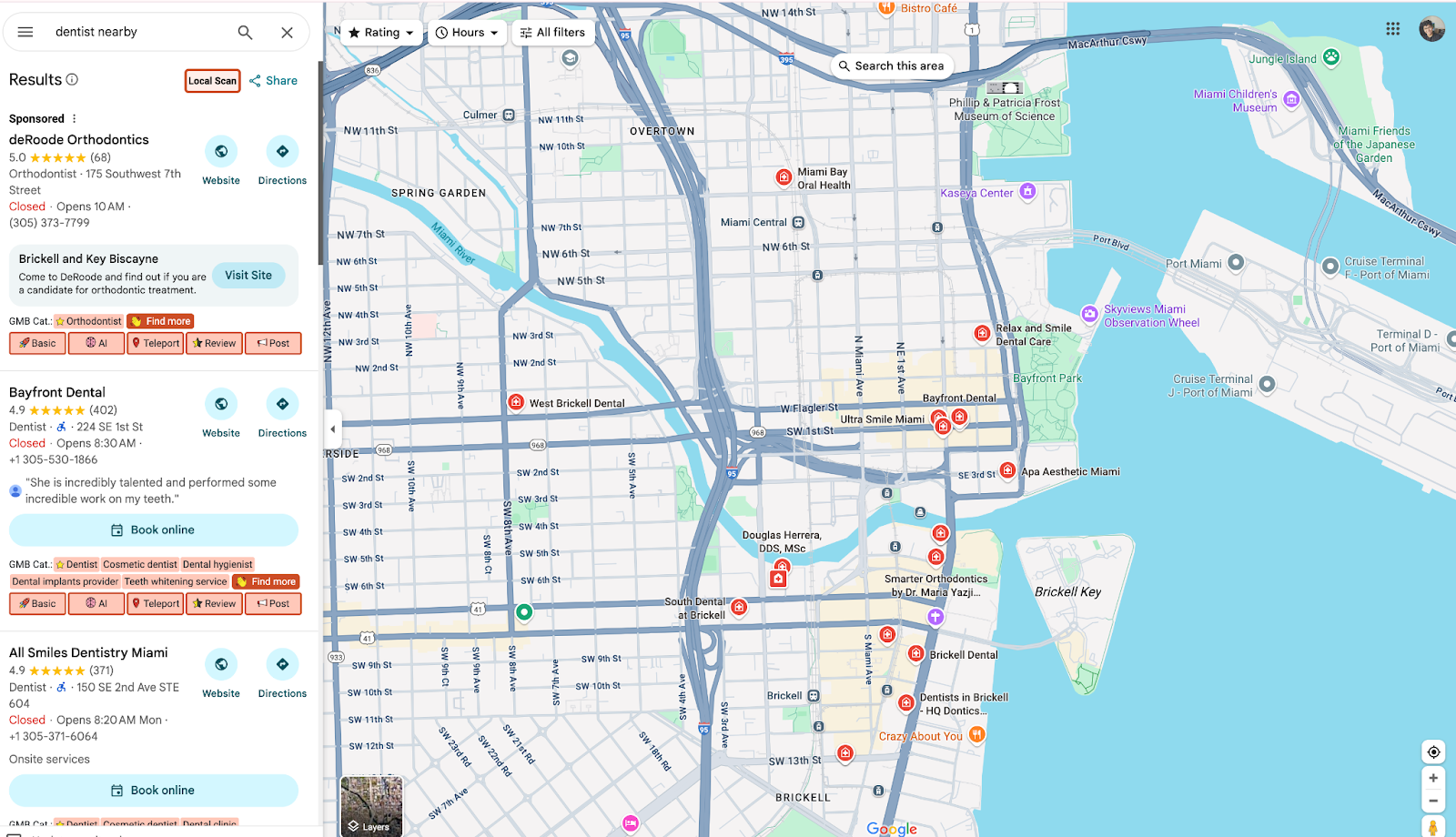
A new tab will open. Click the Business Hours tab to see your hours data.
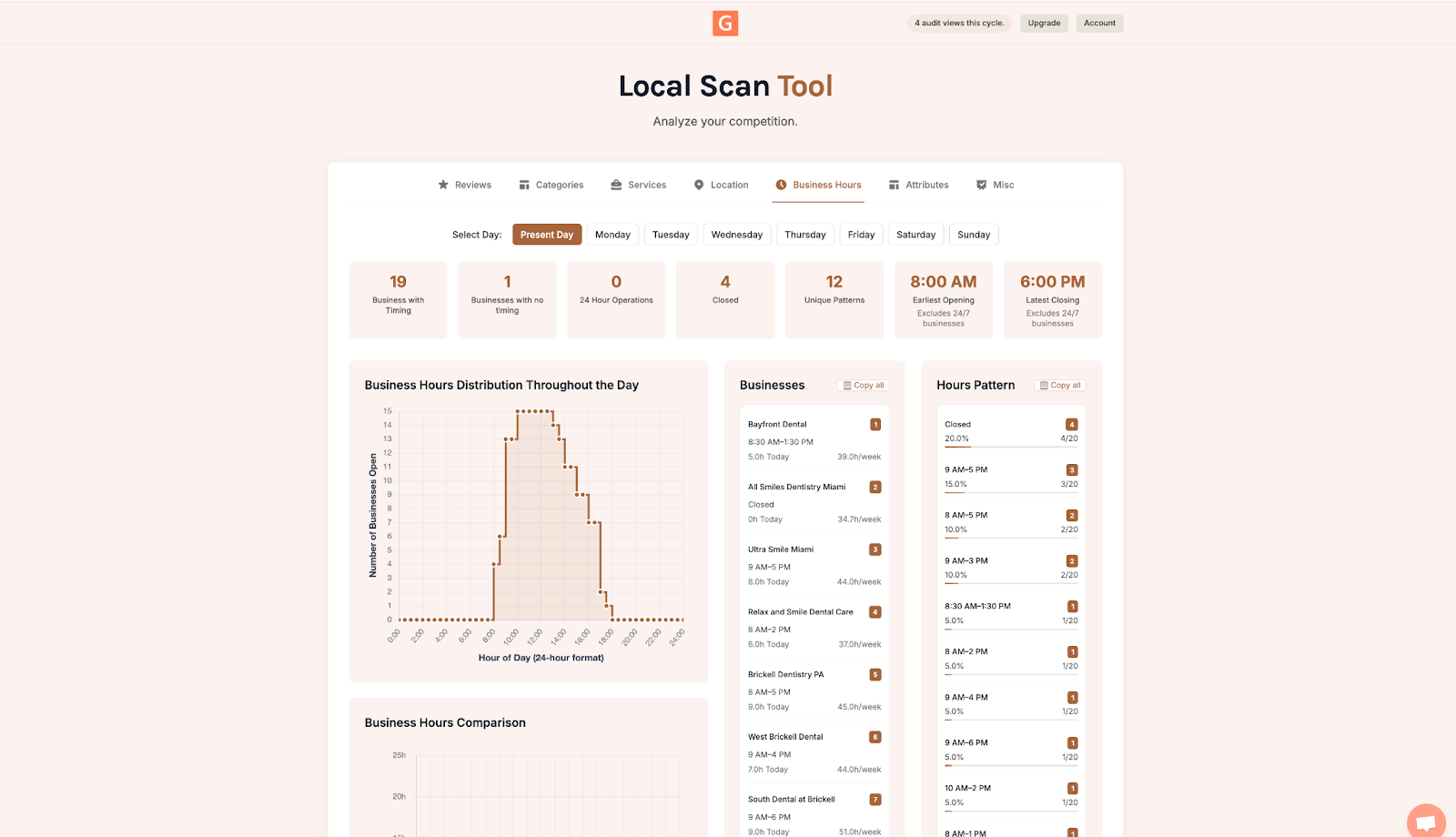
Check the Business Hours Tab First
Begin by confirming your current status and today's listed times. Next, scan your weekly schedule for any gaps — like missing early morning or weekend slots — that competitors may be using to capture more traffic. Check for holiday or special hours that may not have been updated, and note any differences between what's live on Google and your actual schedule.
Turn Insight Into Accurate Hours
- Correct inaccuracies: Fix mismatched or outdated hours so your listing always shows the right status.
- Match competitor patterns: Add early-opening or late-closing slots if competitors in your area are seeing more demand during those windows.
- Monitor weekly: Rerun Local Scan each week to catch accidental changes or new competitor hours. You can combine this with a broader competitor analysis of their review strategy for a fuller picture.
Conclusion
Don't let an outdated schedule cost you another call. In less than a minute, Local Scan will uncover any discrepancies between your real-world hours and what Google is showing — including whether your listing is mistakenly marked as "Closed" during active hours.
You'll also see how your schedule compares with top-ranking competitors, so you can identify if they're winning traffic with earlier openings, later closings, or weekend availability. Browse our full guides section for more ways to optimize your Google Business Profile.