In this guide, we'll show you how to check valuable insights about your competitor's Google Review strategy.
Reviews Are Essential for Your Business
Reviews are an essential part of your business. Authentic, positive feedback from your customers builds brand trust and online presence, which can translate to more sales. Businesses typically ask customers for reviews through a Google Review link.
As part of your competitive analysis, you should also check what other people say about your competitors to gain useful insights and spot opportunities to improve your own business.
How to Analyze Your Competitor's Google Review Strategy
To get insights about your competitor's Google Review strategy, you need the GMB Everywhere Chrome extension installed on your browser.
Step 1: Install GMB Everywhere
Head to gmbeverywhere.com and click the Install Chrome Extension button.
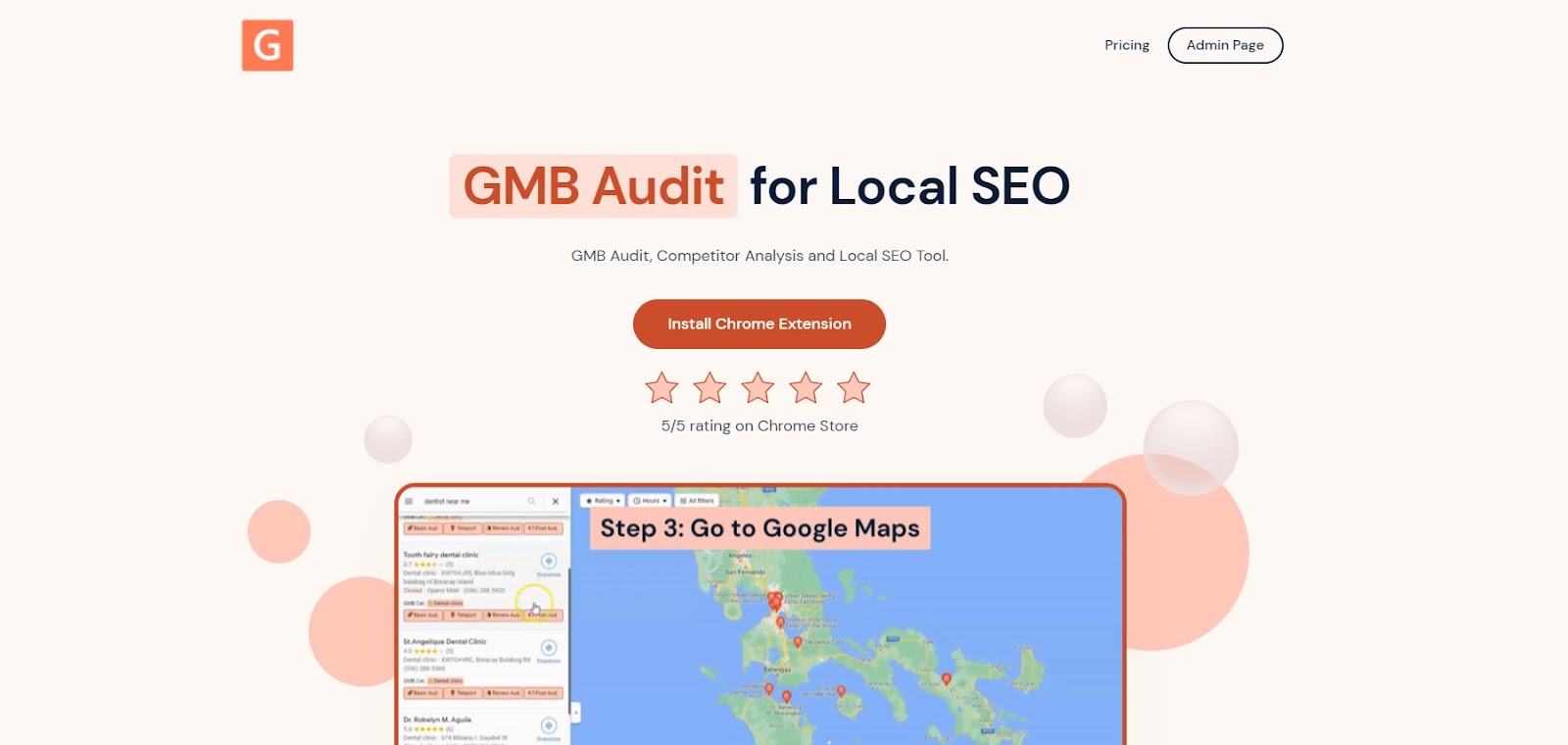
The GMB Everywhere homepage — click Install Chrome Extension to get started.
You'll be redirected to the GMB Everywhere Chrome Web Store page. Click the Add to Chrome button.
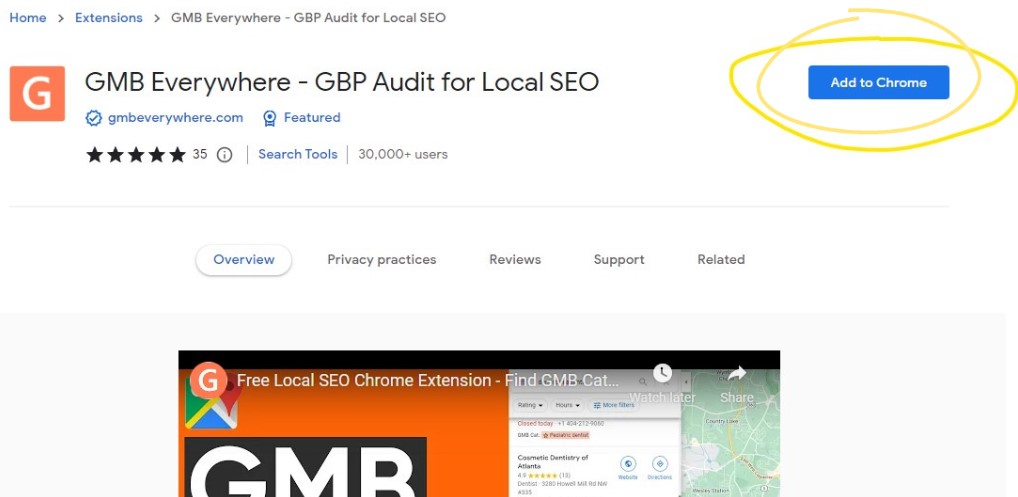
The Chrome Web Store page for GMB Everywhere — click Add to Chrome to install.
Step 2: Search for Your Competitor
After installation, go to maps.google.com and search for your competitor's business.
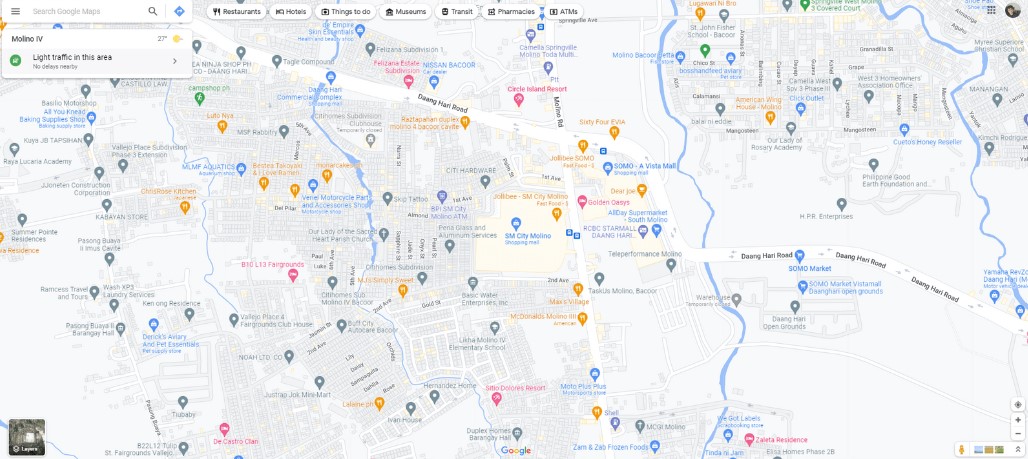
Search for the competitor's business name on Google Maps.
Find the business in the left-hand search results pane and click the Review Audit button.
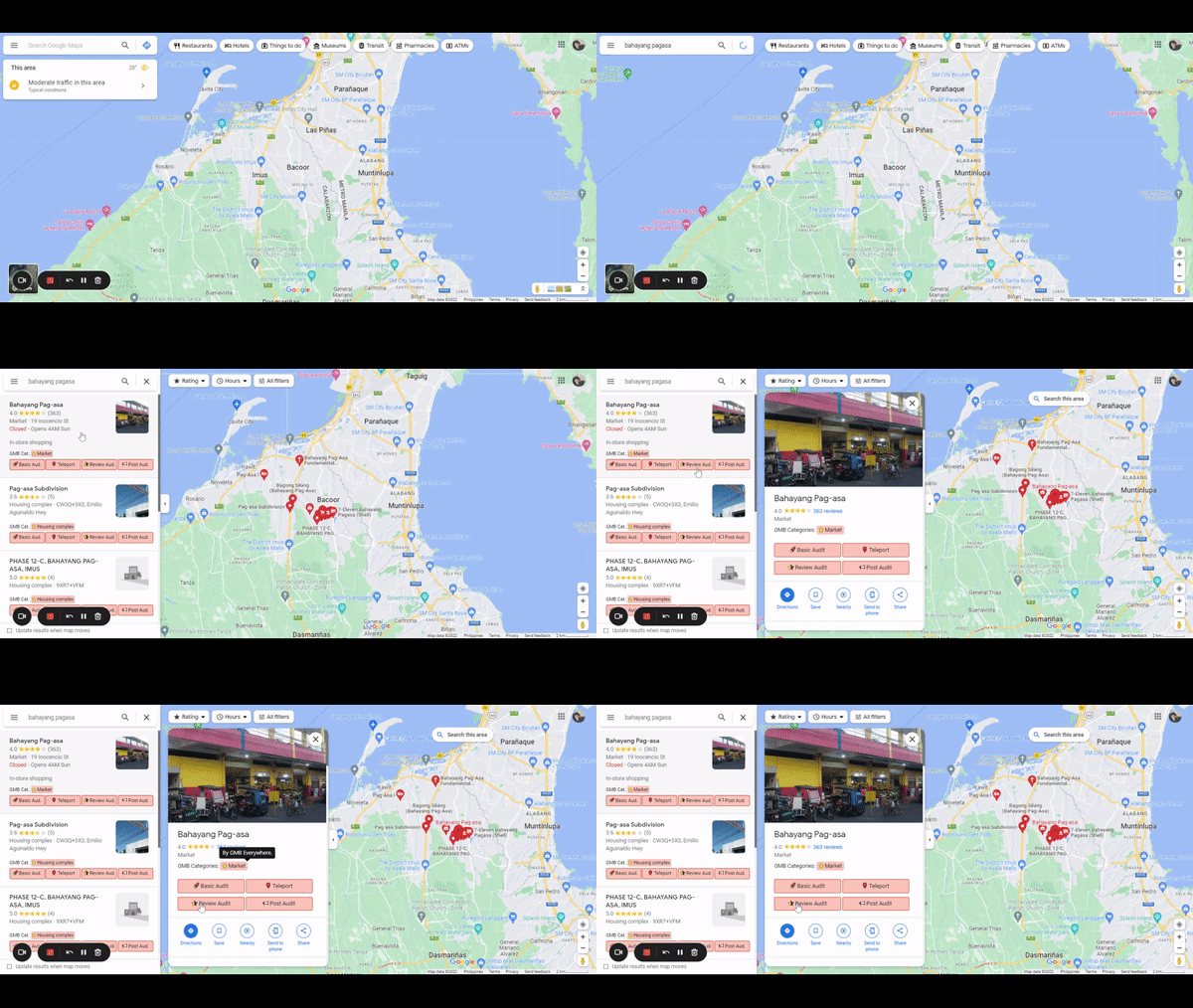
Click the Review Audit button in the search results panel.
Step 3: Review the Audit Results
A new tab will open and begin analyzing the business's Google Reviews. Wait on this tab until the processing is complete.
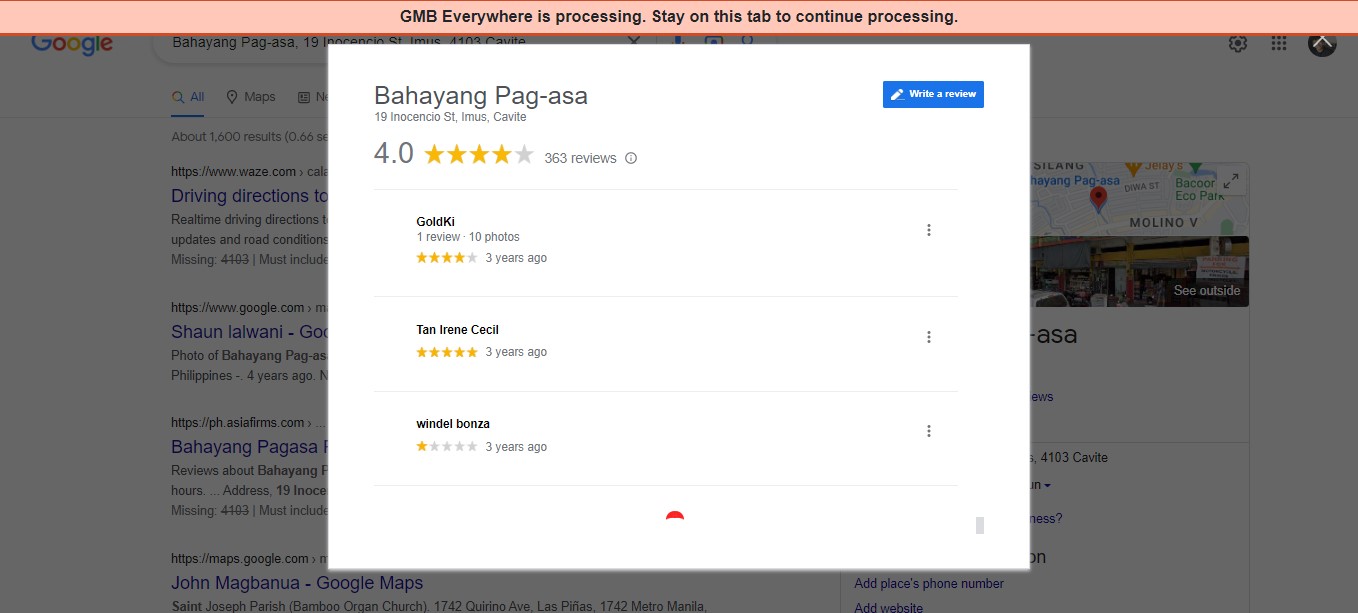
The extension automatically analyzes the business's Google Reviews.
Once processing is complete, the GMB Everywhere Review Audit page will appear. GMB Everywhere analyzes the latest 600 reviews of the business.
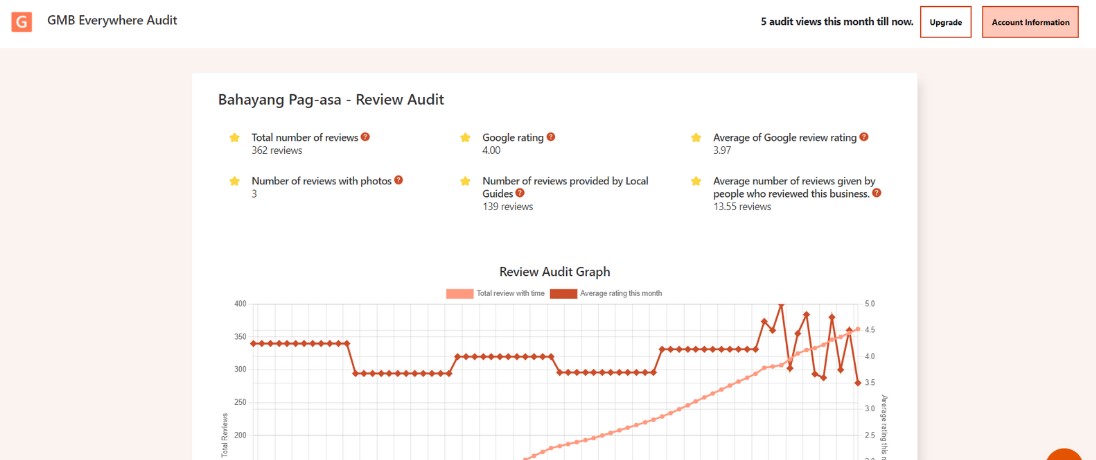
A sample of the Review Audit results page.
At the top of the page you'll see summary data for the business, including:
- Total number of reviews
- Number of reviews with photos
- Google rating
- Number of reviews from Local Guides
- Average Google Review rating
- Average number of reviews given by each reviewer
In the middle of the page, the Review Audit Graph shows the trend of reviews and ratings over time. You can click the legend at the top of the graph to focus on specific data. The trend line tells you how actively the competitor is collecting reviews.
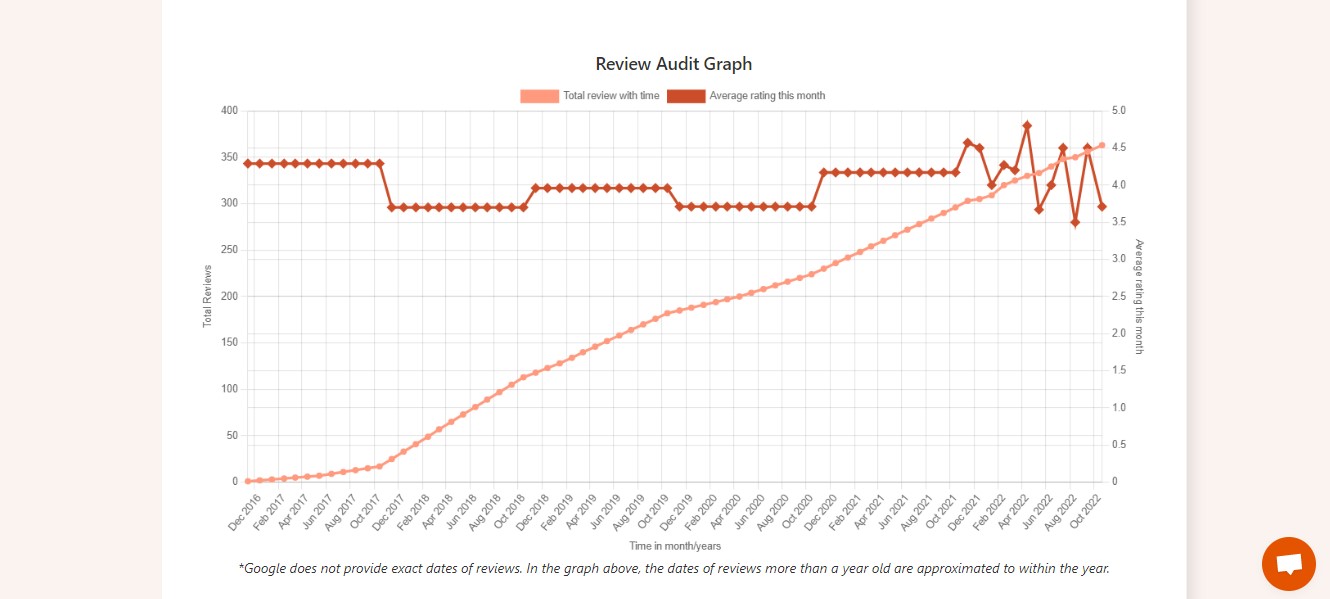
The Review Audit Graph shows the trend of reviews and ratings over time.
At the bottom of the page, the Review Keyword Analysis shows the most commonly used words across the business's reviews. This gives you a clear picture of how customers perceive the competitor and what topics come up most often.
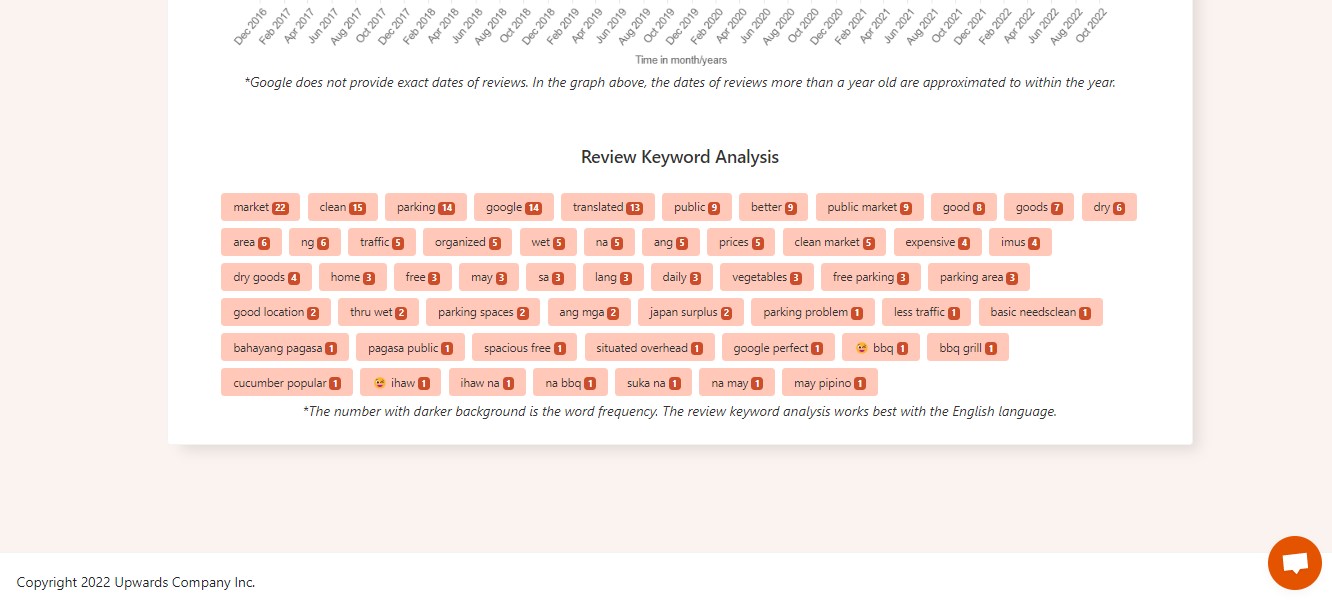
The Review Keyword Analysis shows the most commonly used words in customer reviews.
Video Tutorial
Conclusion
By checking these details about your competitor's review section, you can spot improvement strategies for your own business operations and strengthen your online presence. The goal is to understand what customers value in your competitors so you can do it better.
Want to go deeper on reviews? Check out our guide on how to spot fake reviews on Google Maps, or browse our full guides section for more local SEO tips.