The GBP AI Visibility Checker is a one-time check you can repeat. Pick the same listing, write down Searched for, and compare only runs where that topic matches. Free accounts get 5 searches for the life of the account.
A Maps rank tracker tells you where the pin sits. This check tells you whether ChatGPT and Google AI Mode name you when someone asks for a local recommendation. Google still asks you to keep Business Profile details current, and the GBP AI Visibility Checker is how you see if those two engines already use your listing.
If you also want the Maps number, you can see your GMB ranking at a particular location. There is no saved history in the tool, so write down the date, listing, and the Searched for topic. The topic can change between runs.
Pick your listing, run the search, and read both engines plus the Searched for line. That is the whole job.
Listing
Your Google Business Profile
Find your business first. Type the name and pick the right profile.
Topic
What customers should find you for
The tool chooses the topic when you run. The report shows it as Searched for.
Two engines
Google AI Mode and ChatGPT
The form runs both automatically, so you do not have to open two tabs.
Here’s how to use it.
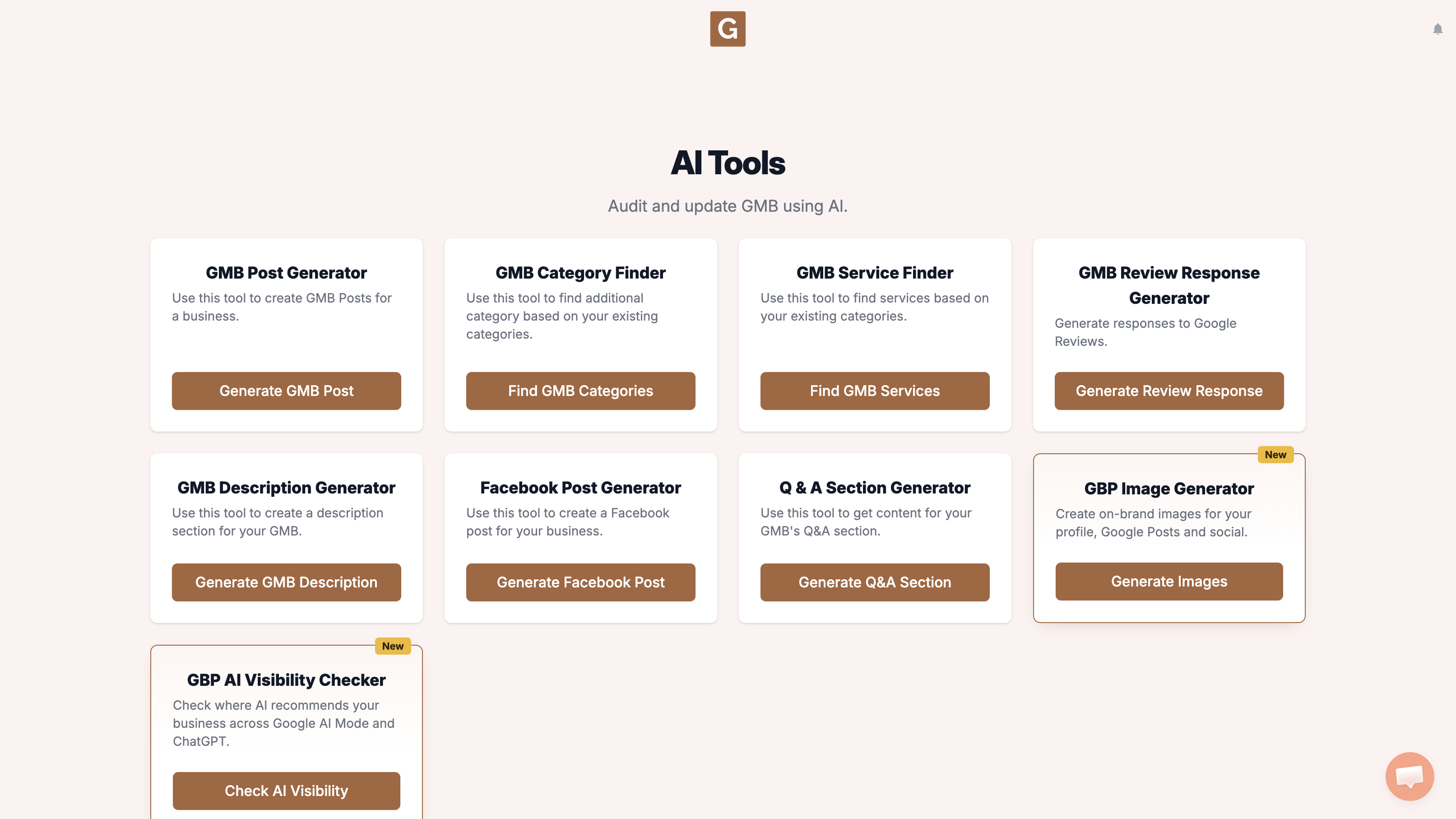
Open GMB Everywhere AI Tools and find the card titled GBP AI Visibility Checker. It says it checks where AI recommends your business across Google AI Mode and ChatGPT. Click Check AI Visibility.
Type your business name and click the right listing. There is no topic field. The tool chooses the search topic when you click Run visibility search.
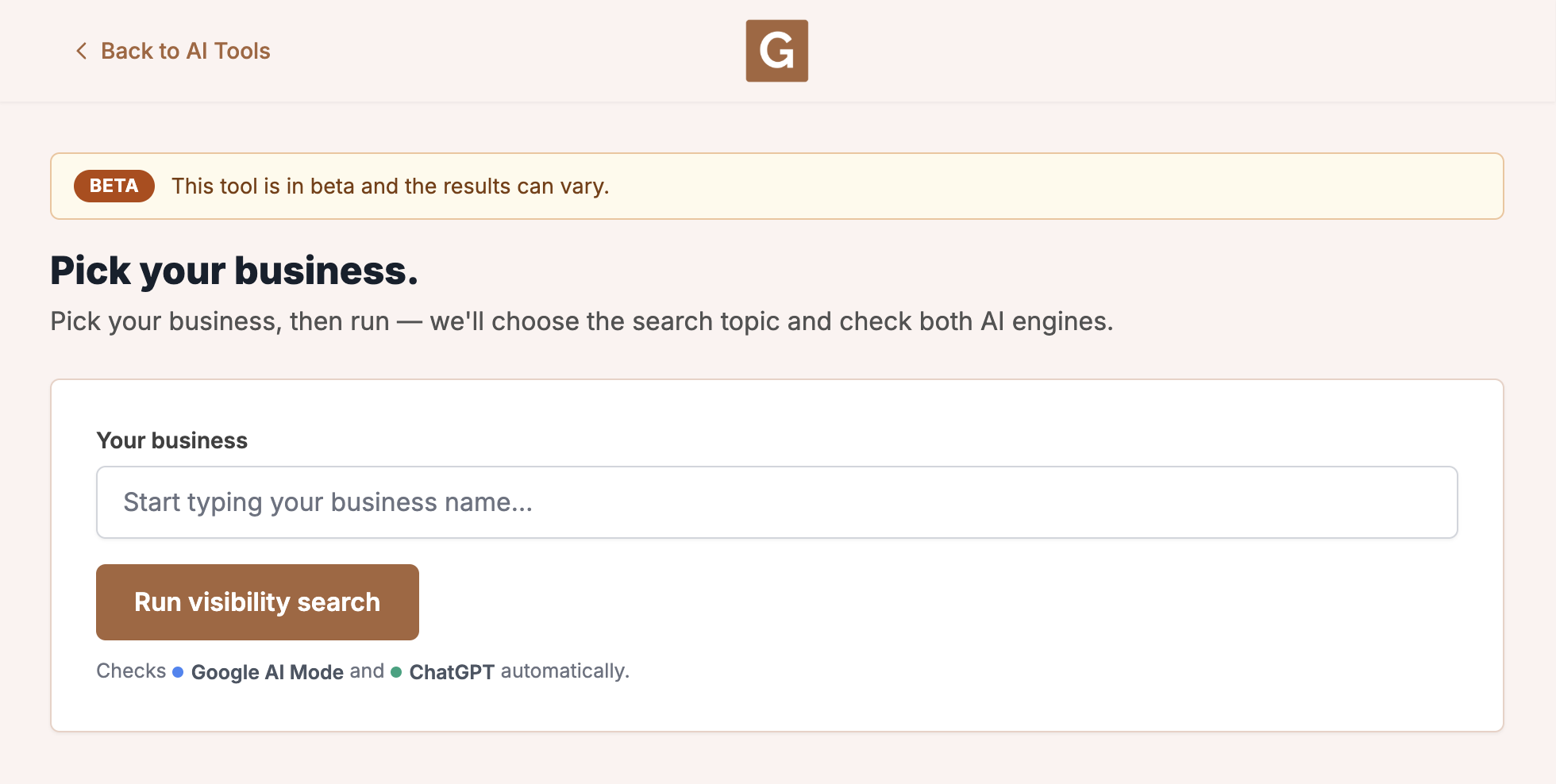
Click Run visibility search. The tool chooses the topic, then checks Google AI Mode and ChatGPT. Stay on the page until it finishes. The report shows that topic as Searched for.
What you’re looking at
This run checks Google AI Mode and ChatGPT. It is not your Maps rank, and it does not check AI Overviews, Gemini, or other chat tools.
Write down the listing, the Searched for topic, and the date. Compare later only when that topic matches. A Google Business Profile audit sits beside this when you also need to see what is missing on Maps.
What people try first
What actually helps
Do I need the Chrome extension?
No. The checker is on the GMB Everywhere AI Tools page. The extension still helps you audit the same listing on Maps.
Can I pick my own search topic?
No. The tool chooses the topic when you click Run. Write down Searched for, and compare only runs where that topic matches.
Does this tool save a history?
No. Repeat the same listing when you want a new dated check, and keep your own notes.
Complete suite of professional tools for Google Business Profile management
How to use:
Open any business on Google Maps - primary and secondary categories display automatically beside the profile
Features:
How to use:
Search for any term on Google Maps - click the Local Scan button to compare all GBPs
Features:
How to use:
Open any business on Google Maps - click the 'AI' button beside the GBP to use AI features
Features:
How to use:
Open any business on Google Maps - click the 'Find more' button beside categories
Features:
How to use:
Open any business on Google Maps - click the 'Basic Audit' button beside the GBP
Features:
How to use:
Open any business on Google Maps - click the 'Review Audit' button beside the GBP
Features:
How to use:
Open any business on Google Maps - click the 'Teleport' button beside the GBP
Features:
How to use:
Open any business on Google Maps - click the 'Post Audit' button beside the GBP
Features:
How to use:
Open any business on Google Maps - click the 'Website Audit' button beside the GBP
Features:
Join thousands of agencies and businesses using GMB Everywhere daily
Join 250,000+ users who use GMB Everywhere to analyze competitors and optimize their Google Business Profiles
Install GMB Everywhere - It’s Free